Send a Page
You send work order-related pages with the Pager module through the Work Order Edit screen. This is accomplished with the Pager button on the Work Order Edit screen's toolbar, which will launch the Pager window.

If a user does not have permission to access the Pager screen, then the Pager button is disabled.
To send a page
-
In the Work Order Edit screen, click the Pager button.
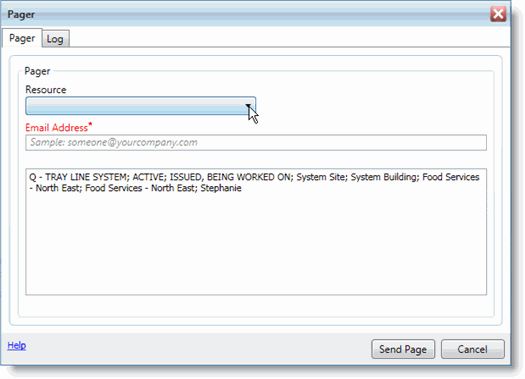
The Pager screen opens.
-
From the Resource Number drop-down menu, select the Resource Number.
TMS automatically completes the Email Address with the Pager Email field entry from the Resource master. The Resource doesn't appear in there is no entry in the Pager Email field on the resource's record. (See the Setting Up Resource Records for Pager topic for more information.
-
If the resource you want to page isn't in the Resource list, or you want to page additional people not assigned to the work order or people just not in the drop-down menu, you can manually enter the email address in the Email Address field.
Email Address is the only required field on this screen. It must be filled before you can send a page.
Separate multiple email addresses with a semicolon. For example: [email protected]; [email protected].
The content of the page that will be sent is shown the textbox below the Email Address field. If necessary, add more information to the page.
-
Click the Send Page button.
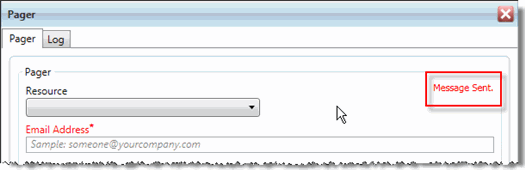
Invalid Email Addresses
TMS has no way of knowing if the email address you entered is valid. The mail server will accept emails sent to invalid email addresses in most cases and return a send receipt to TMS. The "Message Sent" note you see after you click Send Page only means that the mail server accepted the email page. Verify the email address you are sending your pages to before clicking Send Page, to ensure that the party you are trying to page receives the emailed page.
The Pager Log Tab
The Log tab in the Pager window shows a list of all pages sent from this work order record's Work Order Edit screen, with the email addresses that the page was sent to, the message that was sent, whether or not the page was successful, if the page is still pending, and the date the page was created. To view the log of previous sent pages, open a work order in Work Order Edit, click the Pager button in the toolbar, and click the Log tab in the Pager window.