UMDNS Device Codes in the Assets Module
Using the UMDNS Device Codes you retrieved at the beginning of this section, you can create new Asset Category and Sub Category codes in your TMS database. This will allow you to standardize your asset categories and sub categories. This is accomplished in the Assets module while creating a new asset or modifying an existing record.
To create asset Category and Sub Category codes from UMDNS device codes, follow the steps below:
-
If creating a new asset, select Assets > New; if modifying an existing asset, select Assets > Edit.
-
Enter a valid Asset Number and select a form to use (if necessary).
-
Enter an Asset Number and Description.
-
If you want to add a vendor using the Sourcebase database, then click the ECRI button next to the Manufacturer Lookup button.
Follow the instructions provided in the Using Sourcebase Manufacturers in Assets topic.
-
Do not select a Category or a Sub Category.
-
Click the ECRI button next to the Sub Category field.
The ECRI UMDNS Code Lookup page opens.
-
In the Search by drop-down menu, there are three options for you to use to query for a UMDNS device code. Select Keyword(s).
- Keyword(s) - Search for UMDNS device codes by keyword.
- Manufacturer Code – Search for UMDNS device codes by typing in the manufacturer’s Sourcebase code.
- UMDNS Code – Search for UMDNS device codes by typing in the correct UMDNS device code. The Search for child codes check box and the Search for parent codes checkboxes allow you to search for related UMDNS device codes (parent and child).
-
In the Search box, enter your search criteria, for example, "microscope."
-
Click Search.
TMS lists UMDNS device codes and names
-
Click Edit in the ro;w next to a UMDNS device code to open a ;window that contains detailed information about the device code
-
Double-click a device code in the list to use it as an Asset Sub Category.
- If you double-click a device code which exists as a Sub Category code in the TMS database, TMS enters the Sub Category code (and its Category code) on the Asset Create page.
- If the Sub Category you selected is used by more than one Category code, then TMS prompts you to indicate which Category to use.
- If the device code you selected does not exist as a Sub Category code in the TMS database, then you are presented with the New UMDNS Sub Category Code page.
-
For this example, we'll assume that you selected a device code which does not exist as a Sub Category code in the TMS database. In the Code Setup screen, click New next to the Category drop-down menu.
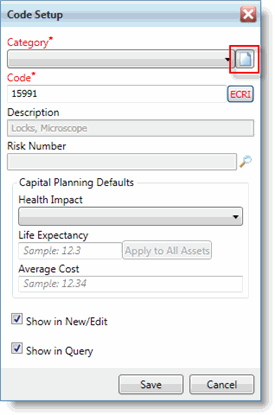
-
In the Category Codes screen, select a Risk Strategy and complete the Code and Description fields.
Clicking on the ECRI button next to the Code field launches the ECRI UMDNS Code Lookup page. Use this if you want to use a different UMDNS device code for the Category Code.
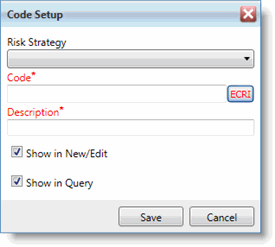
-
Click Save when you are finished.
The New UMDNS Sub Category Code page opens.
-
Complete any of the optional fields: (Risk Number, Capital Planning Defaults)
-
Click OK.
The ECRI UMDNS Code Lookup page appears.
-
Close the ECRI UMDNS Code Lookup page.
The Asset Create page appears. The Category drop-down menu contains your newly created Category code and the Sub Category drop-down menu contains the UMDNS device code you selected above.
-
Complete the remaining required fields and any optional fields in the Asset Create screen and click Save.
The screen shot below shows the ECRI UMDNS Code Lookup screen with the results of a Keyword search on "microscope."
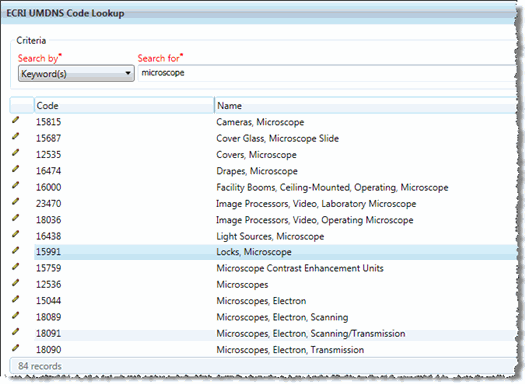
The screen shot below shows the child window that contains detailed information about the ECRI UMDNS Code when you click Edit in the list. If the UMDNS device code isn't in use as an Asset Sub Category code, then click Add to create a Sub Category code based on this UMDNS device code.
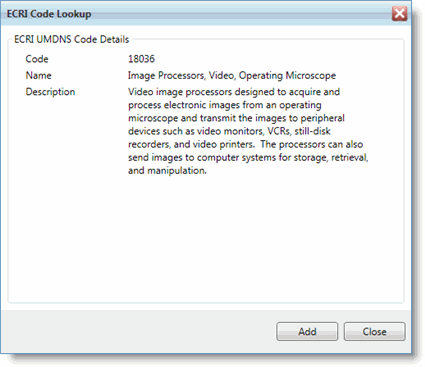
Creating vendors using Sourcebase manufacturers and creating Asset Category/Sub Category codes from UMDNS device codes is also available in the Asset Mass Edit Wizard.
For additional information, see Sourcebase and UMDNS Code Search Tips.