Edit an Asset
Asset Edit takes you directly to an asset if you know the asset number.
To edit an asset, follow these steps:
-
Click Asset Edit on the TMS Today screen.
-
Enter the Asset Number of the asset you want to edit.
-
Click OK. You are presented with the Asset Edit screen.
-
You can edit the information in these fields as necessary.
-
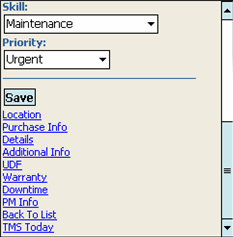
Scroll down to the list of links to other screens you can use to navigate to any of the these screens to edit them, or you can click Save to save the changes you've made on the main screen and click TMS Today to exit Asset Edit.
-
For the purposes of this topic, we'll click Location.
-
This opens Location Information screen where you can enter or modify information as necessary.

-
When you are finished editing the asset, click Save to save your changes.
The PM Info Link
As you will notice in the screen shot above, there is a PM Info tab. Clicking this link allows you to be taken to a list of current PM schedules associated with the asset. You can edit an existing PM schedule. You can also add a new PM schedule.
See the Creating and Editing PM Schedules topic for more information.