Setting Up Inspections
The Inspection module allows users to actively monitor their daily routine to ensure the property is maintained to the highest possible standard. This document will provide a description of the essential steps needed to set up an Inspection. This is an overview of the steps needed to create an Inspection and does not cover all aspects of the Inspection module. For information on additional administrative aspects of the Inspection module, refer to Inspection Admin.
Inspection Scoring Types define how inspections are scored. Scoring can be Pass/Fail, 1 to 4, 1 to 5, and so on. When working with Inspection Scoring Types, keep in mind that the Value will determine the order in which scoring items are displayed.
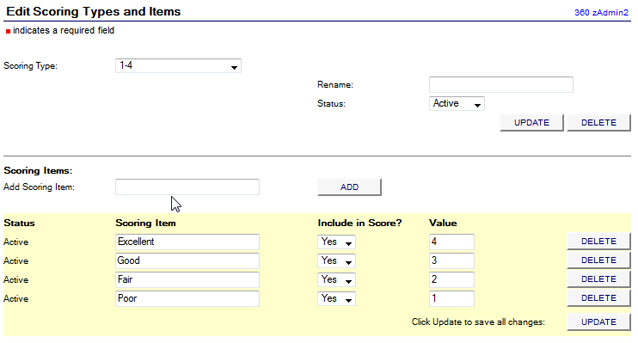
See Inspection Scoring Types for more information.
Inspection Classes and Types answer the following questions:
- What are you inspecting?
- What is the global picture?
- Is this class asset based where readings will be recorded?
- Do you want to set the initial score?
Some installations, when doing pass/fail inspections, default the initial score to Pass and to speed up the process.
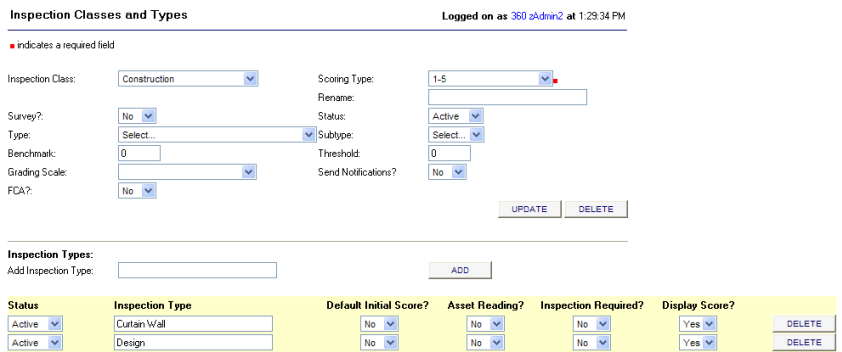
Only one inspection can be attached to a work order using basic scheduling. If you need to attach multiple inspections to a work order you can do so using Task-Based Scheduling.
You can set the following values:
- Survey Flag – This flag is used to indicate that this inspection represents a client survey. Unless you are creating a customer satisfaction survey instead of an inspection, select No.
- Type/Subtype – These fields are used to specify the type of corrective work orders to generate in response to a poor inspection score.
- Benchmark – This value indicates the goal score against which this will inspection be measured. This value is displayed on the inspection dashboard.
- Threshold – This value sets the score threshold where notification of a poor score should be sent.
- Send Notification – This value is used in conjunction with the Threshold to indicate whether to send out poor performance notifications. If set to yes, you must set up the rules for sending out inspection notifications.
See Inspection Classes and Types for more information.
Inspection Items list the items being inspected. This should be a global list of all items that could be placed on inspections.
- Display Instructions – Defines specific instructions on how to score an item. These can make the inspection very lengthy and cumbersome, so use sparingly.
- Weight – Does this item have more importance than other items that will be on the inspection. Default is set at 100 so all items are scored equally.
- Area Type – Used to group items together for ease of use and reporting. Area types are often used in janitorial inspections.
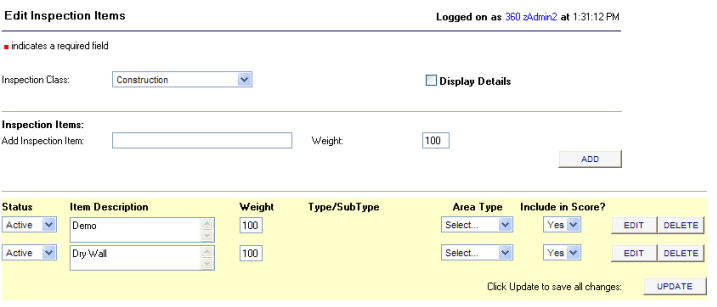
See Inspection Items for more information.
- Select the Inspection Class and Inspection Type.
- Select which Inspection Items will be associated with this type. The Tab order will cause the items to display in a set order. If tab order is not used, the items are, by default, displayed alphabetically.
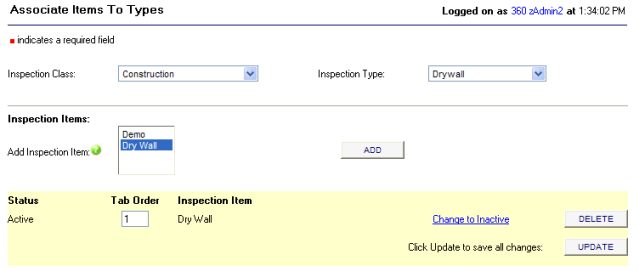
See Associate Items to Types for more information.
Inspection Conditions are short descriptors that quickly describe the condition or action that may be needed. For an inspection to function correctly, at least one (1) Inspection Condition is required. Using "N/A" will satisfy this requirement.
See Inspection Conditions for more information.
 Inspection Scoring Types