Replace Assignments on Multiple Work Orders with the Assignment Wizard
To replace assignments on multiple work orders with the Assignment Wizard, follow these steps:
-
Use the WO Edit or Query feature to retrieve the work order(s) that you want to assign.
-
Click the Work Order Assignment Wizard button in the toolbar.
The Work Order Assignment Wizard opens.
-
Click Next.
-
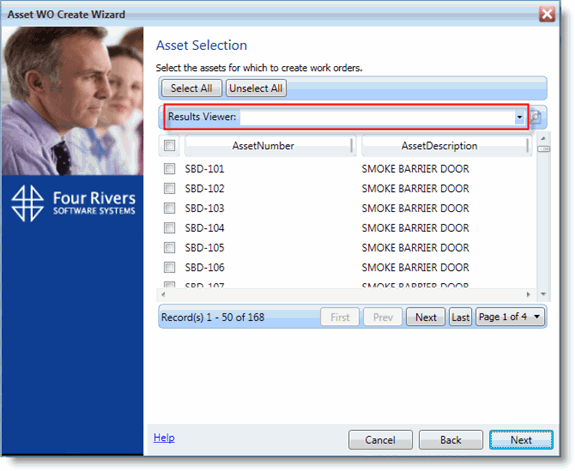
Select the work order(s) that you want to assign to a resource.
To re-sort the work orders, click the Results Viewer drop-down menu and select a report in the list.
-
Click Next.
-
In the Assignment Selection screen, select Replace Resource.
-
In the New Resource list, select the resource to assign to the work orders.
-
In the Old Resource list, select the resource to replace.
-
Click Add to Grid.
-
If you want to replace additional resources, select another pair of resources from the New Resource and Old Resource lists, and click Add to Grid.
Repeat for each addition resource you want to replace.
-
Click Next.
-
Click Assign to replace the assignments on the work orders.
-
Click Close to close the Assignment Wizard.
-
Click the Complete tab to verify that your assignments have been replaced.