Use the Work Order Transfer Wizard
To reach the Work Order Transfer wizard, click the Work Order Transfer button on the Work Order Edit screen.
In order to perform the procedures below, you must have Admin permissions for the Work Order Edit screen. If you do not have Admin permissions, the Work Order Transfer button will appear disabled in the Work Order Edit toolbar, and you'll be unable to access the Work Order Transfer wizard.
-
Retreive the work order you need to transfer, either with Work Order Edit or Work Order Query.
-
When you have reached the Work Order Edit screen for the work order you want to transfer, click the Transfer Wizard button in the toolbar.
The Welcome screen opens.
-
Click Next to move forward in the wizard.
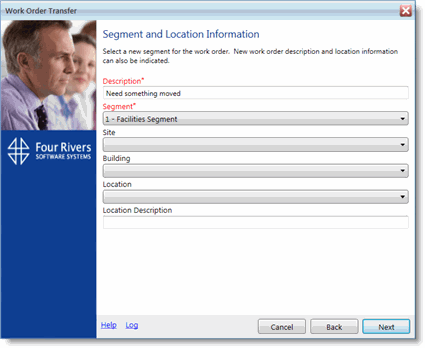
In the next screen, you are shown the Description, Segment, and location fields.
-
Select the new Segment for this work order from the drop-down menu.
-
Update any or all of the remaining fields as is necessary.
-
Click Next.
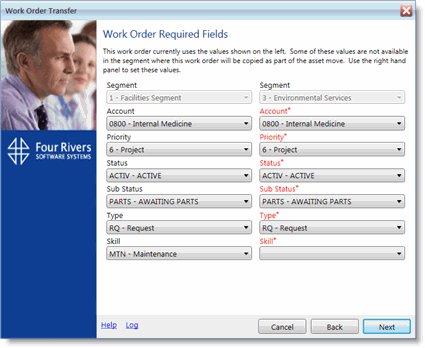
The work order is validated to make sure that the work can be transferred and then the Work Order Required Fields screen opens.
If any of the codes for the required work order fields are not available in the new segment, the field will be blank.
-
Fill in any blank fields and update any of the other required fields as necessary.
-
Click Next.
-
On the Confirm and Execute Changes screen, confirm the details of the transfer.
-
When you're ready to move the work order, click Move WO.
Once the process is complete, the Work Order Transfer Complete screen opens summarizing the actions that were taken and the work order's new number.
-
If you want to view the transfer log, click the Log link at the bottom of the wizard's window.
The work order's original Work Order Number and former segment are noted in the work order's Requester Comments field.
-
Click the Close button.