Set Quick Close Options
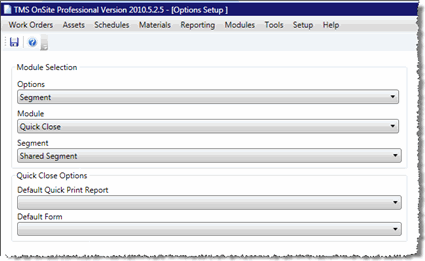
The Quick Close Options screen is reached through the Setup > Work Orders menu. There are only two options available for Quick Close: Default Quick Print Report and Default Form.
To set these options, follow these steps:
-
Go to Setup > Work Orders > Quick Close Options.
-
By default, the Options drop-down menu displays Segment. However, if you don't want to set these options for the whole segment, you can select Group and then select the specific user group for which these options should be set from the Groups drop-down menu that appears below the Segment drop-down menu.
-
In the Segment drop-down menu, verify that the correct segment is shown for the options you want to set.
-
If you want to set a specific report to be the default report that is used when the user clicks the Quick Print button while in Quick Close, select a report from the Default Quick Print Report drop-down menu.
-
If there is a specific form you want your users to utilize while in Quick Close, select a form from the Default Form drop-down menu.
-
When you're done, click the Save button to save your changes.
-
In the Confirm Save box that appears, select Yes or No, depending on your preferences.