Move a Segment
There might be times in which you want to move a segment from one position in the segment hierarchy to another. Consider one of these scenarios:
-
You want to give a user segment access to the data in a different common segment than the one it's currently placed under.
-
You want to segregate a user segment altogether by placing it directly under the System segment.
-
You want to move a common segment and all nested segments under it to be under another common segment or the System segment.
Any of the above scenarios are valid ways to move a segment. To move a segment, follow these steps.
-
Navigate to Setup > General > Segmentation Setup.
-
Select the segment you want to move.
-
Select the Move Selected Segment button.
-
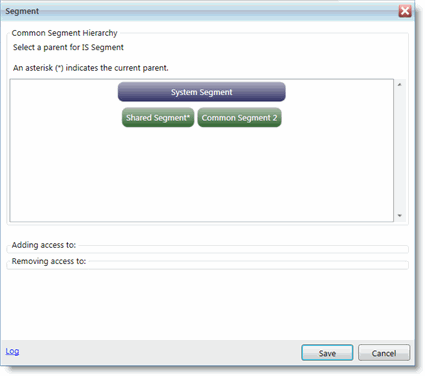
In the pop-up window, the segment that is the current parent of the selected segment has an asterisk next to its label. Select the new segment parent in the graphical hierarchy (ex. select the System Segment).
-
When you select a new parent, the Adding access to and Removing access to fields will populate with descriptions of any permissions being added and/or removed, based on the change you selected.
Click Save to commit the change or Cancel to not make the change.
When you click Save, the segment and any nested segments under it are updated in the graphical segment hierarchy.