Query Results
When TMS locates multiple records as the results of a query, or search, it presents the results as a list of records. (When only one record is returned, you are taken directly to the Edit screen for the record that was retrieved by the search.) The list of records you are presented with in this case are shown on the module's Query Results screen.
On the Query Results screen, the number of records in the results list appears in the lower-left corner of the screen. It will say something similar to "Record(s) 1 - 50 of 732".
There are a number of functions you can perform from this screen:
- Open a record in Edit mode.
- Print a List of Results or a Single Record
- Return to the Query screen with the Query Back button.
- Group and filter the results in the list.
- Resize the columns in the list.
- Change the sort order of the results.
Sorting and grouping the data in the Query Results will not have an effect on how the data displays when the results are printed.
Open a Record in Edit Mode
To open a record in Edit mode, locate the record to open in the query results list. Double-click the record in the list. The record is opened in Edit mode.
Return to the query results list at any time by selecting the List tab.
Print the Results List or a Single Record
There is a difference in the behavior of Quick Print that is dependent upon which screen it is clicked.
If you click Quick Print on the Query Results screen, the list of results can be printed.
If you open one of the records listed in the Query Results and then click Quick Print while in the module's Edit mode, the single record can be printed.
The Query Back Button
Query Back is available on all Query Results screens, as well as all Edit screens when coming from a query screen. Query Back allows you to return to the query screen with all of your search criteria still in place. This is useful if your query did not return the results you expected and you would like to modify your search without having to rebuild your criteria from scratch.
Group and Filter the Query Results
Above the list of query results, there are Group By and Filter drop-down menus, as well as a text box with Go next to it. These drop-down menus and this text box allow you to sort and filter the results of your query.
Group By
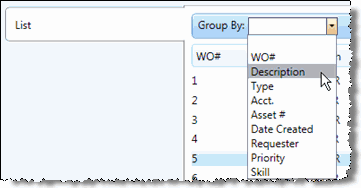
The Group By drop-down menu allows you to select a column by which the query results can be sorted.
Filter
The Filter drop-down menu and text box allow you to filter the returned query results by one of the column headings shown in the query results grid. To change the headings available in the Filter drop-down menu, click the Select Columns button to the right of the Results Viewer drop-down menu.
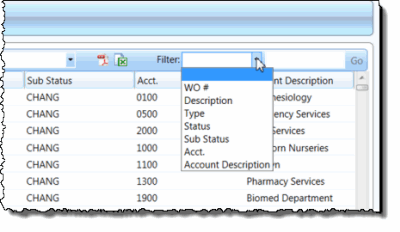
Once you make a selection from the Filter drop-down menu (for example, Status in the screen shot above) enter criteria by which to filter the results in the text box next to the drop-down menu and then click Go. For example, if you enter the wildcard criteria Active* to filter the results down to only those work orders which have a status of Active.
When you click Go, TMS filters the results, and only records with a status of Active are displayed in the query results.
If you are searching for specific results, place an asterisk either at the beginning or at the end of the search criteria. If you do not specify an asterisk at the beginning or end of your search criteria, TMS will treat the entire word as a wildcard and will locate all of the results that contain your search text anywhere in the results (for example, Active as in the example above).
Resize the Columns in the List
If you place the mouse cursor on the gray | at the end of a column heading label, such as Description in the screen shot below, you will notice that a double arrow appears.
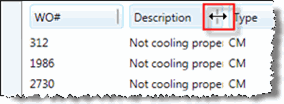
If you click and drag the | to the right or left, you can stretch or shrink the width of the column, so you will see more or less of the columns contents.
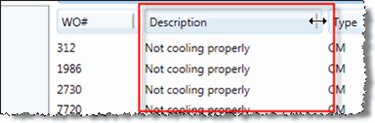
The column width in the grid is set according to width specified in the View data source. When you make changes to the column width in the query results screen, those changes will be reflected on the data source.
Change the Sort Order for the Query Results
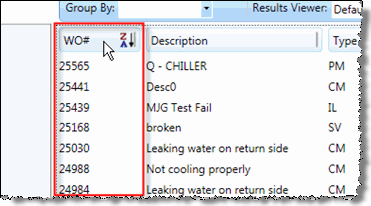
To sort by a particular column heading, click the heading label. For example, if you click WO# once, the results will be sorted by the Work Order Number column in ascending order (indicated by the AZ next to the column label).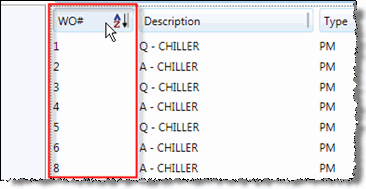
If you click the label again, the results will be sorted in descending order (indicated by the ZA next to the column label).