Detailed and Summary List Data Sources
When you want a data source that produces a list with multiple columns or a summary column, such as a count of work orders, create a Detailed List or Summary List data source. The procedures for both types are very similar and are included within this single topic.
Detailed List
For this example, create a data source that retrieves work orders and their material costs, then ranks them by the cost. To do so, follow these steps.
-
Go to Data Sources > New.
-
Enter a Name for your data source, such as "Work Orders by Cost".
-
Enter a Description for the data source, such as "Work Orders Ranked by Cost".
- In the Segment drop-down menu, select the segment in which this data source should appear.
- In the Type drop-down menu, select Detailed List.
-
Select the Module. We will select Work Orders.
-
Select the Category. We select Management Reports.
-
Select the Sub Category drop-down menu. We select Monthly Management Reports for our data source.
- In the Status drop-down menu, select ACTIVE.
-
If you want to select a Saved Query or check the Use On-The-Fly Ad-Hoc Query option, you can do so. Leave these blank for this example.
-
Click Save.
-
When the screen changes to the Data Source Edit screen, select the Data Source Editor tab.
-
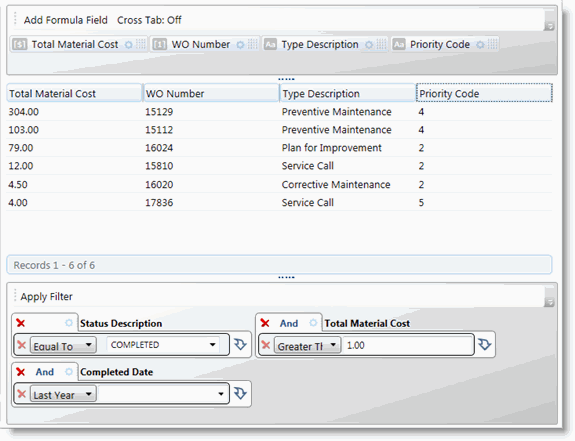
Add fields to the Column Area drop zone to make up your data set criteria. For this example, select these fields:
-
Total Material Cost (from Summary Data)
-
WO Number (from Common Fields > Required)
-
Type Description (from Common Fields > Required)
-
Priority Code (from Common Fields > Required)
-
-
If necessary, add fields to the Filter By Area drop zone. Select these fields, with the following criteria:
-
Click Apply Filter, if you added filter fields.
-
Finally, set field options as necessary. Select Descending for the Sort By option in the Options menu for the Total Material Cost column.
-
Click Save to finalize the data source.
If you followed this example, with the same fields and criteria, your Data Source Editor tab looks like this:
|
Field |
Condition |
Criteria Value |
|---|---|---|
|
Status Description |
Equal To |
Completed |
|
Total Material Cost |
Greater Than or Equal To |
1.00 |
|
Completed Date |
Last Year |
N/A |
Summary List
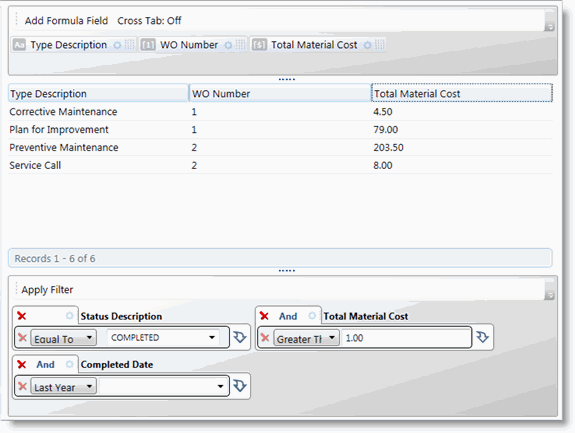
For this example, create a data source that retrieves work orders with material costs, sorts by the Type code, and gives the average cost by Type.
-
Follow steps 1 through 10 above. Make the following adjustments:
-
Description = Avg Work Order Cost Ranked by Type
-
Type = Summary List
-
-
Click Save.
-
When the screen changes to the Data Source Edit screen, select the Data Source Editor tab.
-
Add fields to the Column Area drop zone to make up your data set criteria. For this example, select these fields:
-
Type Description (from Common Fields > Required)
-
WO Number (from Common Fields > Required)
-
Total Material Cost (from Summary Data)
-
-
If necessary, add fields to the Filter By Area drop zone. Select the same fields and criteria to filter this data source as the one above.
-
Click Apply Filter, if you added filter fields.
-
Finally, set field options as necessary. Select Count as the Summary Function option for the WO Number field and Average as the Summary Function option for the Total Material Cost column.
-
Click Save to finalize the data source.
If you followed this example, with the same fields and criteria, your Data Source Editor tab looks like this: