Form Import
The Form Import wizard allows you to import custom forms into the TMS database you're currently logged into, from either a local Library file (.frl) or from the Library on the Customer Care Center. To open the wizard, follow these steps.
-
Start by going to Tools > Data Maintenance > Forms > Form Import.
-
The Welcome screen. Click Next.
-
On the Choose Import Source screen, select the source to use for importing:
-
Library on the Customer Care Center
-
Local FRL File
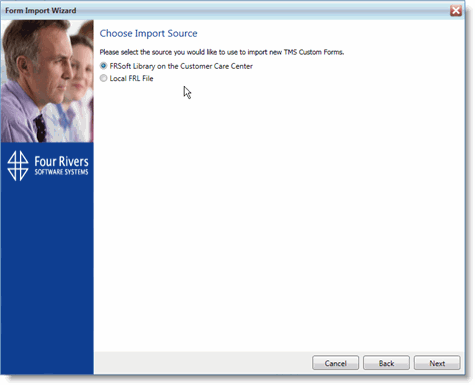
If you select the first option, you are taken directly to the Select Forms to Import screen. If this is the first time that you have selected the option, Library on the Customer Care Center, then you will be prompted to login to the Customer Care Center. The application then associates the user who is logged in with the CCC user. After the first time, you are no longer prompted to login to the CCC.
If you select Local FRL File, however, you are taken to the Select Source File screen first. Click the Lookup icon, navigate to the local Library file to use as the import source, and double click it. Then, click Next.
-
-
On the Select Forms to Import screen, expand any available nodes and select the forms you want to import.
If you are importing forms from the Library on the CCC, you can use the Search Text field to search for forms that contain specific text, or you can use the Tag drop-down menu to see all forms with a specific tag associated with them. Forms with a tag or tags associated with them will have the tags listed to the right of the forms list when you click the form's name.
Regardless of the source file method you chose, you will be shown the form's Description and a Preview button when you click the form's name in the list. Clicking the Preview button opens a preview of the form in another window.
-
When you have chosen all necessary forms to import, click Next.
-
On the Set Imported Form Details screen, you can rename any of the forms you have selected to import by modifying the name shown in the Form Name field.
-
If you need to change the segment that a form will be imported into, select a different one from the Segment drop-down menu.
-
Click Next.
-
The Form Import Summary screen lists the forms you are importing and shows each form's name, associated module, and the segment it will be part of. Click Import to start the import process.
-
Once the process completes, a summary screen opens showing any errors that took place during the import process. Click Close to exit the wizard, or Start Again to restart the wizard.