Form Export
The Form Export wizard allows you to export existing forms available in the TMS database you're currently logged into, for the purpose of importing them into another TMS database. To open the wizard, follow these steps.
-
Start by going to Tools > Data Maintenance > Forms > Form Export.
The Welcome screen opens.
-
Click Next.
-
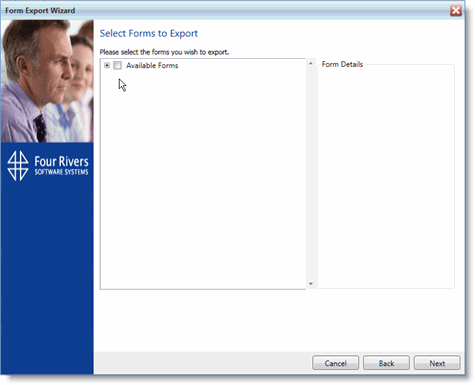
On the Select Forms to Export screen, expand the Available Forms node by clicking the plus (+) sign next to the label.
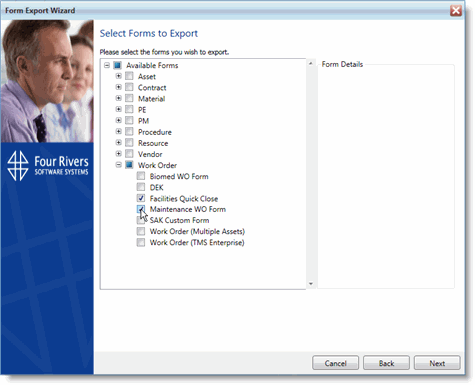
The forms available for export within the current database are listed by module.
-
For this example, expand the Work Orders module node and select two of the forms in the list.
-
To see a description of one of the forms, click the Form Name.
The Description field will appear on the right side of the Available Forms pane. The Preview button that appears above the Description field opens a preview of what the custom form looks like.
-
Click Next once you've selected the forms you want to export.
-
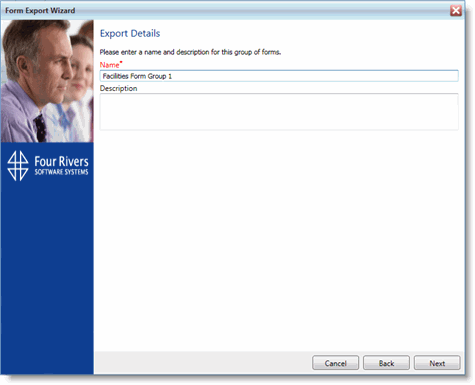
On the Export Details screen, enter a Name for this group of forms you are exporting.
This is true even if you are only exporting a single form.
-
Enter a Description of this group of forms to export, if necessary.
-
Click Next.
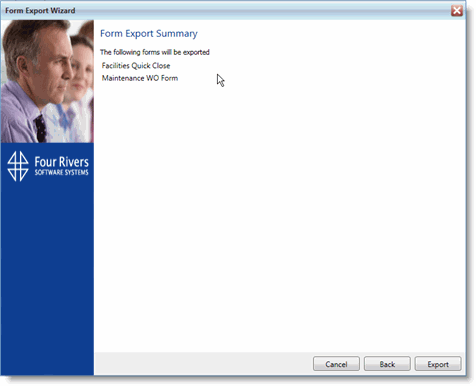
On the Form Export Summary screen, a list of the forms you have chosen to export appears.
-
If you are ready to export the forms, click Export.
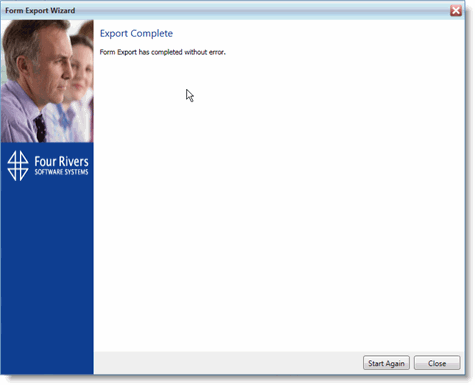
Once the wizard completes, the Export Complete screen opens. If any errors occurred during the export process, they will be listed.
-
Click Close to exit the wizard, or Start Again, if there are additional forms you want to export.