Customize User Defined Field Labels
User Defined Fields (UDFs) are specific for each module, and can be associated with another code that is chosen on the form. In the following example, you will customize a user defined field label for the Work Orders module.
The procedure for modifying a UDF label is similar for every module; the only difference is the code types that are available.
To customize a user defined field label, follow these steps:
-
From the Setup menu, select [Module] > User Defined Fields.
In this example, you will select Setup > Work Orders >User Defined Fields.
The User Defined Fields Setup dialog box opens.
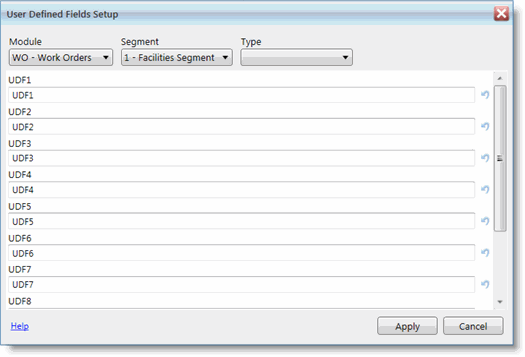
The Module, Segment, and Type are displayed at the top of the dialog box.
-
If you want to associate the custom UDF label with a specific type code, select a value from the Type drop-down menu.
By default, the Type is unspecified. If you do not specify a type when configuring a UDF's label, the label will not be associated with a specific type code.
-
Click in one of the UDF text fields.
-
Enter the label for the selected field.
-
Repeat these steps for each UDF label you want to customize.
-
Click Apply.