Assets Defaults
Using the Setup module, you can establish how TMS populates some screens. You can set up default value for fields. Then, every time a user accesses the module that you set up default values for, these fields are already populated. You can also change fonts for all users, or for a single user or group.
To setup defaults, follow these steps:
-
In the Setup menu, select Assets > Defaults.
The General Properties window opens.
-
In the Group list, select All or select a specific group.
If you want to set defaults for a specific user, select a user from the Toggle Group/User drop-down menu.
User defaults override any Group defaults.
-
To change the defaults for the entire module, click the module name in the left pane.
-
To change the defaults for a group of fields, click a field group and expand it by clicking the arrow next to the group.
-
To change the defaults for a specific field in the field group, click the field in the expanded group.
-
-
To change the font of a module, field group, or field, on the Font tab in the right pane, make a selection from the Show settings for drop-down menu.
-
Select the Font Style, Typeface, Size, and Effects.
A sample of the font you have chosen to change to displays in the Sample pane.
-
Click OK to save your changes.
Set Custom Labels and Default Values
To set a custom label or default value for a work order field, follow these steps:
-
In the left pane, expand General > Assets and the field group that the field you want to customize is part of.
-
Select the field you want to customize.
-
Click the General tab in the right pane.
-
To customize the field label, enter the new label in the Custom Label field.
-
To set a default value, enter the value in the Default value field.
-
To make this field required, check the Set Field To Required option.
-
To make this field hidden, check the Hide Field From User option.
-
Click OK to save your changes.
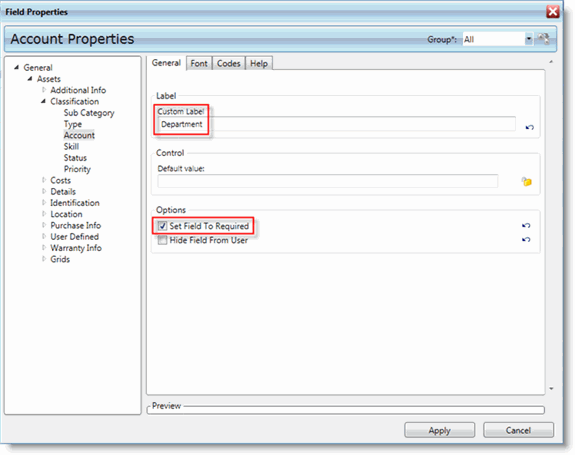
The screen shot below shows the Classification field group expanded and the Account field selected. We have customized the label to read Department. It is also required.
Review Your Changes
To review your changes, click New from the Assets menu. You are presented with your customized Asset New screen.
How to Apply Masks to Custom Fields and Web Request
If you apply a mask to a Custom Field associated with the Work Orders and/or Assets modules, note that the mask will not display on Web Request pages were the field appears.