The Contacts/Components Tab
There are three sections in the Contacts/Components tab: Contacts, Components, and Part Of. Each section is explained below.
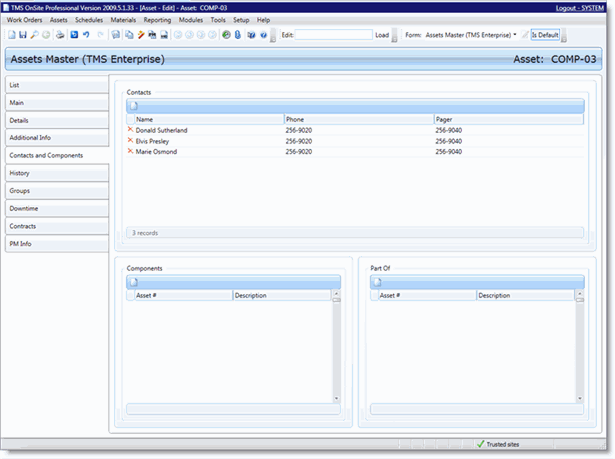
Contacts
Use the Contacts area to associate a person with your asset. Contacts are primary Resources (people) who are to be contacted if the asset needs to be repaired. Add contacts in the specific order in which they should be contacted.
In the Work Order Edit - Assignments tab, if a contact(s) for the asset is present in the Contact area, the contact(s) will carry over to the Assignments tab of the work order and you can make the Contact an Assignment. An Assignment is the person who is responsible for completing or closing the work order.
To create a new contact on your asset, follow these steps:
- To populate the Contacts area, click New. The Contact pop-up window opens.
- From the Resource drop-down menu, select a resource.
- Click Save to add your contact, or Another to add additional contacts.
Select a Contact and click the Delete button to remove the contact.
Components
Use the Components area to list any assets that are parts of the asset you are working on.
To add a new component to your asset, follow these steps:
- To populate the Components area, click New. The Component pop-up window opens.
- Type in the Asset Number or use the Lookup button to find the asset you want to add as a component.
- Click Save to add your component asset or Another to add additional component assets.
Select a Component and click the Delete button to remove the component asset.
Part Of
Part Of is the opposite of Components. Use the Part Of area to list any other assets that the asset you are working on is a part of.
To add a new Part Of to your asset, follow these steps:
- To populate the Part Of area, click New. The Part Of pop-up window opens.
- Type in the Asset Number or use the Lookup button to find the asset you want to add as a the asset that the asset you are working on is part of.
- Click Save to add the asset or Another to add additional assets.
Select an asset and click the Delete button to remove the asset.