Generate a Purchase Order
Once a requisition has line items and has been approved by someone in your organization, the requisition is ready for a purchase order to be generated from it. You can generate a PO directly from the Requisition Edit screen, but only if you have full permissions for Purchase Order Generation. To generate a purchase order, follow these steps.
-
If you are not already in Requisition Edit, go to Purchasing > Requisitions > Edit and typing in the number of the requisition to which you want to add a line item.
You can also go to Purchasing > Requisitions > Query, and search for the requisition, if you don't know the Requisition Number.
-
Verify that the Status of the requisition is Approved.
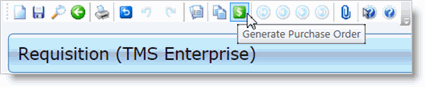
In the toolbar, you should see the green Generate Purchase Order button.
-
Click this button.
You will see a generation progress window pop up.
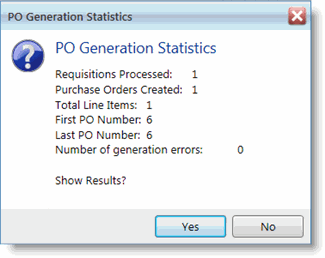
When the process is completed, a PO Generation Statistics dialog box will display the number of requisitions processed, number of POs created, the total number of line items, the PO Number of the purchase order that was created, and the number of generation errors that occurred, if any.
-
Click Yes on this dialog box to be taken to the Purchase Order Edit screen for the PO that was created. Click No to close the window and remain on the Requisition Edit screen.
For information on editing the purchase order in Purchase Order Edit, see the Purchase Order Edit topic in the Purchase Orders section above.