Generate a Manual Requisition
If there is a shortage of one or more materials in a given warehouse, rather than manually creating a requisition with these materials as line items, you can manually generate a single requisition for materials in the warehouse's inventory.To use the Manual Requisition Generation feature to accomplish this, follow these steps.
-
From the Purchasing menu, go to Requisitions > Manual Req Generation.
-
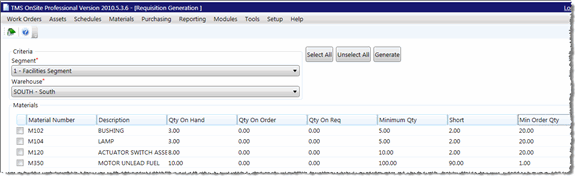
First, select the Segment that the warehouse whose inventory you want to view resides in.
-
Next, select the warehouse to view from the Warehouse drop-down menu.
-
When you select the warehouse, TMS displays a list of materials that have shortages, based on the Minimum Qty and the Qty on Hand for the selected warehouse. These items are displayed in the grid.
-
To select a material for manual requisition generation, select the check box next to it in the inventory list.
-
If you want to select all of the material items for requisition generation, then click the Select All button.
-
If you want to clear all of your selections, select the Unselect All button.
-
-
After you make your selections, click the Generate button. A generation progress window opens.
-
Once the generation process completes, you are presented with a dialog box that confirms your requisition was created. TMS generates one requisition for the material items you selected.
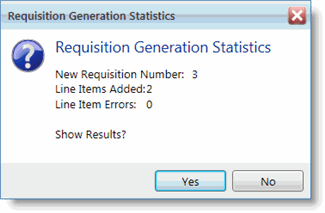
Click Yes on this dialog box to be taken to the Requisition Edit screen for the requisition that was created. Click No to close the window and remain on the Manual Requisition Generation screen.
The Error Log
You might find that Line Item Errors were generated during the Requisition Generation process and are displayed in the statistics dialog box. If this is the case, click the View Log button in the toolbar.
The View Log button launches the Requisition Generation Log dialog box. Review the log for errors.
You can truncate the log file entries by entering a number in the Remove entries greater than number of days field and clicking the Truncate Now button.
Notes About Requisitions Created from Manual Generation
The following is true of all requisitions that are generated from the Manual Requisition Generation screen.
-
The new requisition number is the next sequential requisition number.
- The requisition's description is always "Generated from Low Inventory".
-
The warehouse selected in the Warehouse drop-down menu becomes the Ship To warehouse on the requisition.
-
The Status of the requisition is Pending.
-
The Sub Status of the requisition is WAITG.
- The requisition's Date Originated and Date Updated are the system's current date.
-
The Requested By party on the requisition is not filled in on the generated requisition by default, as it would be if you created a requisition through the Requisition New screen.