Purchase Orders Created from Blankets Orders
Purchase orders that are created, or released, from a blanket order have specific rules applied to them.
-
The PO Number will always be the same as the released blanket order's BO Number.
-
The purchase order's Description will be structured as "PO Released from [BO Number] - [Change Order Number]." For example, if the blanket order's number is "3," and the current Change Order Number is "2," the PO's description will be "PO Released from BO 3 - 2".
-
The Change Order field displays the same Change Order Number as the blanket order.
-
The Release Number field displays a value one greater than the previous Release Number from the blanket order(for example, the release number is "1" on the first release).
-
Sets the new purchase order to a status/sub status of Pending/Ready.
-
Line items are not copied from the blanket order, but the line items that can be added to the PO are limited to the line items listed on the blanket order.
Add Line Items to a Released Purchase Order
-
Begin by retrieving the necessary purchase order by going to Purchasing > Purchasing > Edit, or Purchasing > Purchasing > Query and searching for the PO.
You can also go to Purchasing > Blanket Orders > Edit, or search for the blanket order in Blanket Order Query (Purchasing > Blanket Orders > Query), and then select the Released Purchase Orders tab.
-
Select the Line Items tab for the purchase order.
-
Click the New button.
You won't be able to enter an Item Number or a Description for the item.
-
Click the Lookup button instead.
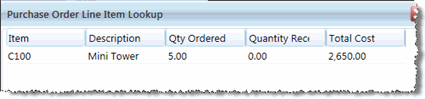
The Purchase Order Line Item Lookup opens.
-
Double-click the item you want to add to the purchase order.
-
In the Quantity field, enter the amount of this item to order on this purchase order.
-
Edit any of the required or optional fields as necessary.
-
Click Save, or Another to save this line item and add another.