Purchasing User Defined Fields
Since every organization has different needs, TMS can be customized with 10 user defined fields (UDFs) per module, to meet the needs of your organization.
First, review the Details tab on the Purchase Orders New screen (Purchasing > Purchase Orders > New). On the Purchase Orders New screen, click the Details tab. In the User Defined area, notice the label for the first field. It says UDF1. This is the default label for this field.
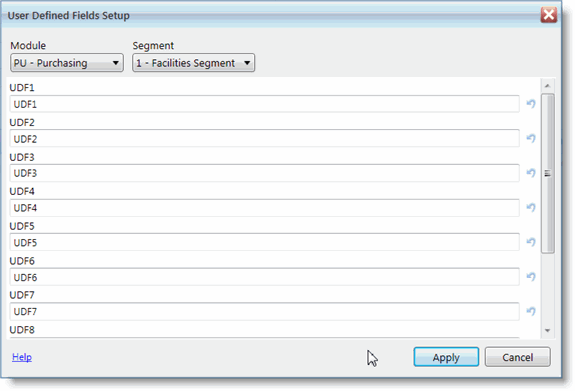
You can customize this field so that it says whatever you like.
-
From the Setup menu, go to Purchasing > User Defined Field Labels.
-
In the User Defined fields, type in your labels. You can have 10 user defined field labels.
-
Click Apply.
Review Your Changes
To review your changes, click Purchase Orders > New from the Purchasing menu. Click the Details tab. In the User Defined area, notice the labels for these fields. The labels reflects your changes.