Set Up Pager Fields
Before you can begin using the Pager module, you will need to select the work order fields that Pager will use when it sends out a new page, using the Pager Setup screen (Setup > Pager > Fields). Follow these steps.
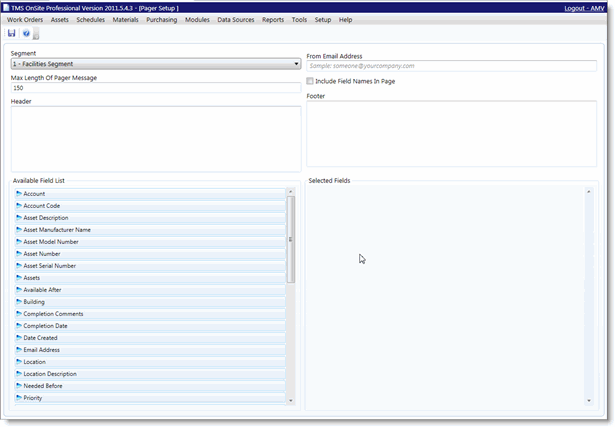
- From the Setup menu, select Pager > Fields.
- The first field on the Pager Setup screen is the Segment field. From the Segment drop-down menu, select the TMS segment for which you want to format the Pager fields.
-
Next, in the Max Length of Pager Message field, enter the maximum number of characters that each page from Pager should contain.
-
In the From Email Address, enter an email address that you would like display as the "from" address for pages, if there is a single email address you would like to use. For example, [email protected].
-
If you want to include the field names from the Selected Fields in each page that is sent by Pager, check the Include Field Names In Page option above the Available Fields List area.
-
Next, in the Header and Footer fields, if you want a header and/or footer to appear in sent pages, enter the text you want to include in the appropriate field.
- As you can see in the screen shot above, the Selected Fields list is currently blank. To select a field from the Available Field List, you can either click and drag the field from the list, or you can click the > button next to the field's name to choose the field. All of the fields in the Available Field List are from the Work Order view. These are the same fields that are available in Work Order Quick Reports.
-
When you're done adding fields, click Save.