Edit Work Orders with the Main Tab
You can reach the Main tab in Edit mode in three ways: by creating a new work order on the Main tab and clicking Save, entering the Work Order Number in the Edit field in the toolbar, or by double-clicking a work order on the Queue tab.
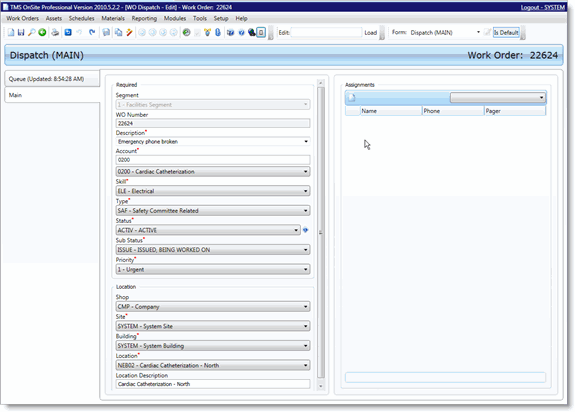
As you can see in the screen shot, the Assignments grid is now visible, since we're in Edit mode. Any of the fields can be edited, and you can also add an assignment to the work order. Follow the steps below for adding an assignment to the Assignments grid.
To edit a work order, follow these steps:
-
Work Orders > WO Dispatch
-
Either create a new work order on the Main tab or access the work order you need to edit via one of the methods described at the beginning of this topic
-
In the Assignments grid, click New Resource
-
In the Assignment dialog, select a resource to assign to the work order from the Resource drop-down menu
-
If there is a specific procedure you want this resource to perform on the work order, select it from the Procedures for WO drop-down menu
-
Click Save to save this assignment or Another to save this assignment and add another
-
When you've saved all the necessary assignments for this work order, click Save in the toolbar
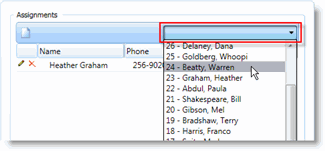
You can also add an assignment with the Quick Assignment drop-down menu. Just select the resource to assign from the drop-down menu and click Save in the toolbar.