Use Timelines
If the dashboard you're using has the Resource Unavailability timeline widget on one of its tabs, you have the ability to view current, future, and past dates when your resources had unavailability dates set up in their resource records. The timeline pulls in any resources in the segment associated with the dashboard and places their unavailability dates onto the timeline so that you can scroll through the timeline, view these dates, and even update the unavailability dates in the resource's records on-the-fly, if needed.
In the screen shot below, you can see that there are two unavailability dates in the system for two of the resources in this segment.
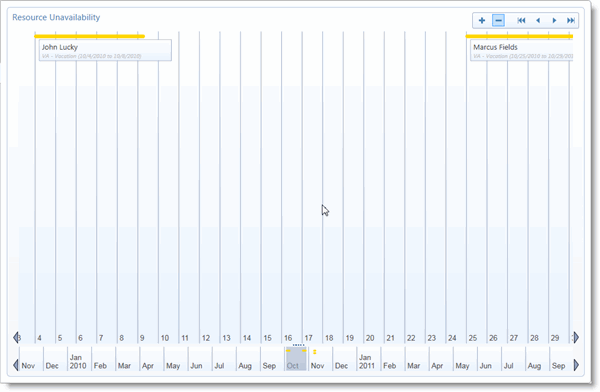
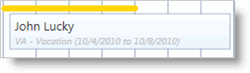
Each date or series of dates where a resource is unavailable is highlighted (the color used to highlight dates and times is selected by the TMS system administrator), and a label below the highlight tells you the name of the resource, the Unavailability Type code/description for the entry, and the dates that the resource is unavailable. If you double-click this label, the Resource Edit screen for this resource will open in a child window, on the resource record's Unavailability tab.
Timeline Navigation
There are several ways to navigate within the timeline.
The Navigation Buttons
In the top-right corner of the timeline, you will notice that there are six buttons.

From left to right, they are: Zoom In, Zoom Out (highlighted in the screen shot above), Go to First (to go to the first Unavailability entry on the time line), Back (to jump to the entry previous to the one that is selected), Forward (to jump to the next entry, after the one that is selected), and Go to Last (to go to the last entry on the timeline).
The Timeline Scroll Arrows
There are small, left and right arrows at the bottom of the daily bar and the monthly bar. Use these to scroll forward and backward through the days or months.
Drag the Timeline
If you click and drag on the daily bar or the monthly bar, the mouse cursor will turn into a hand, and you can drag either bar to the right or left.

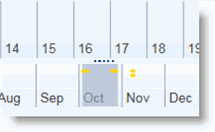
The gray box in the middle of the monthly bar shows you what month or months you're looking at in the daily bar above. The monthly bar will also display dots where there are unavailability entries.