Placing and Sizing Widgets
In the current version of TMS the widgets are automatically sized.
If you have a single widget, it fills the entire tab.
If you add a second widget, you can click the blue gear wheel on the right of the Add Tab label to choose a vertical side-by-side or horizontal one-over-one arrangement.
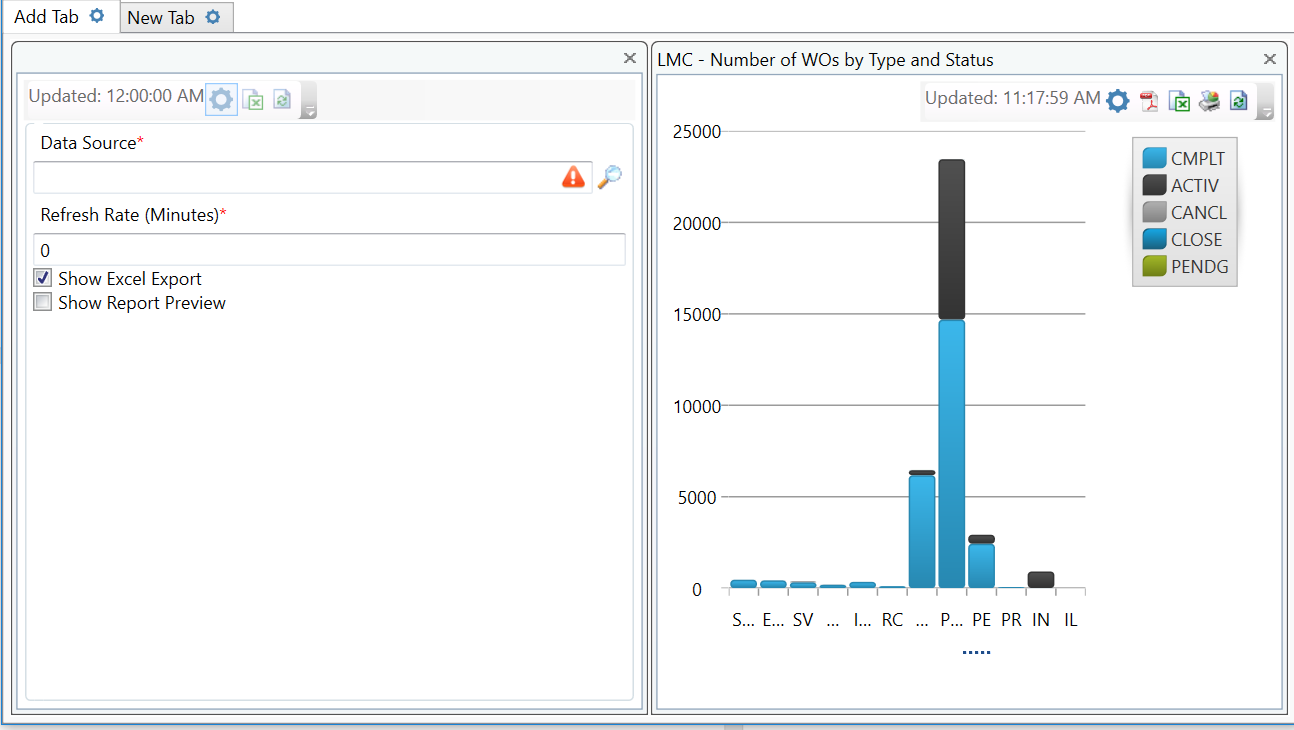
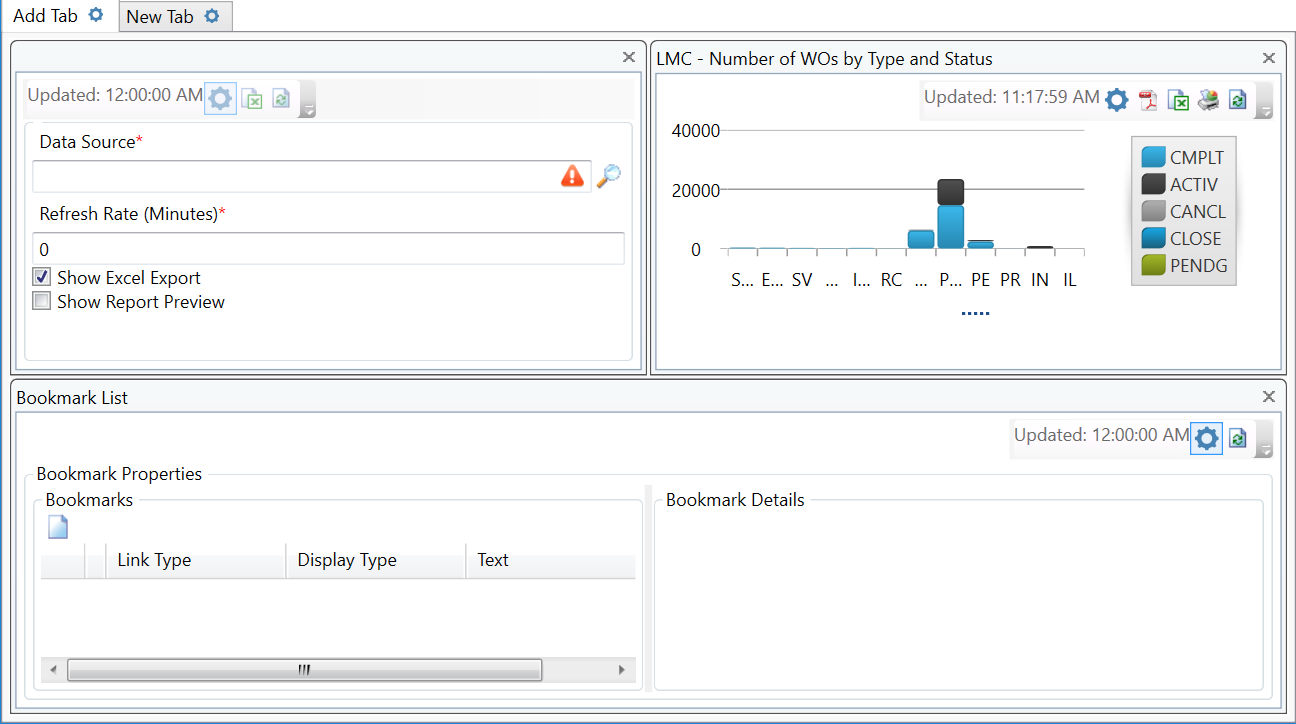
Tabs with a third widget feature similar layout options. You can set two smaller widgets above or below a longer horizontal one or set them next to a longer vertical one.
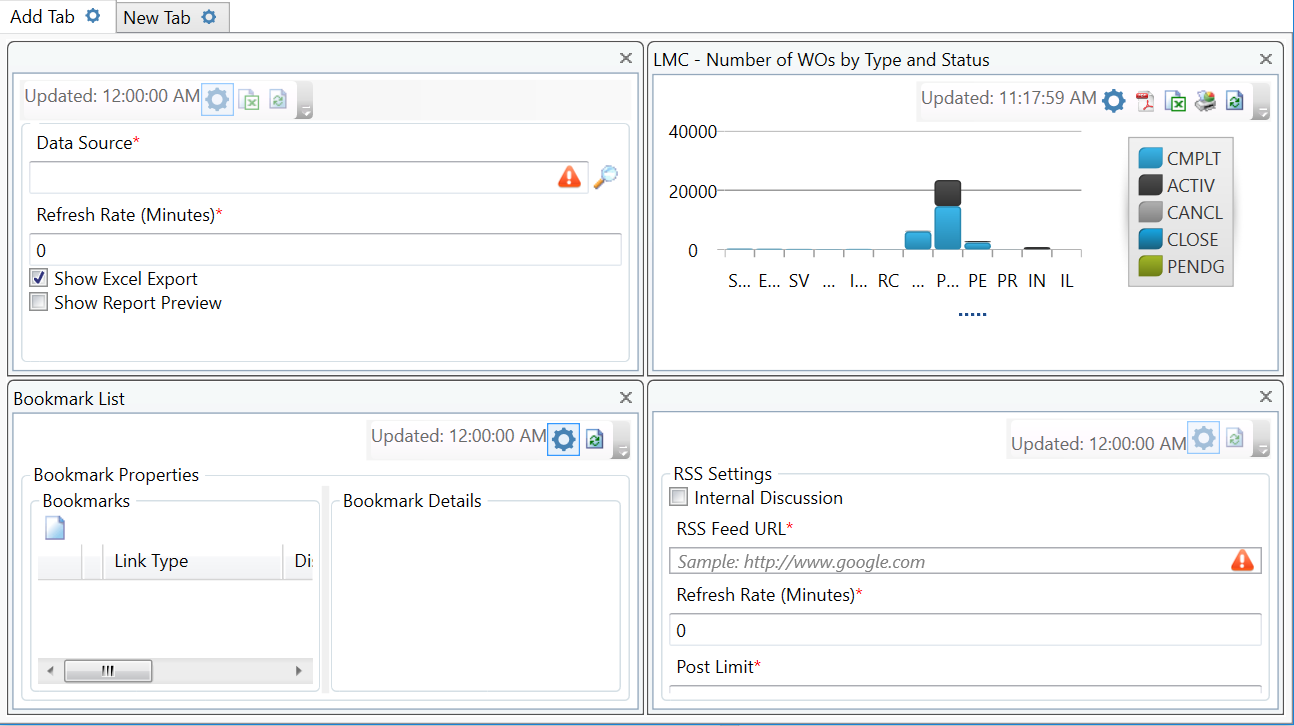
Once a fourth widget is added, the layout is set with a widget in each corner of the tab.
You can always change the placement of the widgets by grabbing (click / hold) and dragging and dropping them where you want to place them.
With the graph widgets, you can adjust the size of the chart vs the tabular data within it by placing your cursor over the four dots below the graph then clicking and dragging it to your desired location.