Bookmarks
Bookmarks are hyperlinks to commonly used items. These can be internet web sites or menu items within the TMS OnLine/OnSite application. Bookmarks appear as hyperlink text on a dashboard.
When a bookmark to an internet web site is clicked, the web site will open in a new browser window. When a TMS OnLine/OnSite bookmark is clicked, a new instance of the TMS OnLine/OnSite application will open and go to the specified menu item. There are three custom TMS OnLine/OnSite bookmarks available: New, Edit, and Query.
New – For New bookmarks, TMS OnLine/OnSite will open the create screen for the selected module. For example, a “PM Create” bookmark could be set up that opens the PM Create screen in TMS OnLine/OnSite.
Edit - For Edit bookmarks, TMS OnLine/OnSite will open the edit screen for the selected module. A record number can be specified when creating the bookmark and that record will be automatically opened in TMS OnLine/OnSite. For example, an “Asset Edit – AC-01” bookmark could be set up to open asset AC-01. If a record number is not specified when the bookmark is created, you will be prompted for a record number when clicking on the bookmark.
Query - For Query bookmarks, TMS OnLine/OnSite will open the query results for the selected module. A saved query can be specified when creating the bookmark and that criteria is used in the query. For example, a saved query for all active PM work orders could be used to set up an “Active PM WO Query” bookmark. If a saved query is not specified when the bookmark is created, TMS OnLine/OnSite will open to the query screen for the selected module, allowing you to select your criteria.
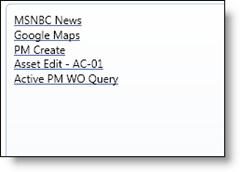
While on user-created dashboards, custom bookmarks can be titled however the creator chooses, the bookmarks on the Bookmarks and Links tab of the Dashboard (MAIN) dashboard are labeled New Work Order, Edit Work Order, and Query Work Order, since all three of these bookmarks are connected to the Work Orders module.