Add a new Bookmark List
A Bookmark List widget enables you to provide your end users a list of frequently used links. To add a bookmark list widget to your dashboard, follow these steps:
-
On the dashboard designer, click the Add Widget button.
-
Select Bookmark List from the dropdown.
-
In the Bookmark Properties section, click the New button.
The Bookmark Details section will open on the right.
-
Enter the information for the link you want to create and click Save.
The Type dropdown on the Bookmark Details section lets you choose between a web link and application link.
Web Link
You can create a web link to direct users to useful sites that exist outside of the TMS application. Web links will open in a new window or tab in Internet Explorer.
Application Link
You can create an application link to provide a quick way for users to navigate to a module or form within the TMS application. Application links will open in a child window within the dashboard.
The Item Key field allows you to set the application link to a specific work order, asset, schedule or any other TMS object.
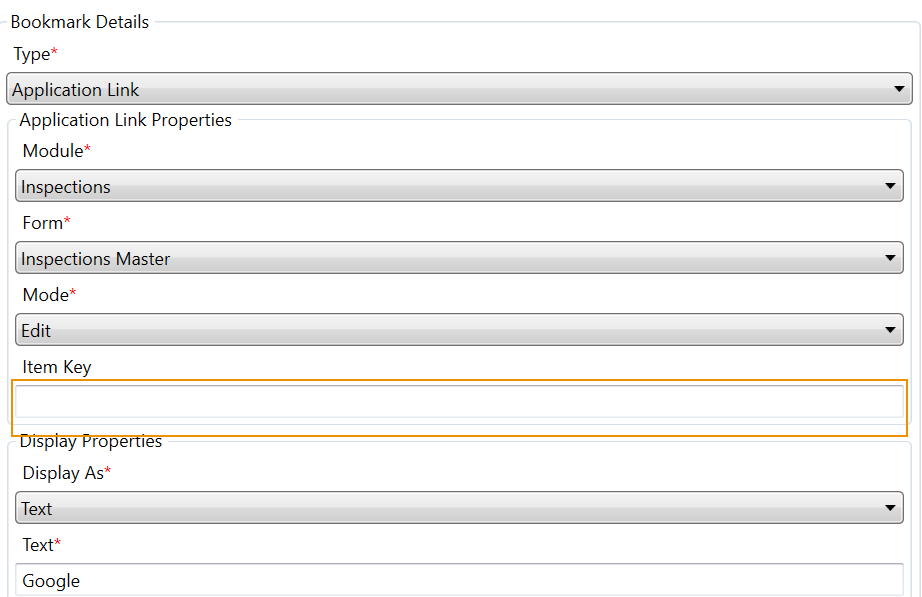
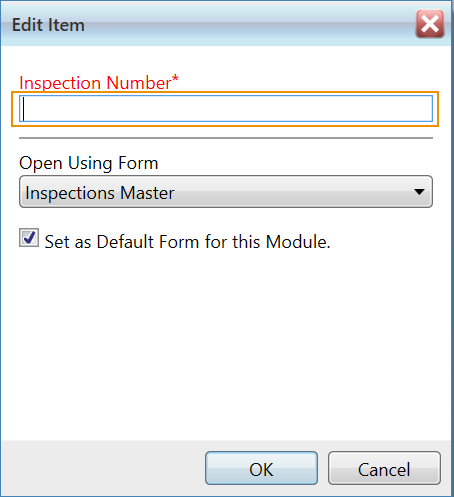
If this field is blank, users will be prompted to enter a number identifying that TMS object when they click that link. They can also choose to open the link using a different form.