Access TMS Dashboard
In TMS OnLine/OnSite, go to Modules > Dashboard. The TMS Dashboard application will then open in a separate window.
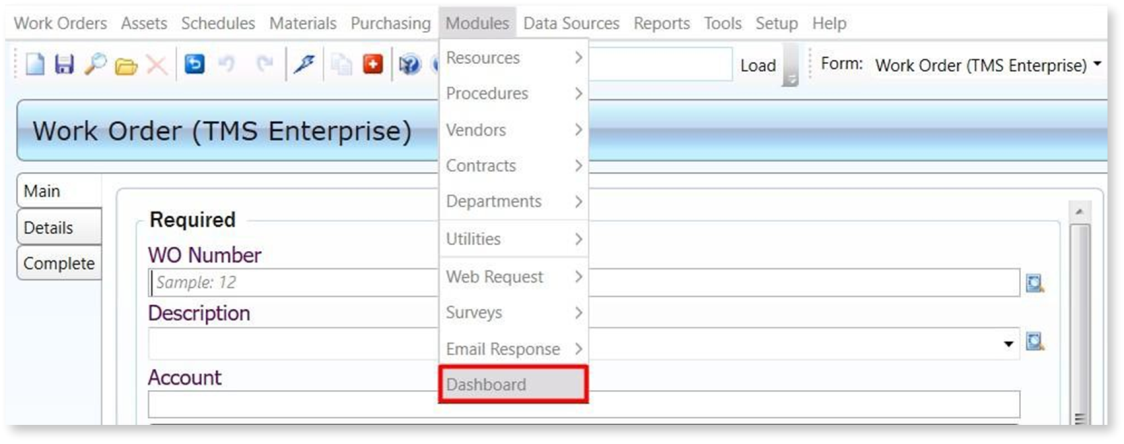
A silent, single sign-on will be applied when you access your dashboard from TMS OnLine/OnSite, and you will not be asked to log in again.
When viewing a dashboard, the widgets are fixed in place and cannot
be moved. Some users might have permissions to edit a dashboard.
This section only covers using, or viewing, a dashboard.
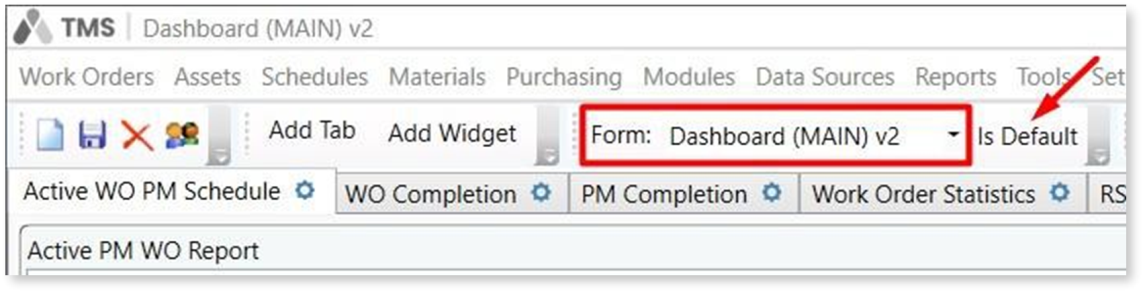
Change forms by clicking the dropdown field labeled Form. After selecting a form, make it your default by clicking Is Default.
Permissions
As a form owner, restrict access using Permissions in the upper left corner of the screen. Click the icon to open a dialog window where you grant access to groups or specific users. Click Add to select users or groups.
Once you add a user or group, users not listed no longer have access to the form. Note: If an unlisted user tries to access a restricted form, they may be kicked out of the system. If this Dashboard Form is set as the default for a user or group not listed in the permissions, select another Dashboard Form for them to ensure they can use the Dashboard module.
Set each group or user’s level of access by highlighting their name and allowing or denying permission to modify or use the form. Click Apply to save the permissions settings. Note: If you create a new Dashboard based on an existing Dashboard with permissions, the permissions do not carry over to the new Dashboard.