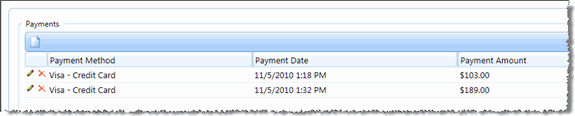
Contract Edit - Payments Tab
The Payments tab in Contract Edit, allows you to track payments that have been made to a vendor, in the case of a Vendor contract or to you, in the case of a Customer contract.
To add a new payment, follow these steps:
-
On the Contract Edit screen, click the Payments tab where existing payments for this contract are listed in a grid
-
To add a new payment, click New
-
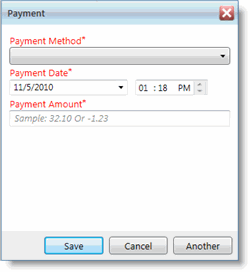
You are presented with the Payment pop-up window.
-
Select a Payment Method.
-
By default, the Payment Date and Time are the current date and time but they can be changed if needed
-
Enter the Payment Amount
-
Click Save or click Another to save this payment record and refresh the pop-up window so that you can enter an additional payment record
When you're done entering payment records, the new records are listed in the grid.