Create a Work Order
You create, edit, and query work orders in TMS Anywhere in much the same way you create, edit, and query work orders in TMS. There are differences, but for the most part, if you are familiar with the Work Order module in TMS you will have no trouble with the Work Order module in TMS Anywhere.
To create a new work order, follow these steps:
-
From the TMS Today page, click Work Order New.
-
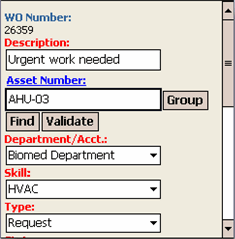
Enter a Description of the work that needs to be done.
-
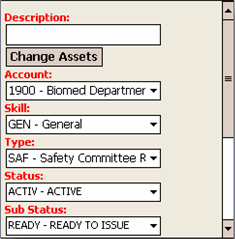
If you need to associate an asset with this work order, click Change Asset.
-
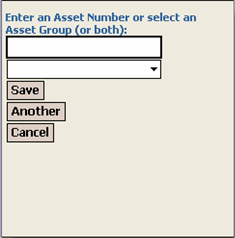
To enter a single asset, enter a valid asset number in the Asset Numberfield, you can also add an asset group in addition or in place of a single asset.
-
Click Save to return to the work order, Another to add another asset or asset group, or Cancel to return to Work Order Create without adding an asset.
-
Fill in the rest of the required fields which are shown in red.
-
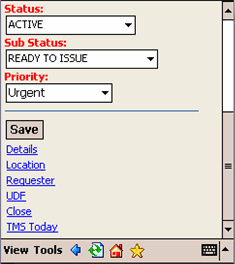
To save the work order now, click Save, or click the link for one of the other pages and enter additional, optional information.
Additional pages will still be available after you save the work order and go to the Work Order Edit page.
-
When you click are done adding information to the work order record and click Save, you are taken to Work Order Edit,