My Work Orders
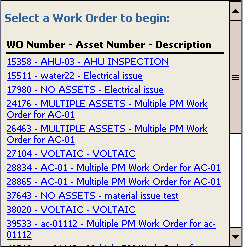
The My Work Orders screen is designed to list all of the work orders assigned to the user who is currently logged in on the device. From this screen, you can quickly select a work order and move through the process of completing tasks and taking task readings, adding time and material charges, adding completion information, and completing the work order.
To update a work order assigned to you, follow these steps:
-
On the TMS Today page, select My Work Orders
-
Click a work order in the list.
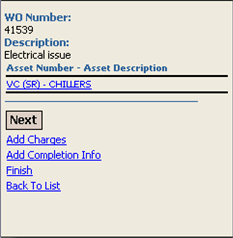
The first Work Order Edit page appears. If there is Requester information, it will be displayed below the Asset Descriptio.
-
If you need to view the asset record, click the asset's link to open the asset in Asset Edit. (Click Back to Work Order to exit Asset Edit.)
-
Click Next.
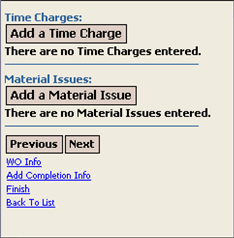
If there were procedures that needed completed on this work order, the Procedures page would appear, but in this case, the Charges page appears. For information on adding charges to a work order, see Adding Charges to Work Orders.
-
Click Next to go to the Completion Info page.
Clicking Previous on any page will take you back to the page you just left.
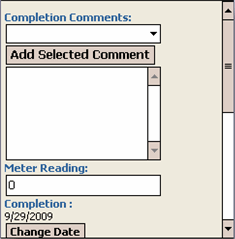
- If necessary, add Completion Comments and a Meter Reading to the work order.
-
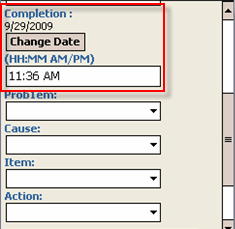
Scroll down. The Completion Date and Time default to the current day and time. If you need to change the date, click Change Date and select the correct date from the provided calendar.
-
Select any codes that are necessary for the Problem, Cause, Item, and Action drop-down menus.
-
Click Next.
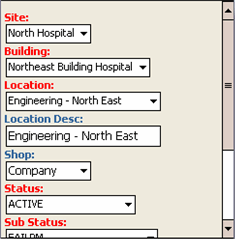
The Finish page appears.
-
Select values.
-
The Site, Building, and Location fields are required.
-
Location Description and Shop are optional.
-
-
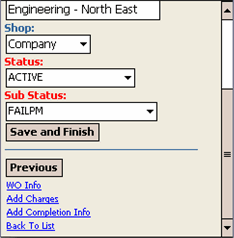
From the Status and Sub Status drop-down menus, select the appropriate codes.
-
Click Save and Finish to complete working on the work order.
The My Work Orders page appears.