The Configuration Utility
Once TMS Anywhere has been installed on the server, you can configure it for your end user with the Configuration Utility. The Configuration Utility can be found on the server where you installed the software by going to Start > All Programs > TMS Anywhere > TMS Anywhere Configuration (this is the default location, which might differ depending on your configuration).
The Configuration Utility allows you to configure which data will be sent to users' wireless devices. This functions much in the same fashion as TMS Mobile's Mobile Profiles screen did, and all settings are database-specific.
To use the Configuration Utility, you must be a system administrator on the server hosting it and have Write permissions to the directory where the Configuration Utility is located.
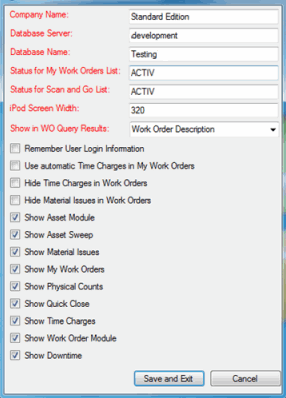
Required Fields
Only the seven fields in the top half of the Configuration Utility are required. All of the checkboxes are optional.
-
Company Name - Enter the name of your organization
-
Database Server - Enter the name of the database server TMS Anywhere will be accessing
-
Database Name - Enter the name of the database TMS Anywhere will be accessing
-
Status for My Work Orders List - Enter the work order Status code that TMS Anywhere will query for when loading the list of work orders assigned to the logged in user
-
Status for Scan and Go List - Enter the work order Status code that TMS Anywhere will query for when loading the list of work orders associated with the scanned asset
-
iPod Screen Width - Enter the width for the screen, if your users are using iPods to access the add-on application
-
Show in WO Query Results - Work order query results list show the Work Order Number, Asset Number, and Work Order Description by default. If you want to substitute the Work Order Description with the work order's Type, Account, Priority, or Skill code, select one of these from the drop-down menu
Optional Checkboxes
Below the required fields are a series of optional checkboxes.
-
Use automatic Time Charges in My Work Orders - Checking this option automatically assigns charged time to the user/resource logged in on the device
-
Hide Time Charges in Work Orders - Checking this option hides the Time Charges screen
-
Hide Material Issues in Work Orders - Checking this option hides the Material Charges screen
The remaining checkboxes configure which modules are available to the user. Check the modules you want the users to have access to via their wireless devices in order to enable them.
When you're done configuring options in the Configuration Utility, click Save and Exit. Options in TMS Anywhere can be changed again at any time with the utility.
To exit the utility without saving any changes, click Cancel .