26.5.1 New Siterra Preview Notes
These notes describe what we've added to the new Siterra preview in this release. Review the Siterra Release Notes for other changes to the product in this release.
We're delivering this automatic upgrade to UAT environments on October 22, 2026 and to production environments on November 14, 2026.
These notes are subject to change until the production release.
Key changes
-
Some toolbar actions are now in context menus or ellipsis (...) menus to reduce clutter.
-
Siterra now switches between classic and new Siterra based on the page you're on.
-
Fields, panels, and controls now appear in the same spots across all new Siterra pages.
-
The new left sidebar and top menus now hold all navigation options.
-
Data grids now use standard layouts, row menus, and link navigation.
This table summarizes the areas updated in new Siterra in this release.
|
Area/Page |
What you can do |
Impact |
|---|---|---|
|
Project schedules |
View task hierarchies with bold parent tasks and indented subtasks. Check task status with badges, run actions from the toolbar, and customize columns. |
Modernized user experience. |
|
Libraries |
Select Libraries from the top navigation menu to open the General Libraries landing page. From this modernized grid, you can browse, view, refresh, export, and add document libraries. |
Modernized user experience. |
|
Site page links |
Select linked names and numbers in the Vendors, Projects, Assets, and Leases sections to open related records. |
Modernized user experience. Faster navigation from sites to related vendors, projects, assets, and leases. |
|
Site map view |
Select the Map tab on the Site page to view the site location on an interactive map. |
Modernized user experience. |
|
Site photo viewer |
Select the Photo tab on the Site page to view full-size images, browse thumbnails, or navigate with arrow keys. |
Modernized user experience. |
|
Site creation |
Complete custom extended attribute fields on the site. |
Modernized user experience. |
Project schedule and responsibilities
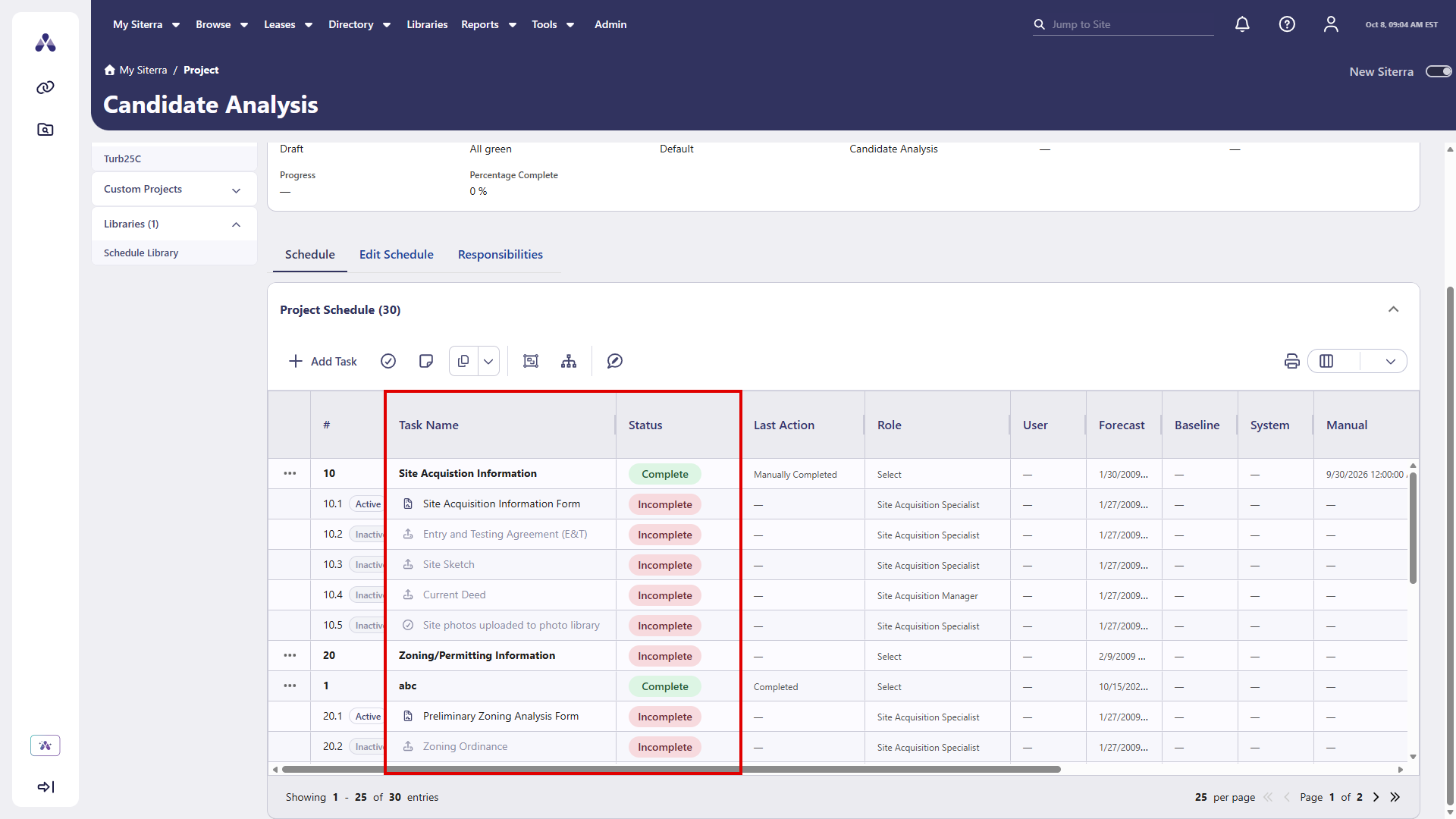
Manage project schedules and assignments with the updated Project page in new Siterra. The schedule grid now includes a clear task hierarchy. It includes bold parent tasks, indented subtasks, and expand/collapse options. Status badges show whether tasks are Complete or Incomplete.
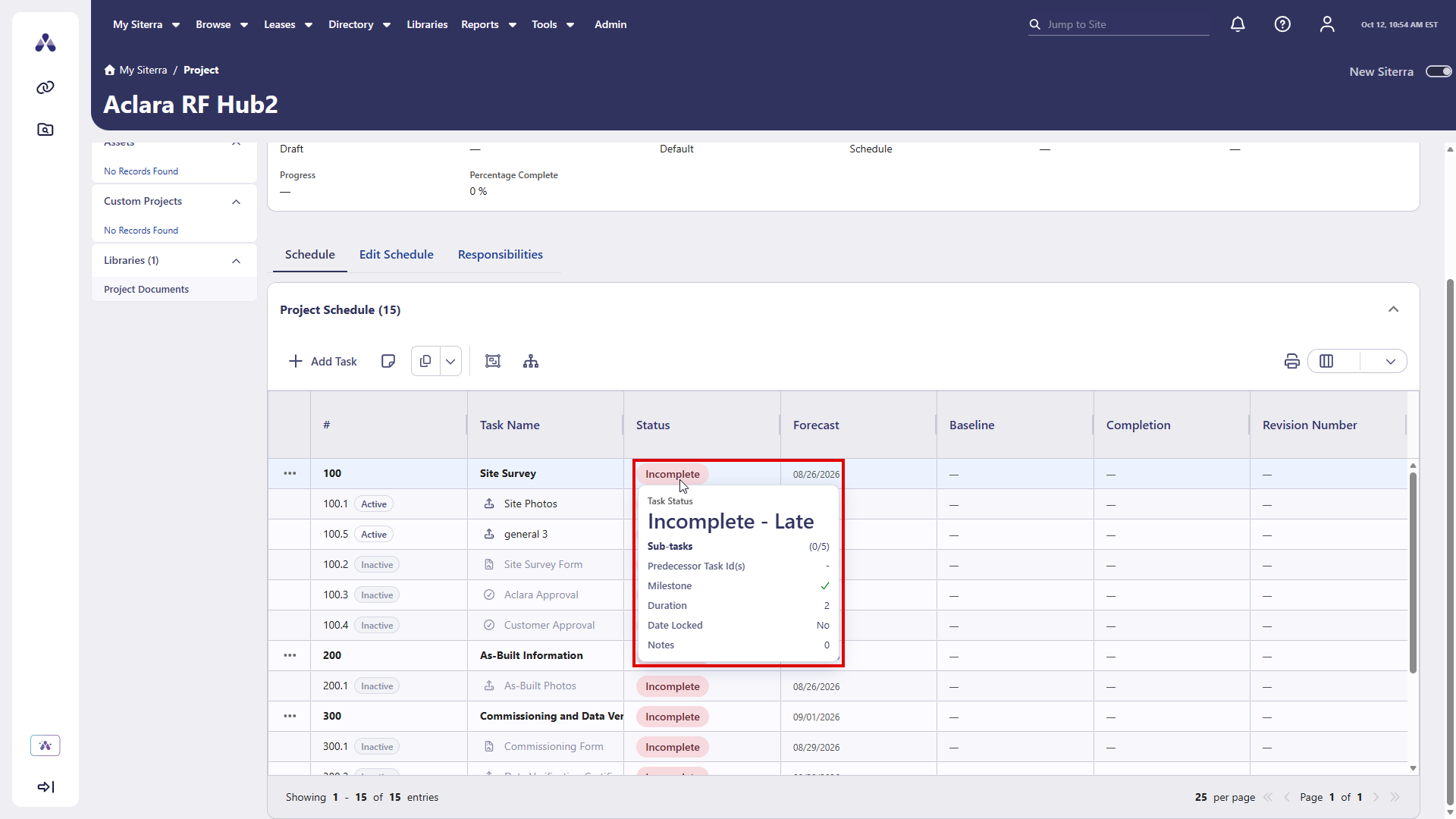
Point to a task's Status badge to see more information about that task.
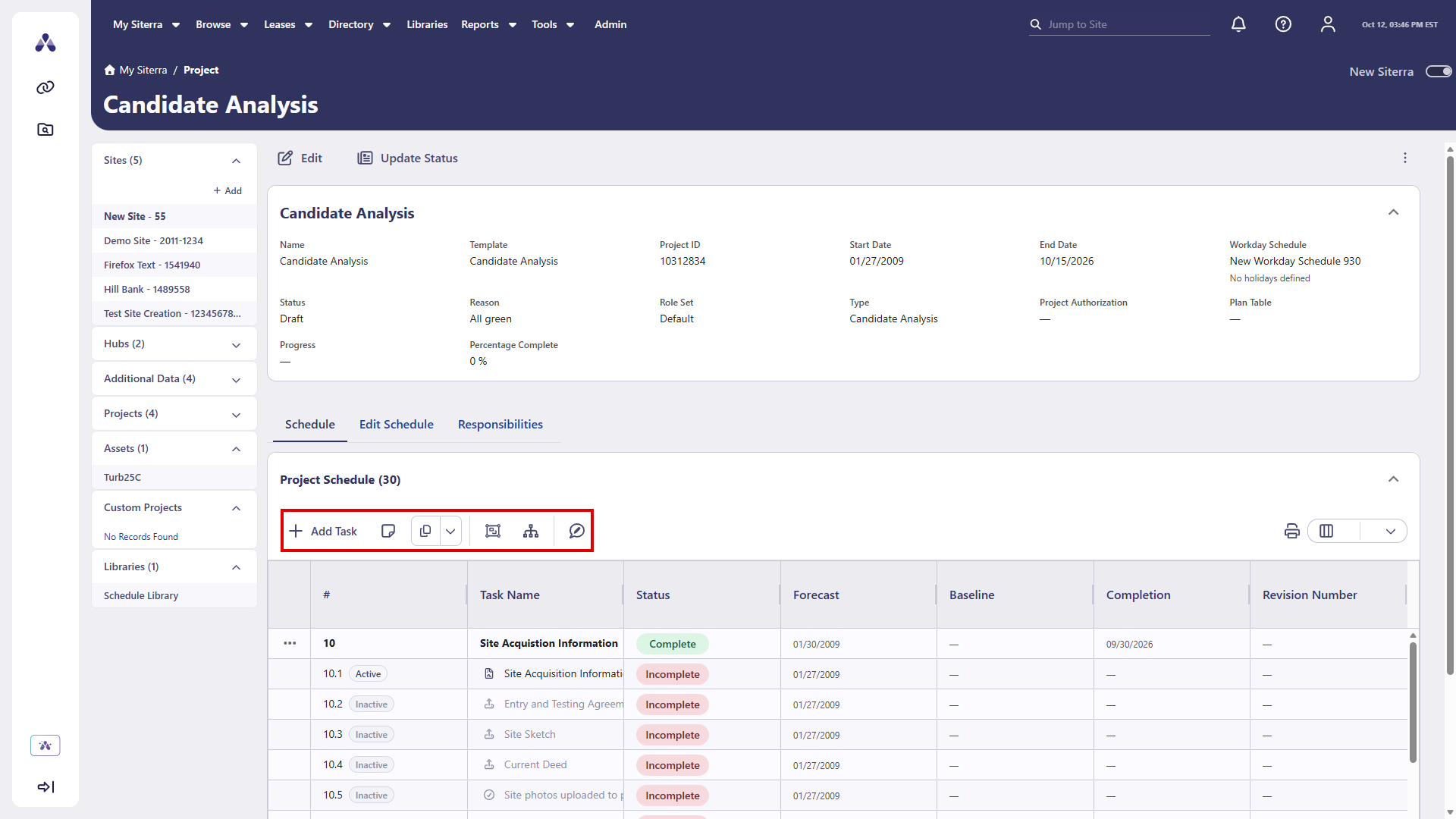
Run all schedule actions from the toolbar.
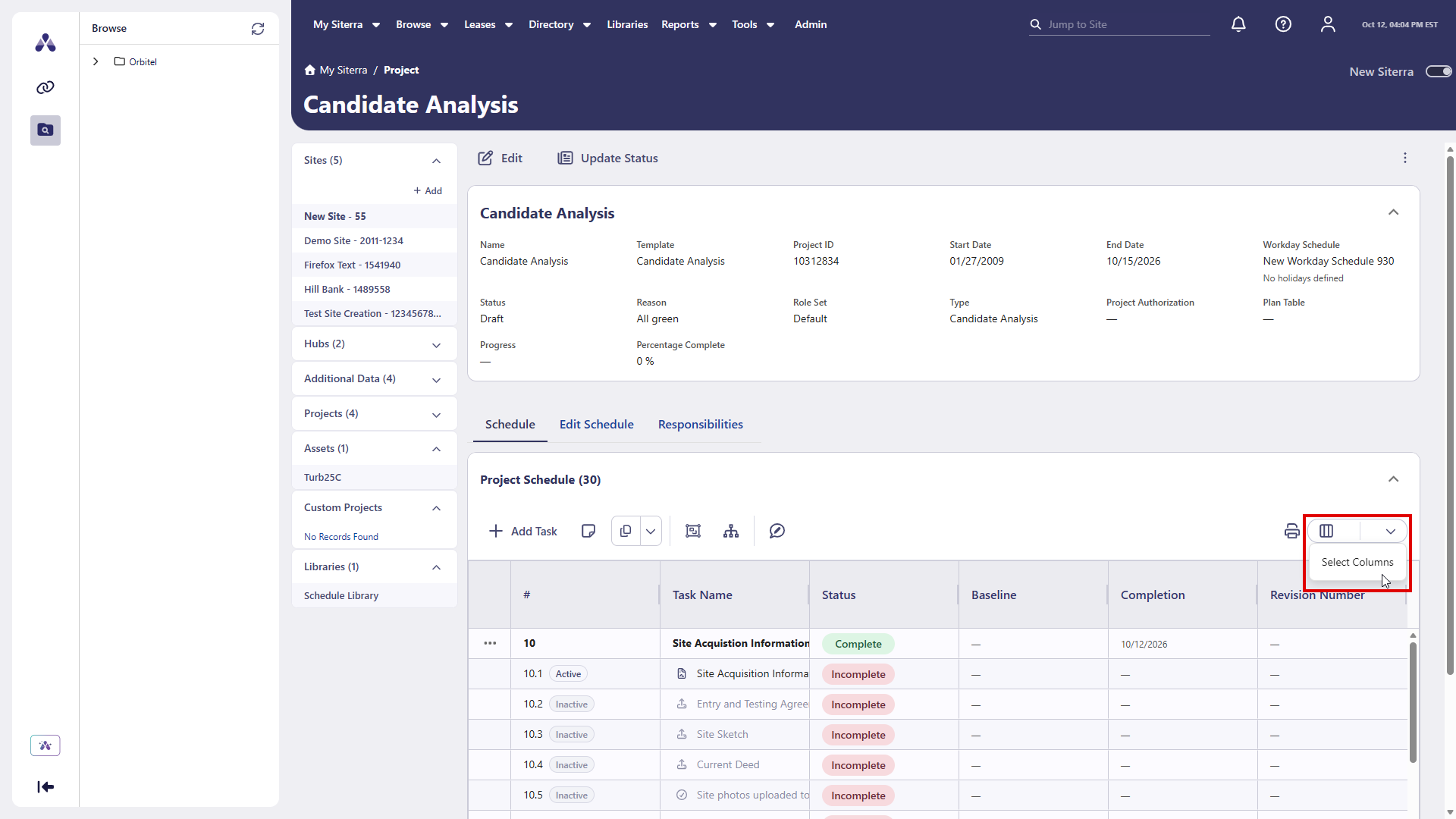
Customize grid columns using the simplified Select Columns menu.
Mark tasks as Not Applicable (N/A) with clear visual formatting.
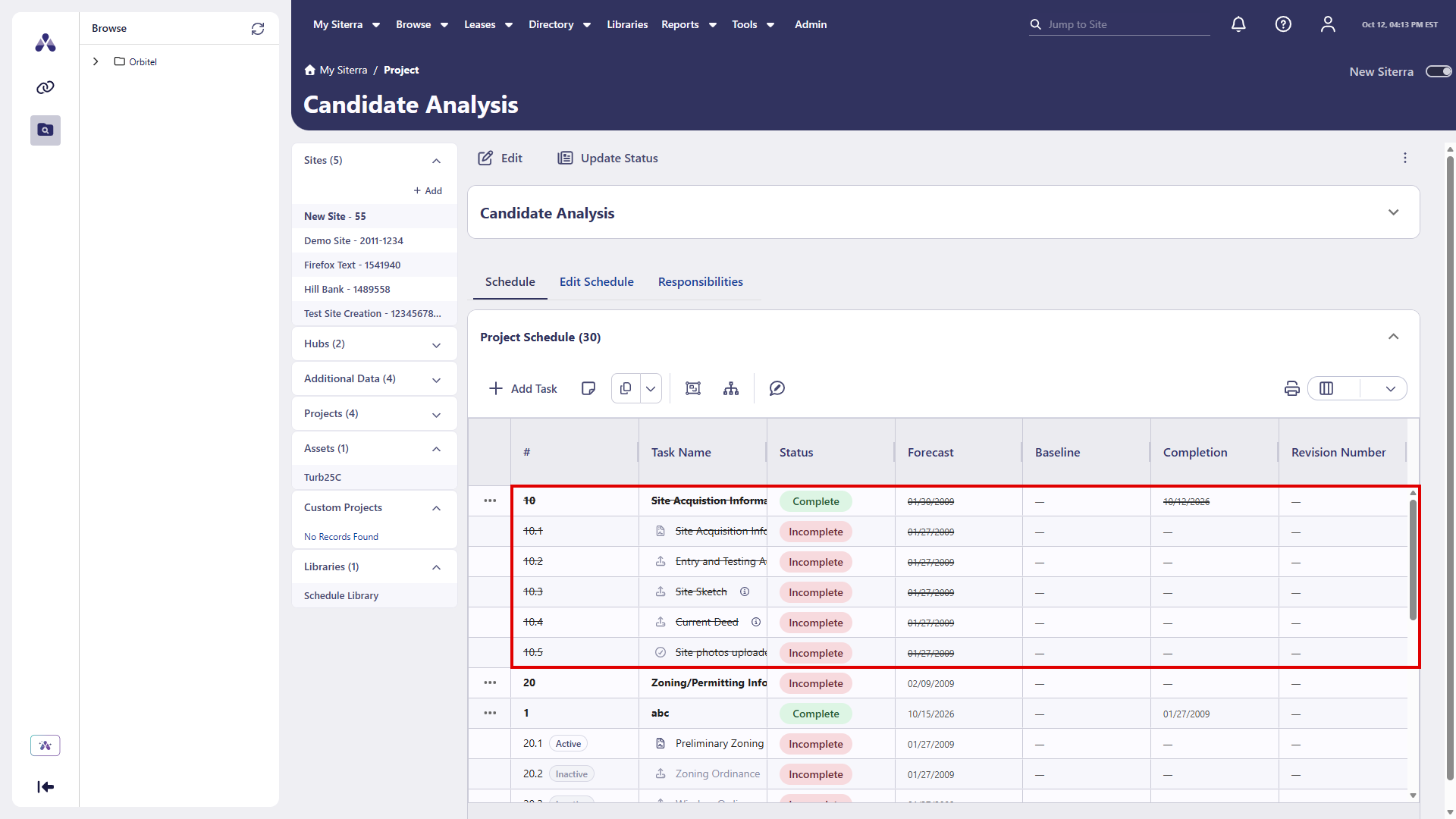
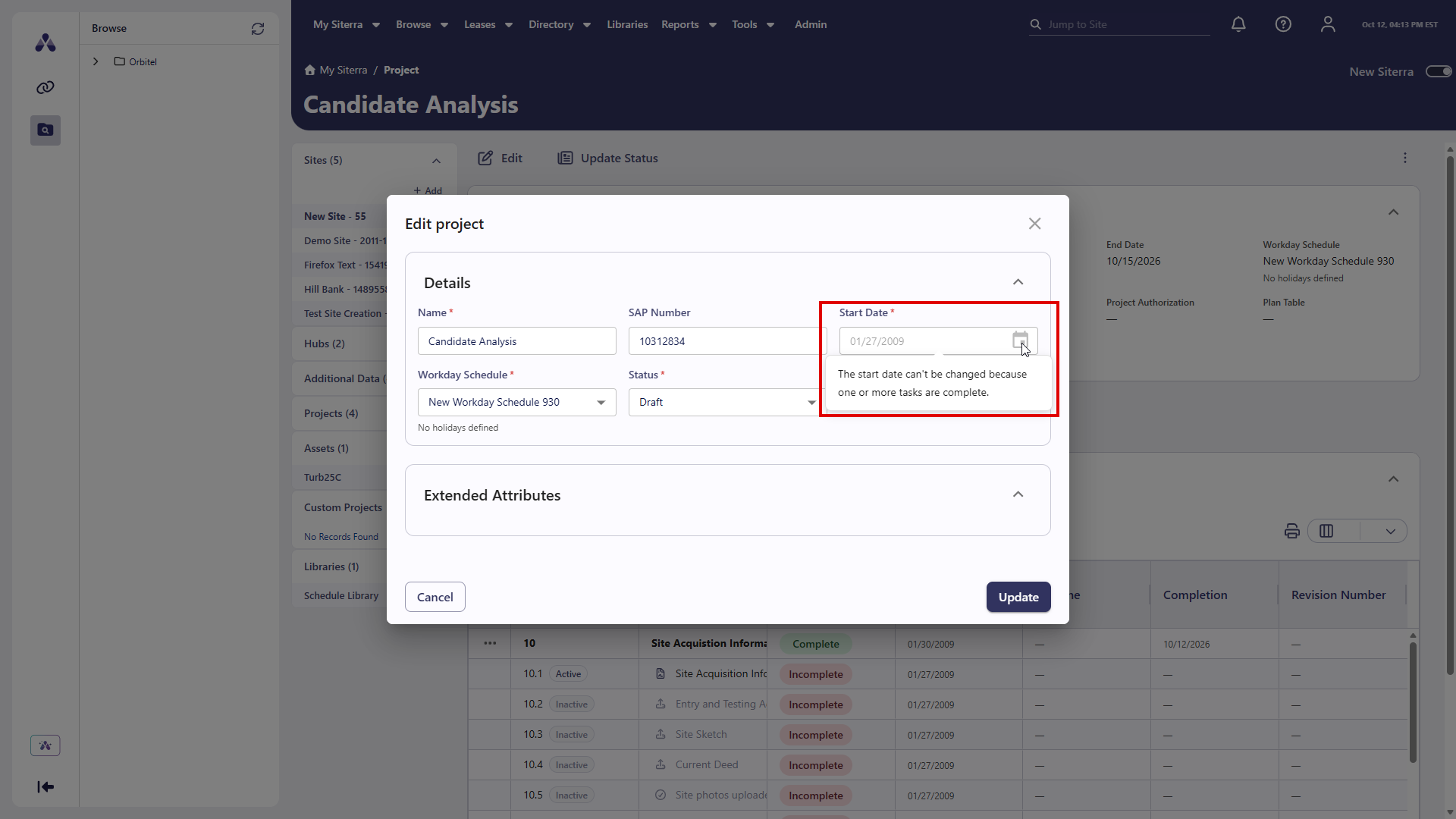
Built-in validation protects schedule accuracy by automatically locking the project start date once tasks are complete.
Libraries
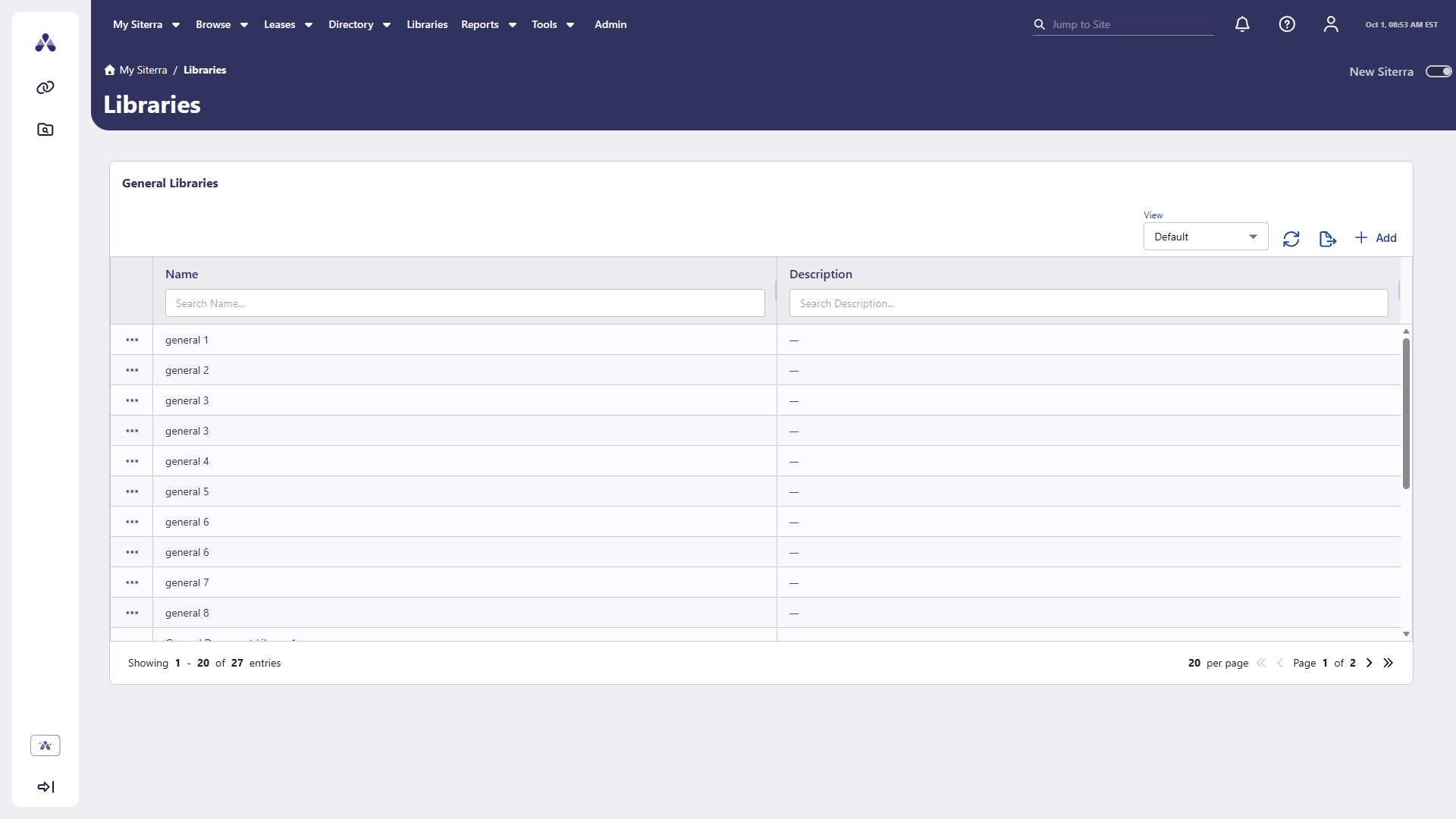
You can now access the Libraries page from the top navigation menu in new Siterra. Select Libraries between Directory and Reports to open the centralized landing page where you can browse and manage your document libraries.
-
Custom views: Switch between saved grid views.
-
Refresh: Reload the latest library data.
-
Export: Download your grid results.
-
Pagination: Move between pages of records.
-
Add: Create a new library.
-
Open a library: Select a library name to see its details.
Add a library
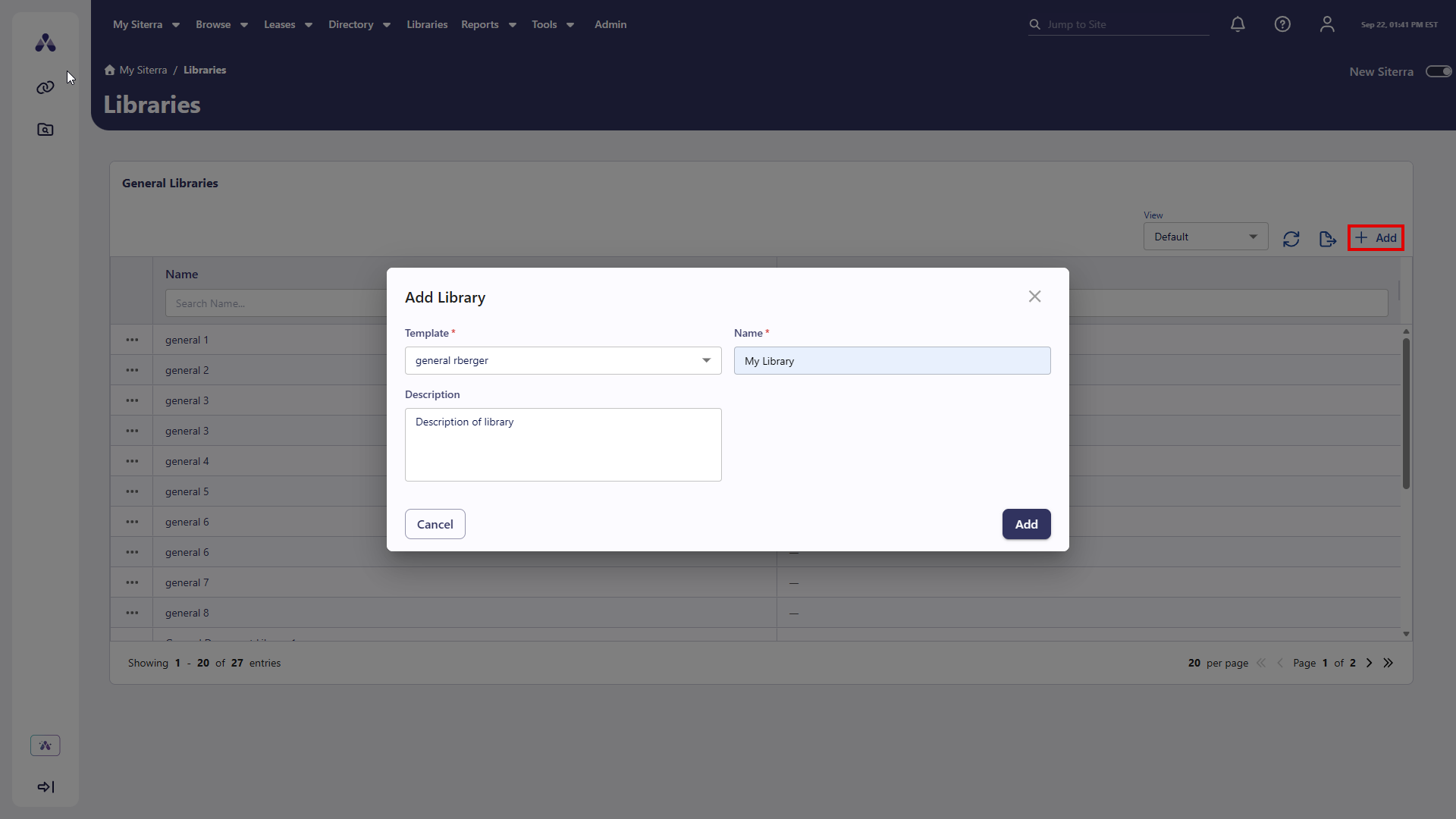
Create libraries from the Libraries page in new Siterra.
-
Select + Add to open the Create Library dialog.
-
Select a Template.
-
Enter a Name and Description.
-
Select Add.
The new library appears in the grid.
Edit libraries
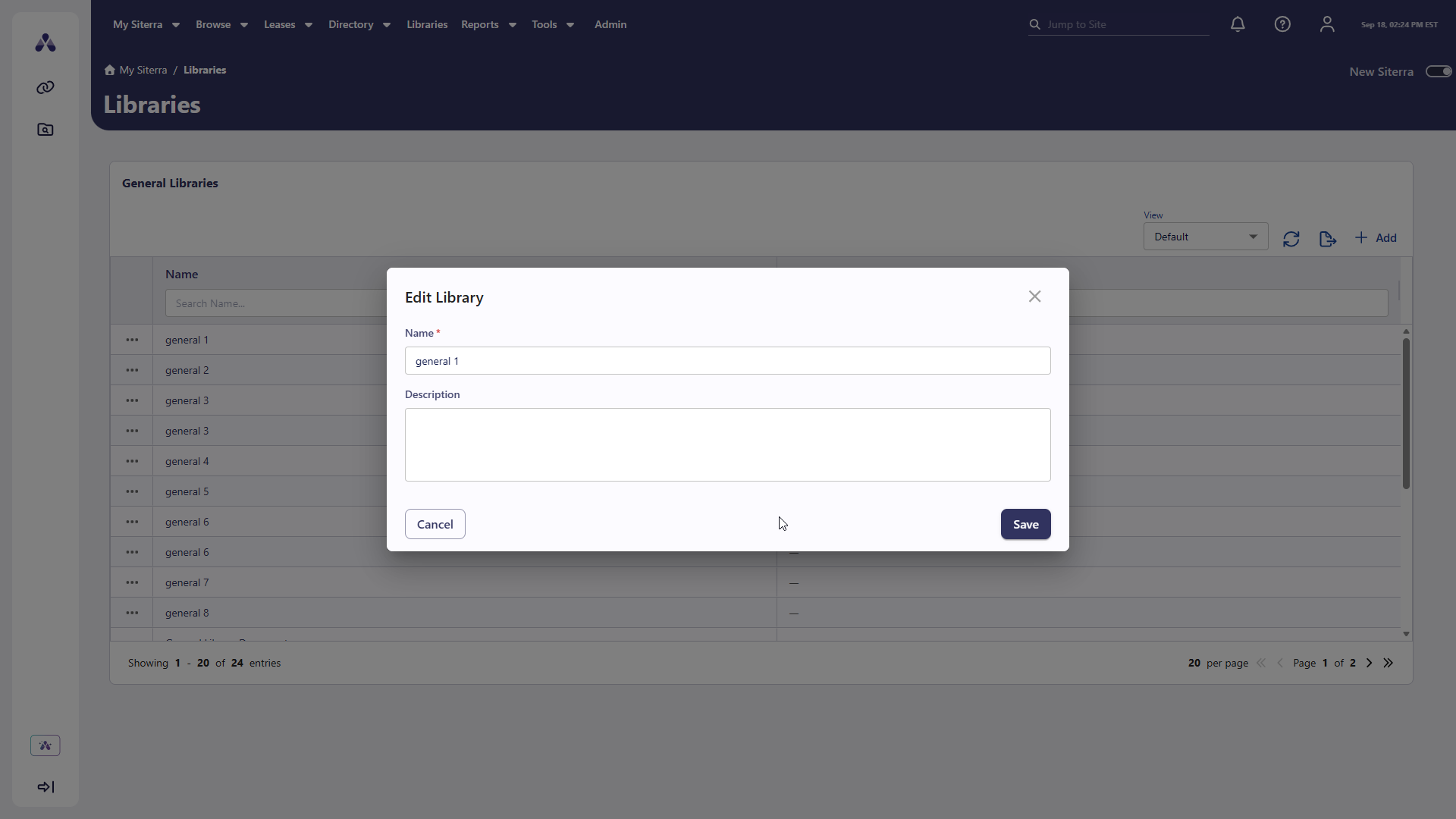
Update the name and description of a library from the Libraries page in new Siterra.
-
On any library row, select the ellipsis (
 ) menu.
 -
Select Edit.
-
Edit the Name and Description.
-
Select Save.
Your updates appear in the grid.
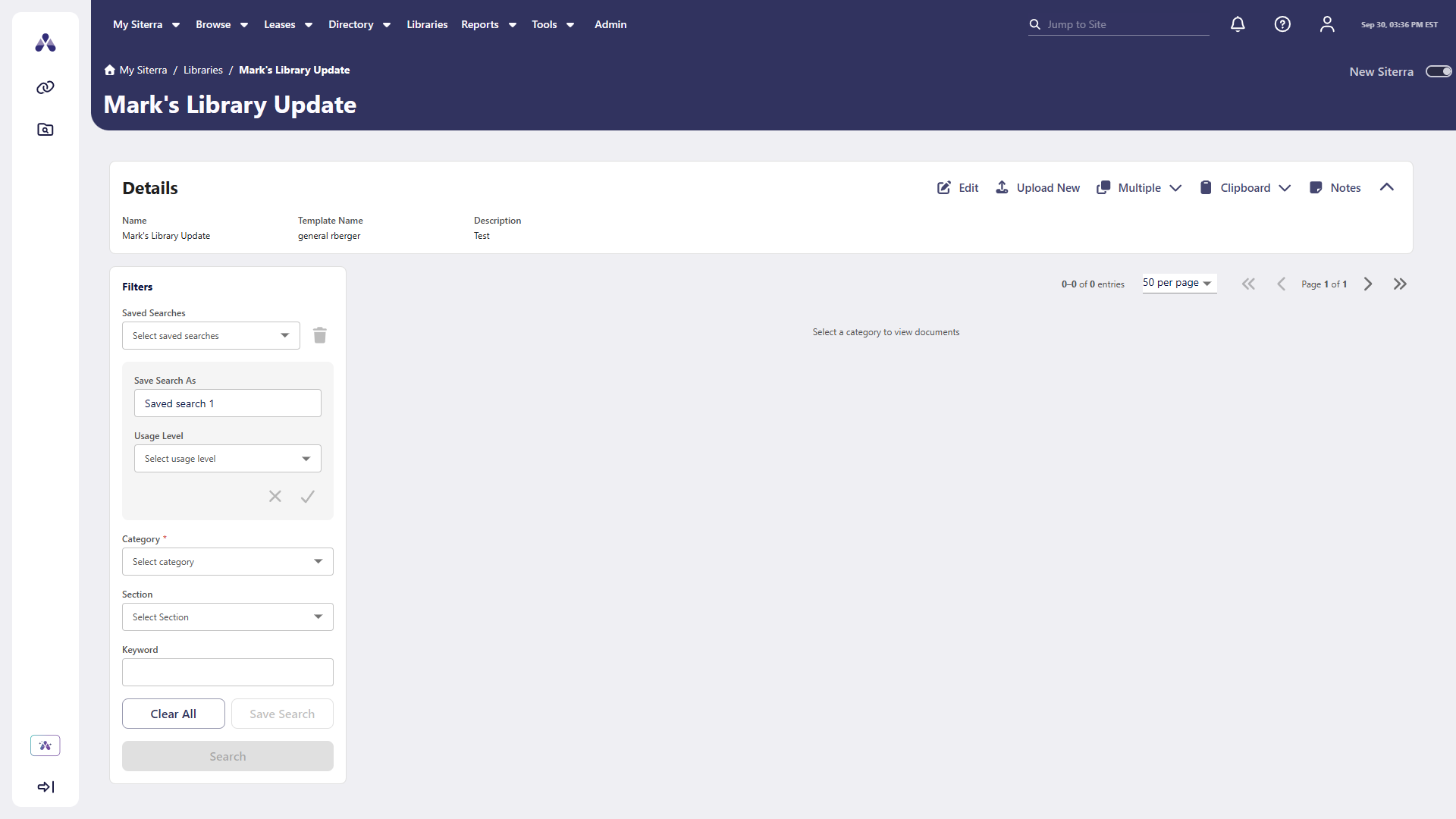
Library details
The Library Details page is now available in new Siterra. This includes a Details section, Filters, and a toolbar. Select Libraries then the library Name to open its Library Details page.
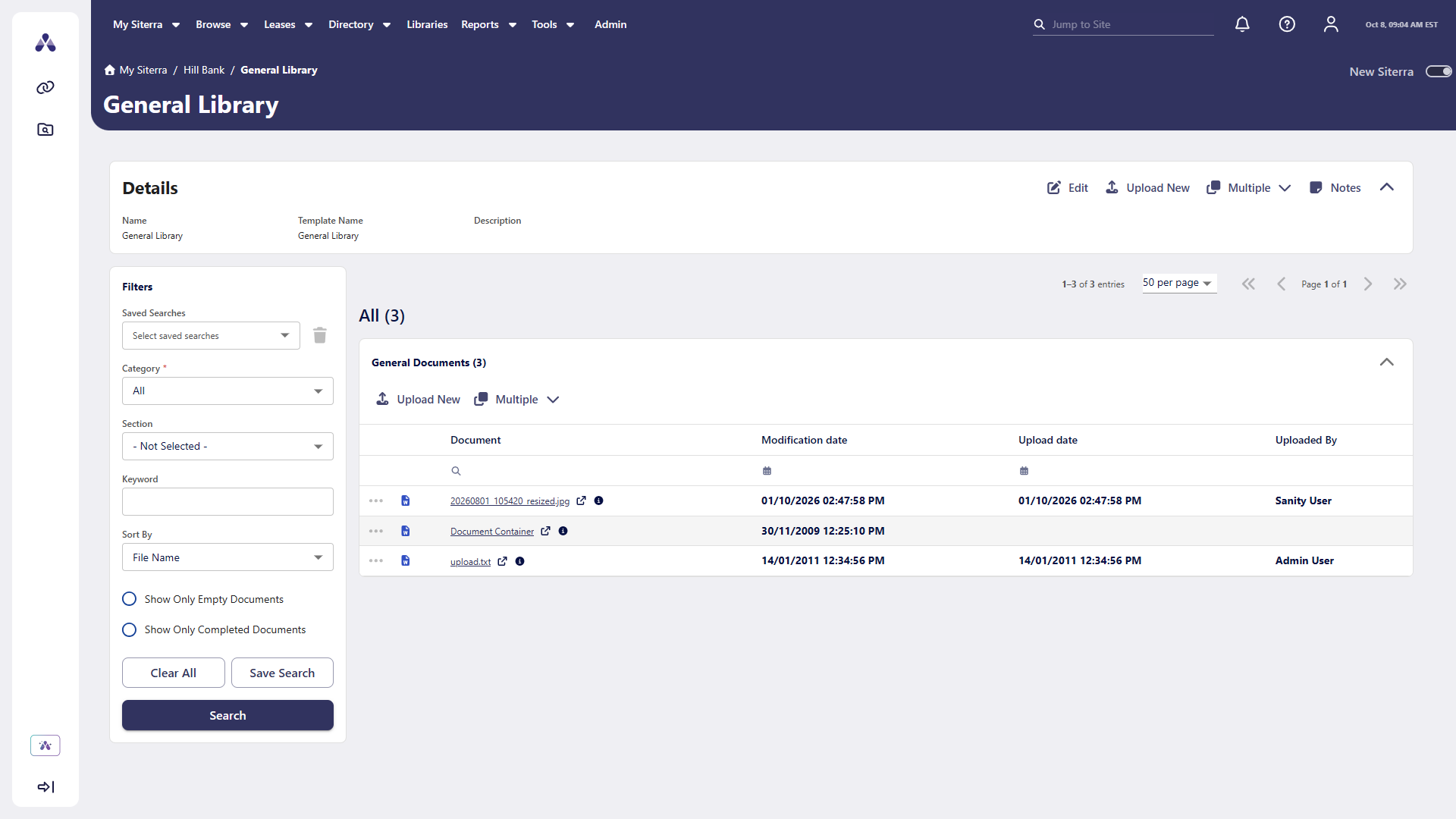
Library details top menu actions
The Library Details page in new Siterra includes top menu actions. The library you view and the record's state determine which actions are available.
|
Icon / Option |
Function |
|---|---|
|
|
Edit library details. |
|
|
Not available in this release. |
|
|
|
|
|
Add notes to the library. |


Search and filter documents
Use the Filters pane to search for documents by Category, Section, and Keyword. For example, select a Category from the Filters pane and then select Search to display matching documents grouped by section. You can then select actions from search results.
Save a search and reapply it when you return to the library to find your documents quickly.
Sites
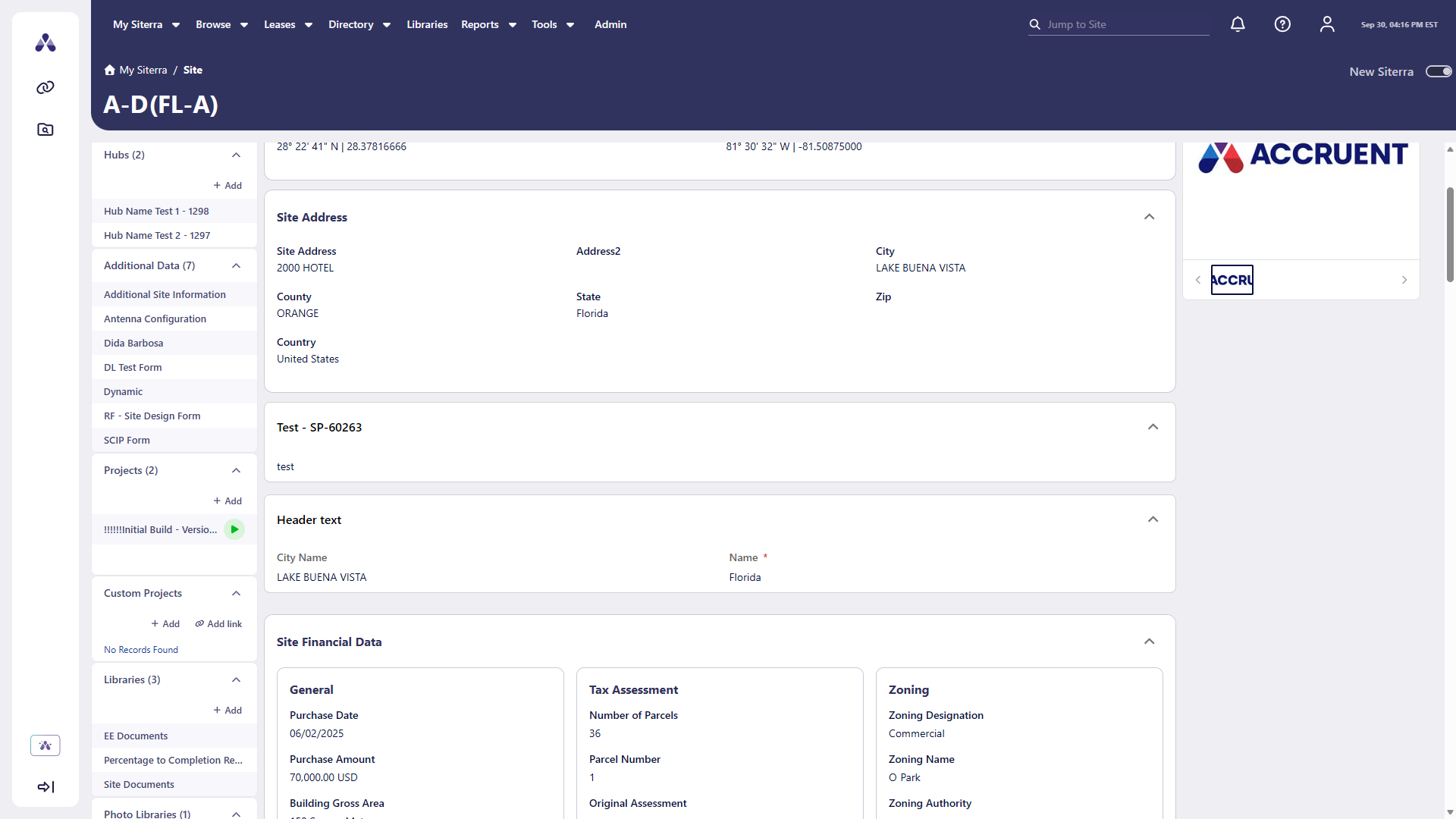
We improved the Site page in new Siterra.
-
Access site document libraries.
-
Open related records such as vendors, projects, assets, incidents, leases, and events.
-
View the site on a map.
-
View site photos.
-
Capture comprehensive site information on extended attribute forms.
Access site document libraries
Access and manage site document libraries in new Siterra. Select a library or category from a Site page to open its library page with site navigation and search tools.
Use filters to quickly find documents for your site by category, section, or keyword. You can also save your search filters to find site documents even faster next time.
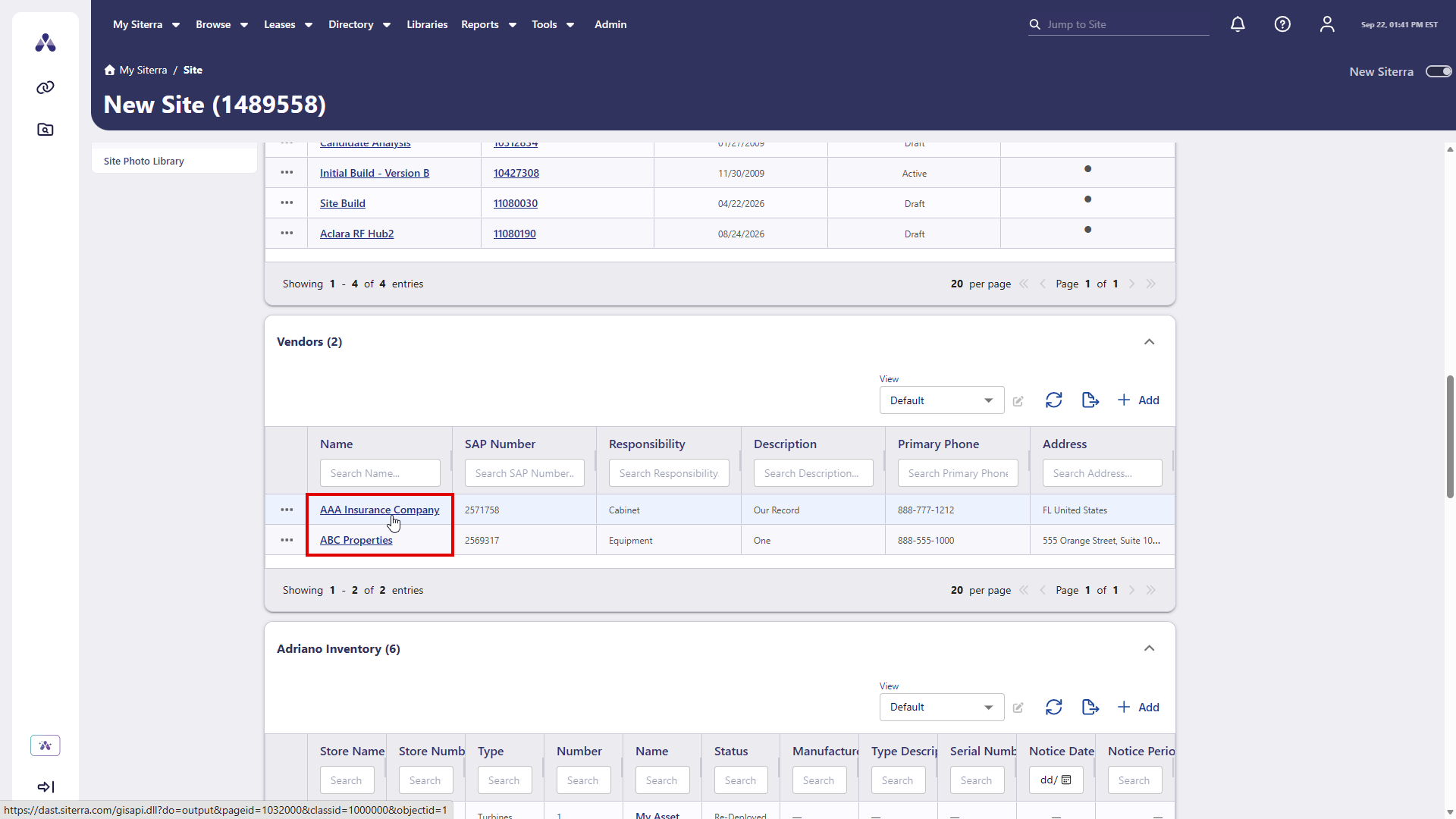
Navigate to vendor details
Open vendor records from the Vendors section on the Site page. Select a Name to view vendor details.
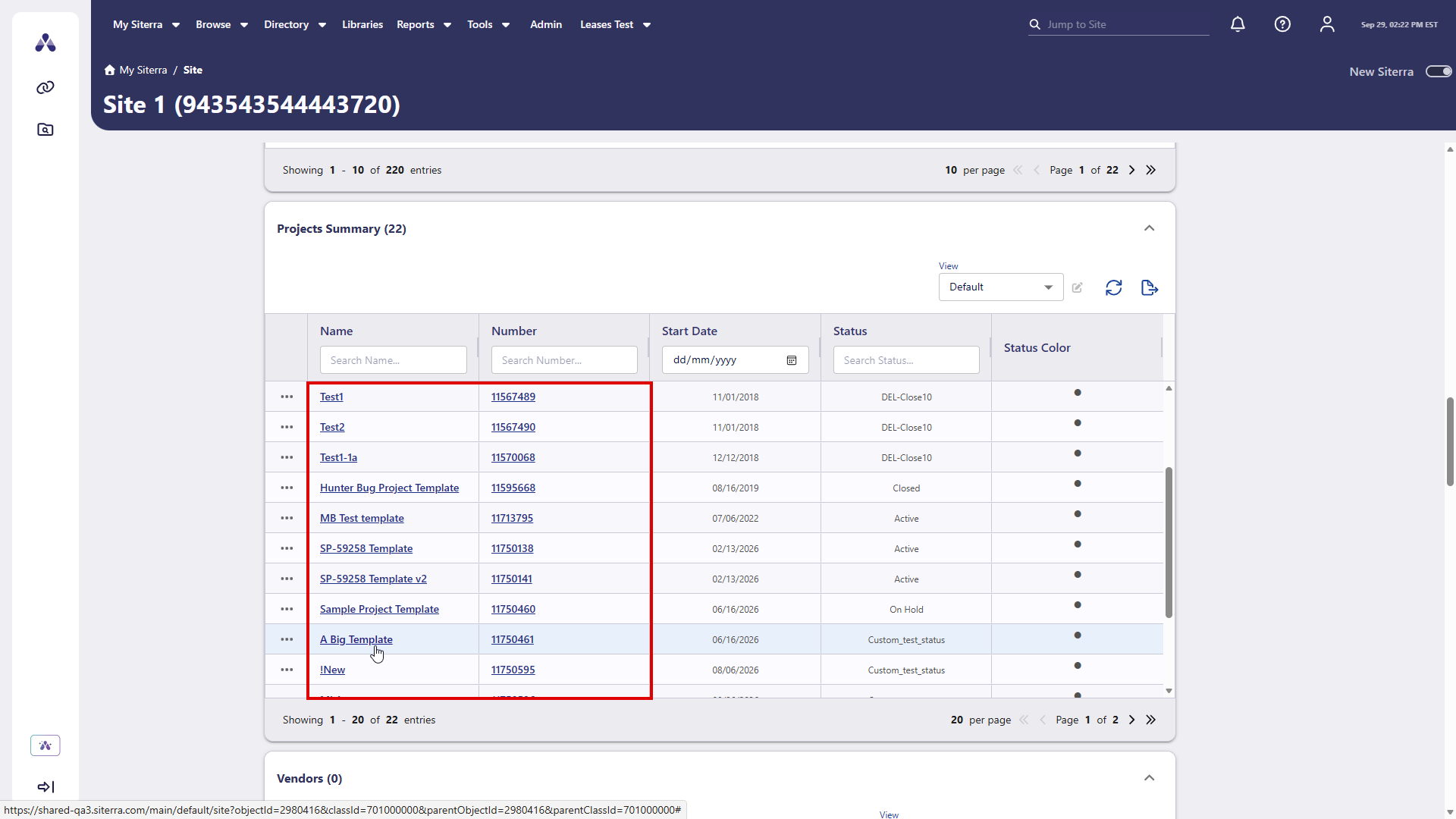
Navigate to project details
Open project records from the Projects Summary section on the Site page in new Siterra. Select a project Name or Number to navigate to the associated project page.
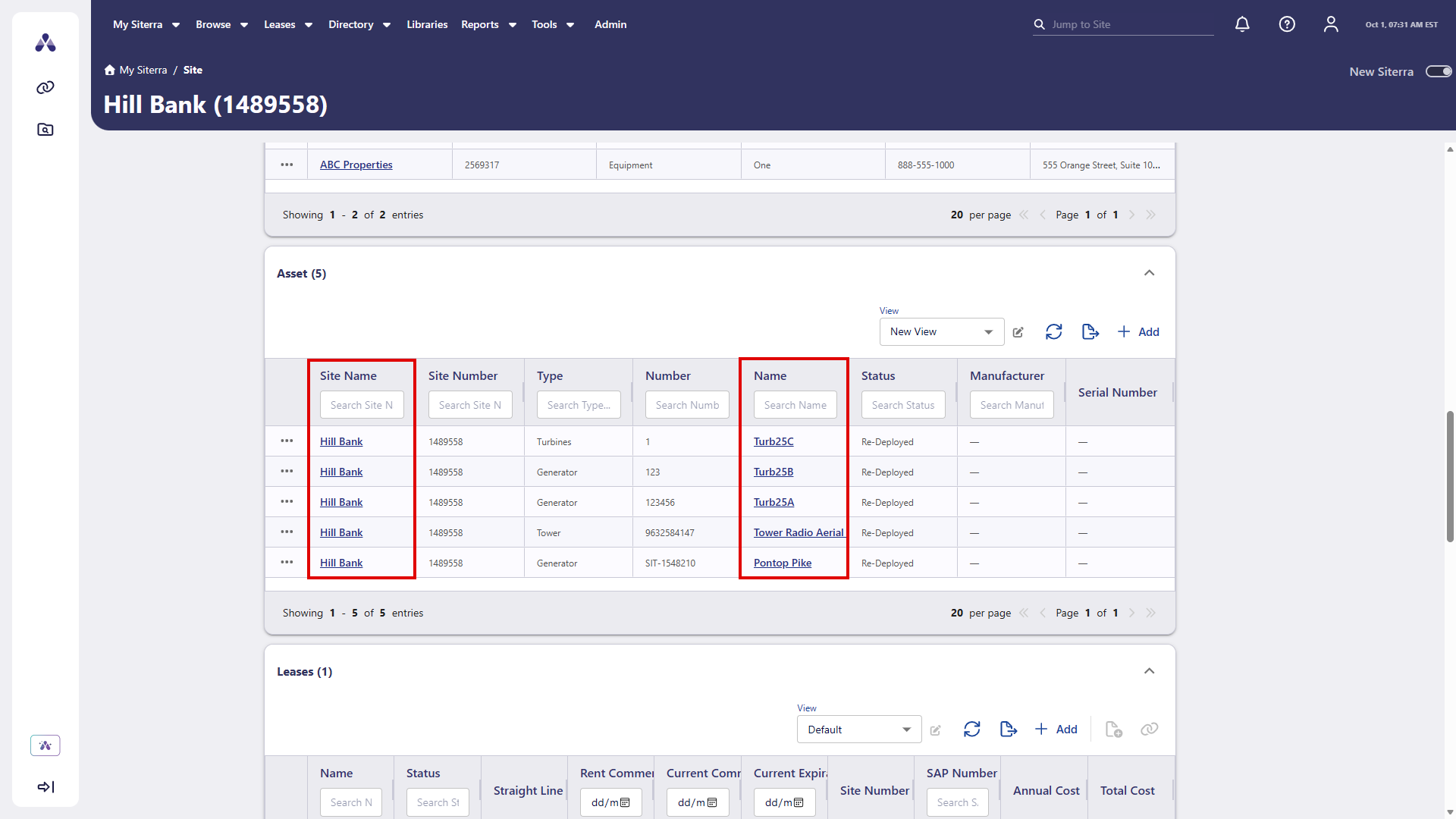
Navigate to assets
Navigate to related records from the Assets (Inventory & Equipment) section on the Site page in new Siterra. Select the Site Name or Name to open associated site and asset details.
Navigate to related records
Open related records from grids on the Site page in new Siterra. Select a Name or Number in the Leases, Lease Critical Date / Options, Incidents, and Events sections to open that record.

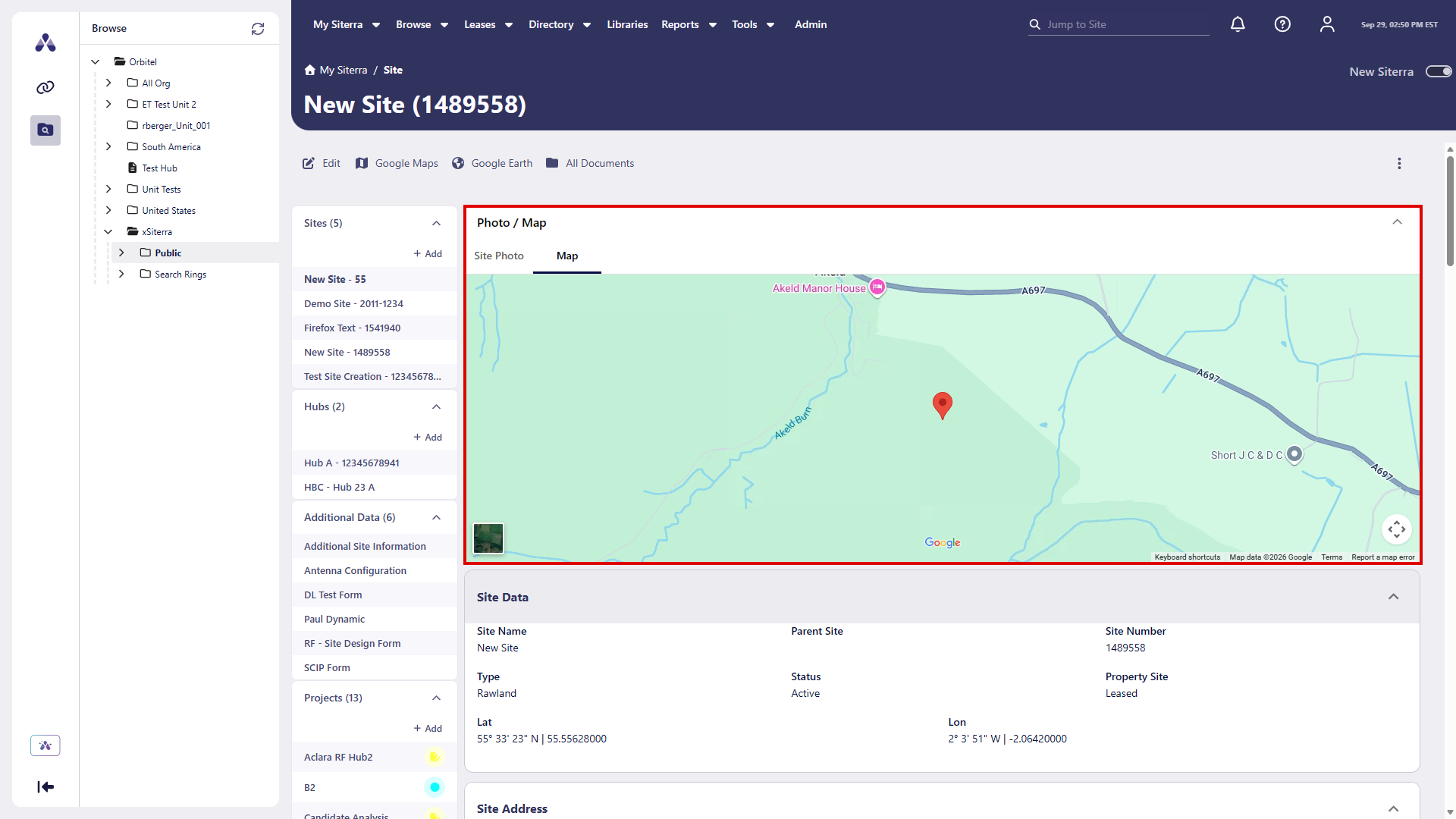
View map location
View a site's location on the Site page in new Siterra. Select the Map tab to see the site on a map. The map uses the site's latitude and longitude. If a site does not have coordinates, a message appears instead of the map.
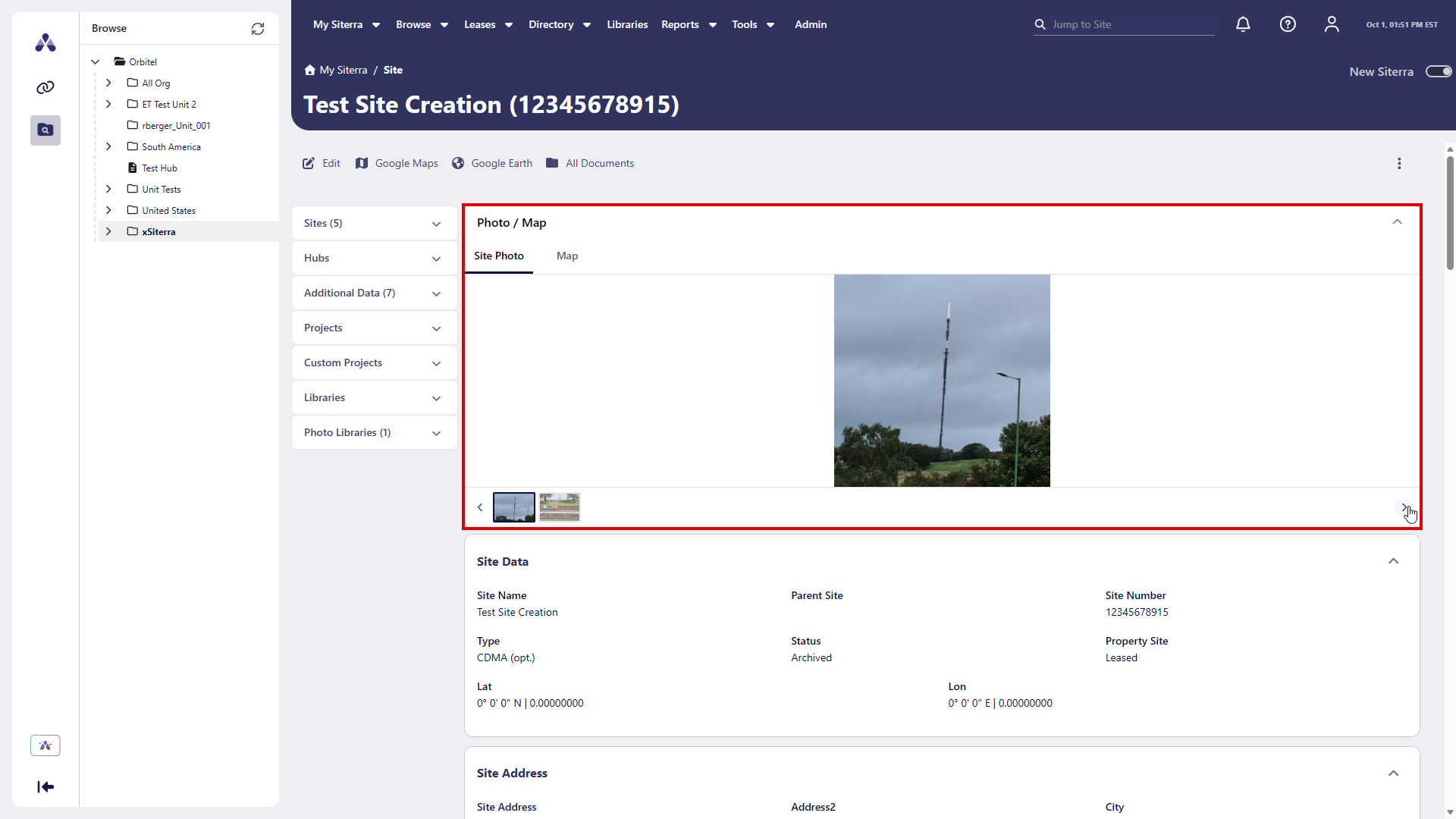
View photos
Browse photos on the Site page in new Siterra. Select the Photo tab to view full-size images from the site's photo library. To browse photos, select thumbnail images, select Previous and Next, or use keyboard arrow keys.
Extended attributes
Capture comprehensive site information upfront with extended attribute forms when you create a site. The form dynamically displays your organization's configured fields, sections, and custom groupings.
Improvements and issues fixed
|
Component |
Summary |
Reference # |
|---|---|---|
| Column filters | When you clear text from a column filter, the grid now restores all rows that match any remaining active filters. You no longer need to refresh the page. | SP-60281 |
|
Projects |
The Schedule tab on the Project page now correctly shows only the date, without the time. This applies to all date columns, the Last Action column, and tooltips. |
SP-60383 |
|
Sign-in |
New Siterra now keeps you signed in for the full session time your administrator sets, no matter which time zone you're in. |
SP-60381 |