Manage Permissions
Administrators must assign the level of permission for each role for the project template and to each task and subtask.
Assign the permission for each role:
-
Navigate to the desired schedule template.
-
Click the Permissions tab.
-
Click Manage Permissions in the toolbar.
A new window appears which displays the permission sets for a particular template.
There are tabs for Project, Task, Documents, and Libraries. The default permission sets are:
-
None: No permissions granted (default).
-
View: User can see the task.
-
Edit: User can perform the actions defined for this task, except marking it N/A.
-
Manage: User can perform the actions defined for this task, including marking it N/A.
-
Full: User can perform all task actions defined for this task, including setting the manual completion date.
-
One approach is to select a task or subtask, then work across the row to apply the appropriate level of permissions for each role. In this example, the subtask called “Site approved as primary candidate” has been assigned to the Project Manager. Role A has Full access, Role B has Edit access, and Roles C and D have View access.
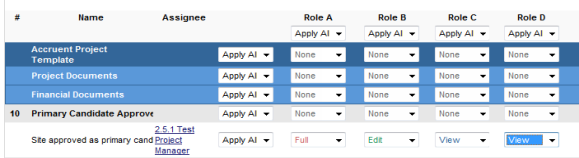
In this example, the Role A is the project manager. The person in this role is responsible for the Site (or Search Ring, or asset) from initial concept all the way to full operation. The person in this role requires full access to the project, including all tasks and subtasks.
A subtask can be assigned to another role (in this example, Role B.), but the project manager has the ultimate responsibility for the task.
Another approach is to select a role, and then work down the column to apply the appropriate level of permission for the template and for each task and subtask. Click on Apply All to select the permission which should be applied to the entire column.
For example, if Role A is to have Full access to the template and everything in it, click on Apply All under “Developer,” then choose Full.
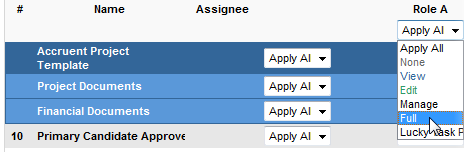
Apply All means apply the chosen permission to all tasks and subtasks in the template.
Apply All does not apply the chosen permission to the schedule template row. This permission must be granted separately.