Linked Artefacts
You can link artefacts to each other, enabling you to see the bigger picture and create relationships between associated data. For example, you may find it convenient to link an arrangement drawing with its sub-assemblies, or upload and link a photograph to a drawing.
Each time you perform a linking task, you can choose one of the following relationship options:
-
Link to primary (legacy): Creates a one-to-many relationship. Selected artefacts are linked only to the primary artefact (the artefact from which the linking action is initiated).
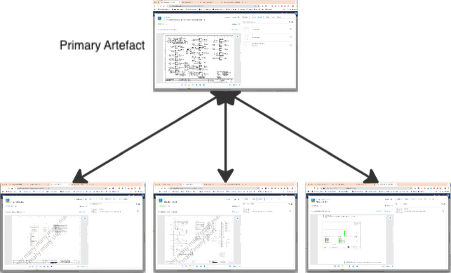
-
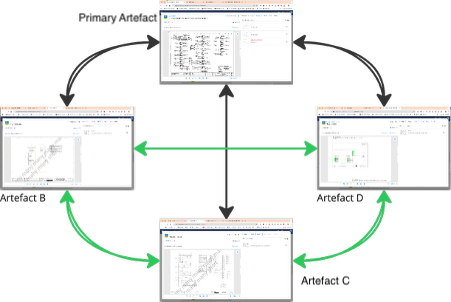
Cross-link to All: Creates a fully interconnected relationship. All selected artefacts are linked to the primary artefact and to each other.
Due to increased processing requirements, a maximum of 100 artefacts is supported per cross-link action.
Linked tab options
You can view linked artefacts from the tools sidebar on the artefact page.
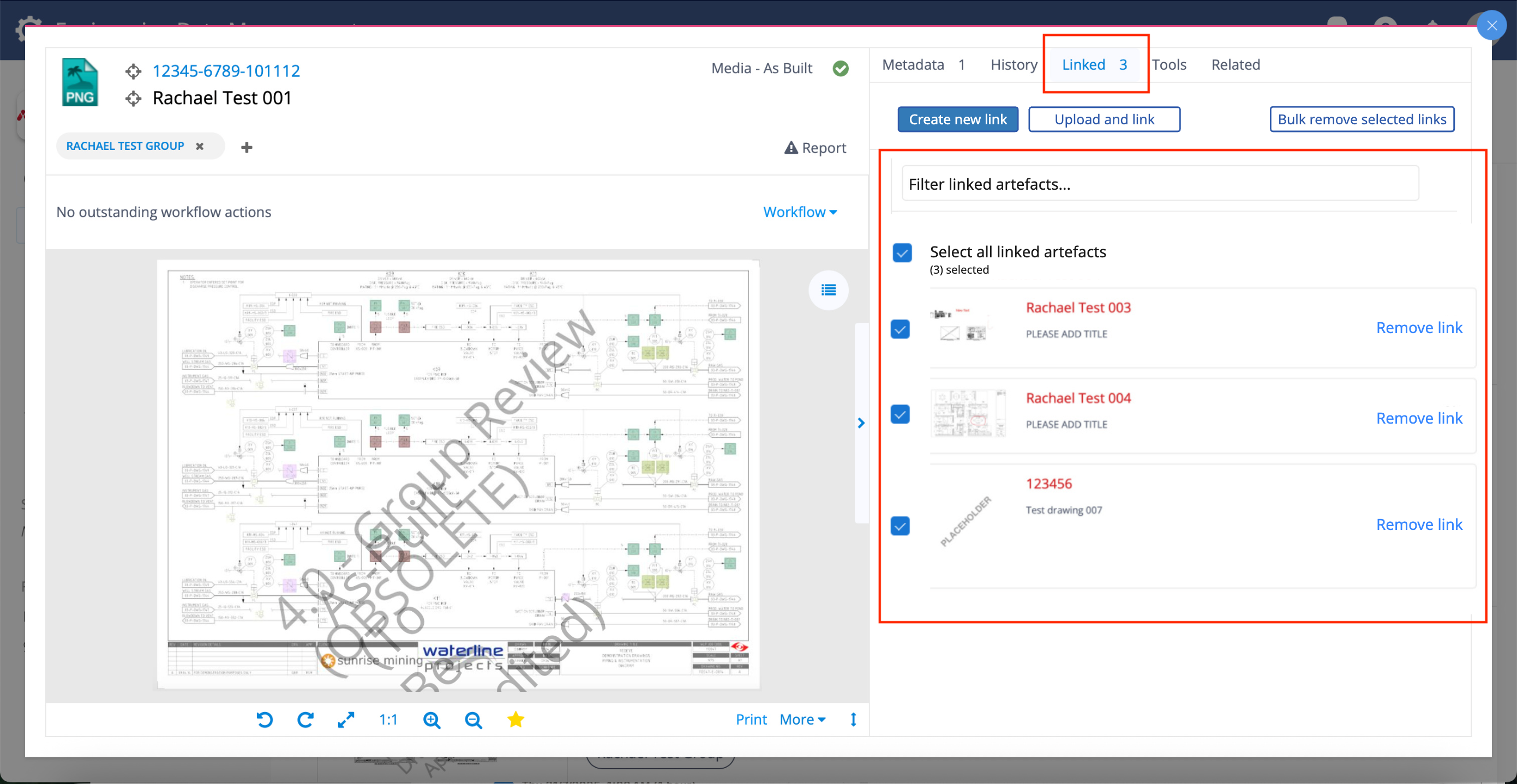
If one or more artefacts are linked, the Linked tab displays the current link count in the tab header. The Linked tab includes the following options:
-
Create new link*: Start a linking task for existing artefacts.
-
Upload and link*: Upload new artefacts and link them in the same action (Link to primary only).
-
Bulk remove selected links*: Remove multiple links at the same time.
-
Remove link*: Remove an individual link (does not delete the linked artefact).
-
Selection check boxes: Select artefacts for bulk removal.
-
Filter: Find linked artefacts in long lists.
-
Linked artefact details and thumbnail: Select to open and view the linked artefact.
*Role restricted
Role restrictions
Bucket Administrators control linking permissions using the Restrict Artefact Linking setting in Manage Bucket > Configuration. This setting controls access to Link to primary, Cross-link to all, and Remove link actions.
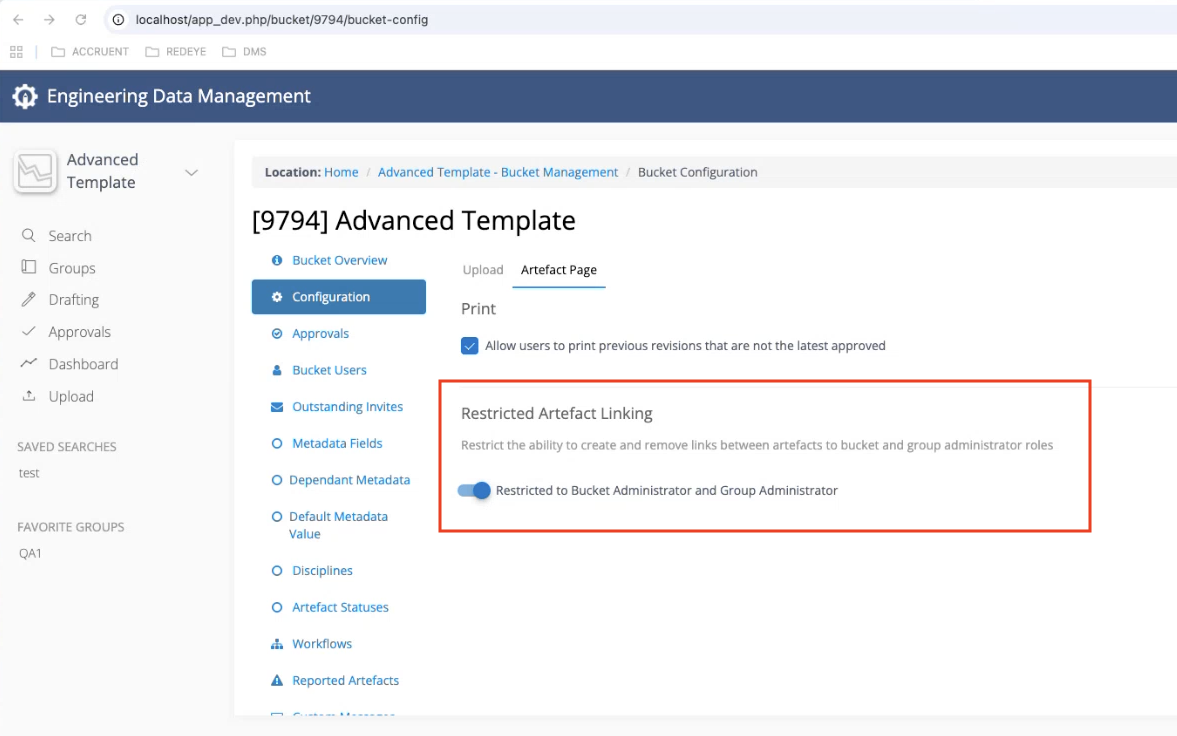
Enabled (recommended)
-
Bucket Administrator
-
Group Administrator
-
Partner
Disabled
-
Bucket Administrator
-
Group Administrator
-
Partner
-
Bucket User
-
Group User
-
Advanced Group User
Link artefacts
-
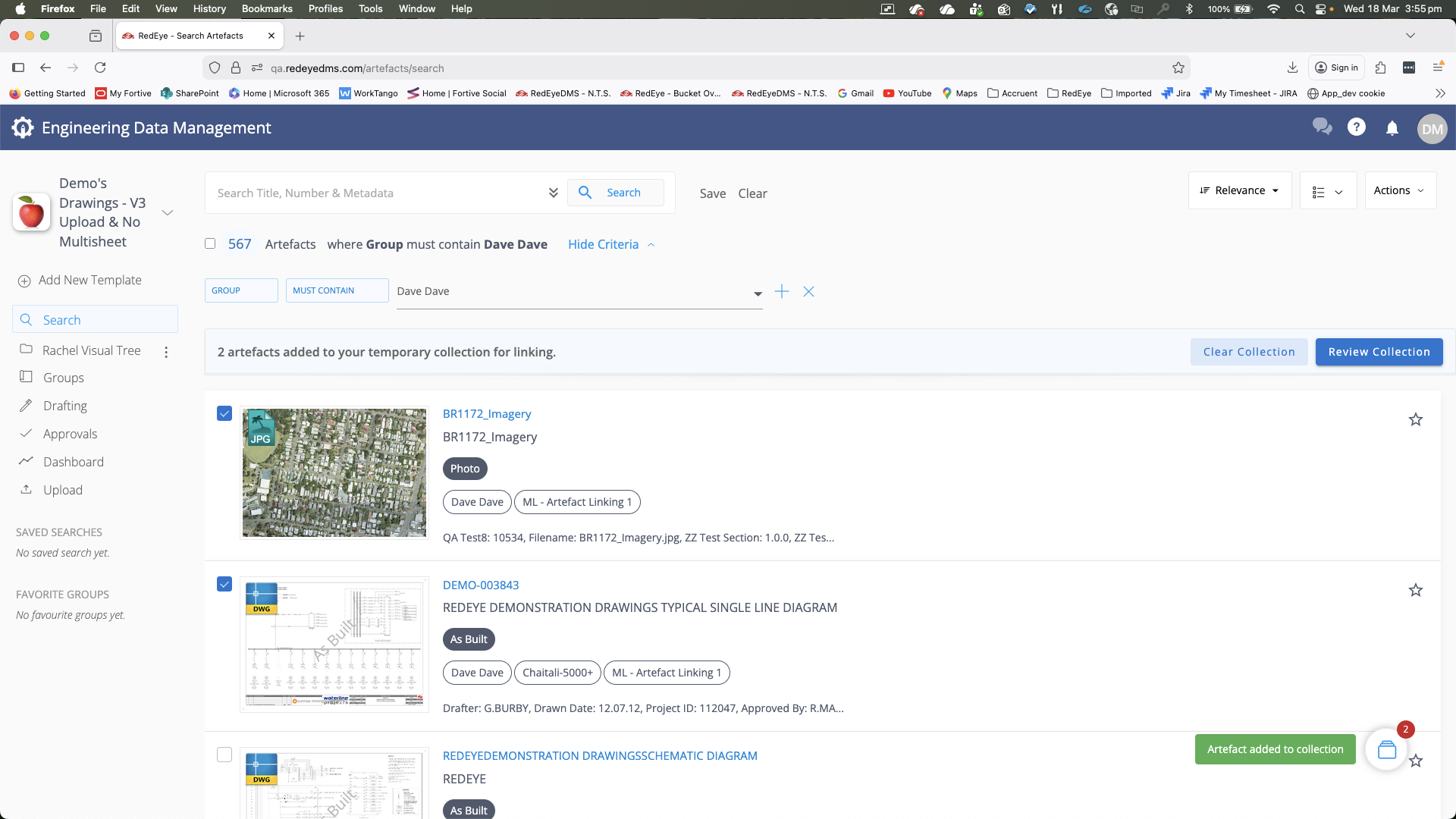
Select Create new link to open the Bulk link search page.
The page includes an advisory ribbon with contextual controls. If you change your mind, select Clear collection, then Cancel on the advisory ribbon to abandon the linking activity.
-
Perform one or more searches to display a results list.
-
Select artefact check boxes to add them to My Collection.
You can select Clear collection at any time to start over.
-
When you add all artefacts, select Review collection to continue.
The primary artefact doesn't appear in search results, even if it matches the search criteria. This prevents linking an artefact to itself.
-
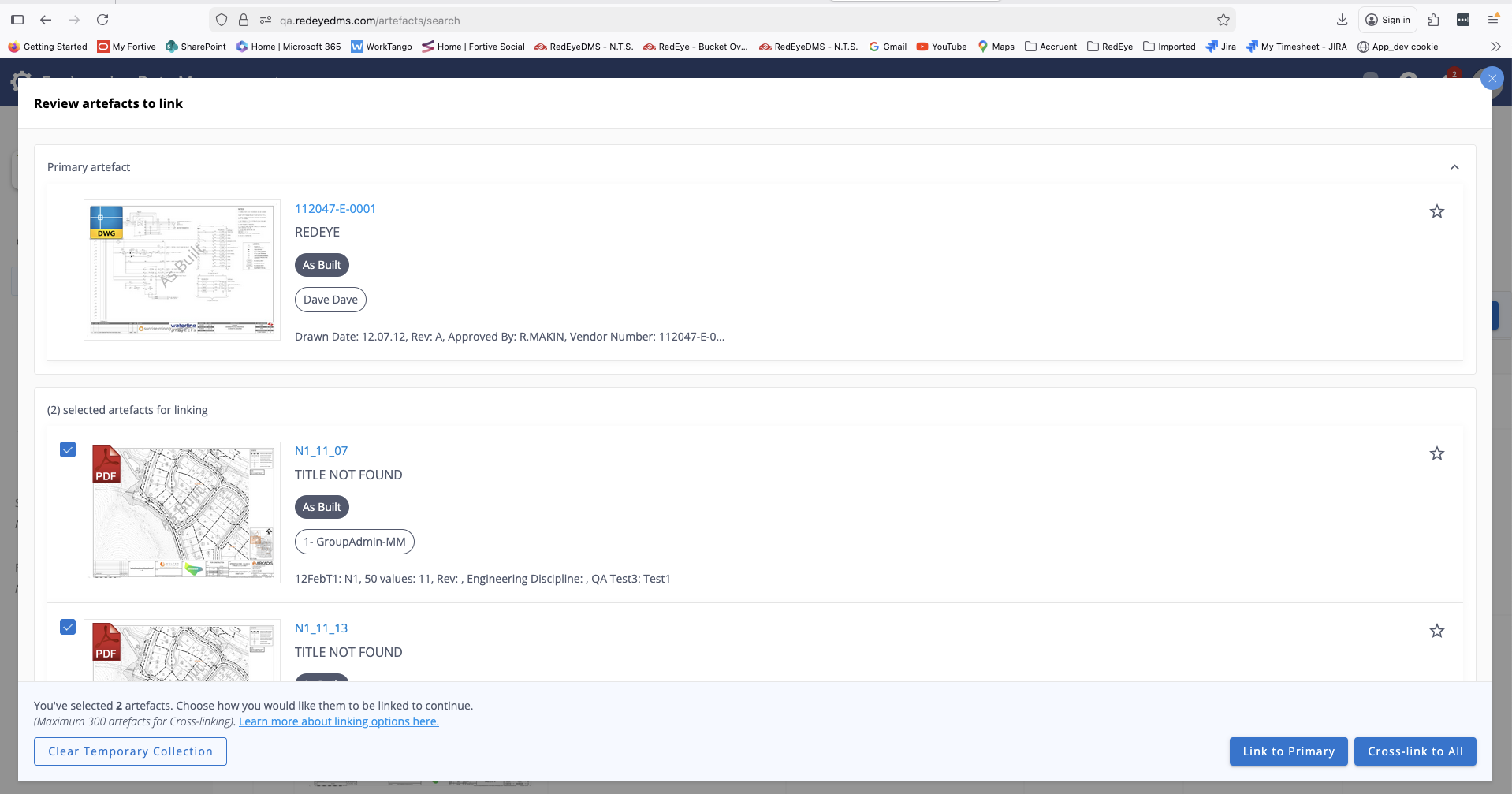
On the My Collection page, review the artefacts:
-
The primary artefact appears at the top.
-
Linking candidates appear below.
-
-
Choose one of the following options:
-
Clear temporary collection
-
Link to primary
-
Cross-link to all
-
-
Select Confirm in the confirmation dialog to complete the linking action.
When the process finishes, you are returned to the primary artefact page.
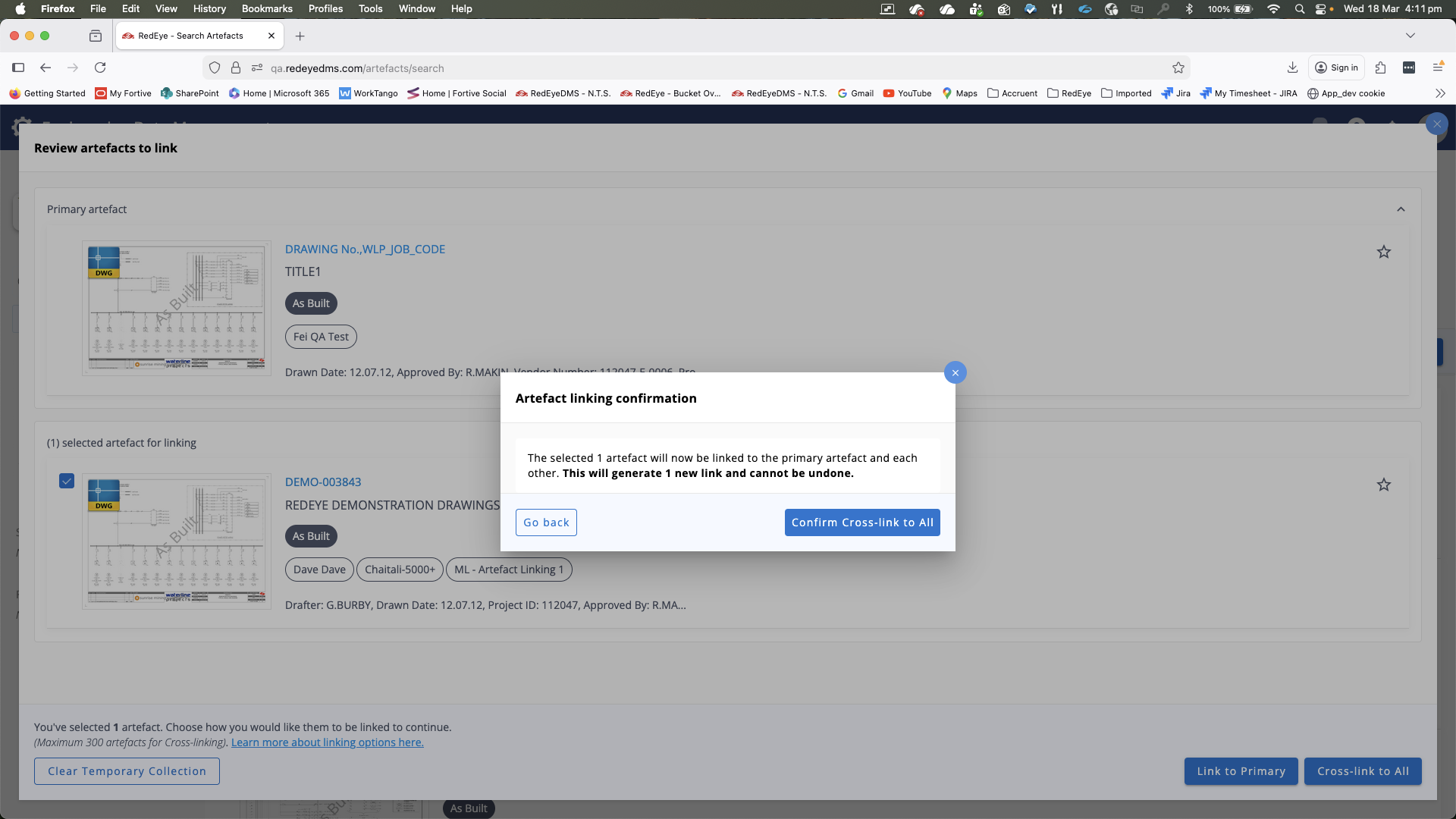
Linked artefacts display in ascending order by artefact ID, regardless of the order in which you selected them.
Remove links
Authorized users can remove artefact links individually or in bulk.
-
Remove a single link: Select Remove link next to the artefact you want to unlink.
-
Remove multiple links: Use the filter and select individual check boxes, or click Select all, then choose Bulk remove selected links. Confirm the action in the dialog.
Upload and link artefacts
The Upload and link feature uses the Link to primary (one-to-many) method only. Upload permissions apply because this feature uses the Upload tool. If cross-link is required, upload the artefacts first using the standard Upload tool, then perform a separate cross-link action.
-
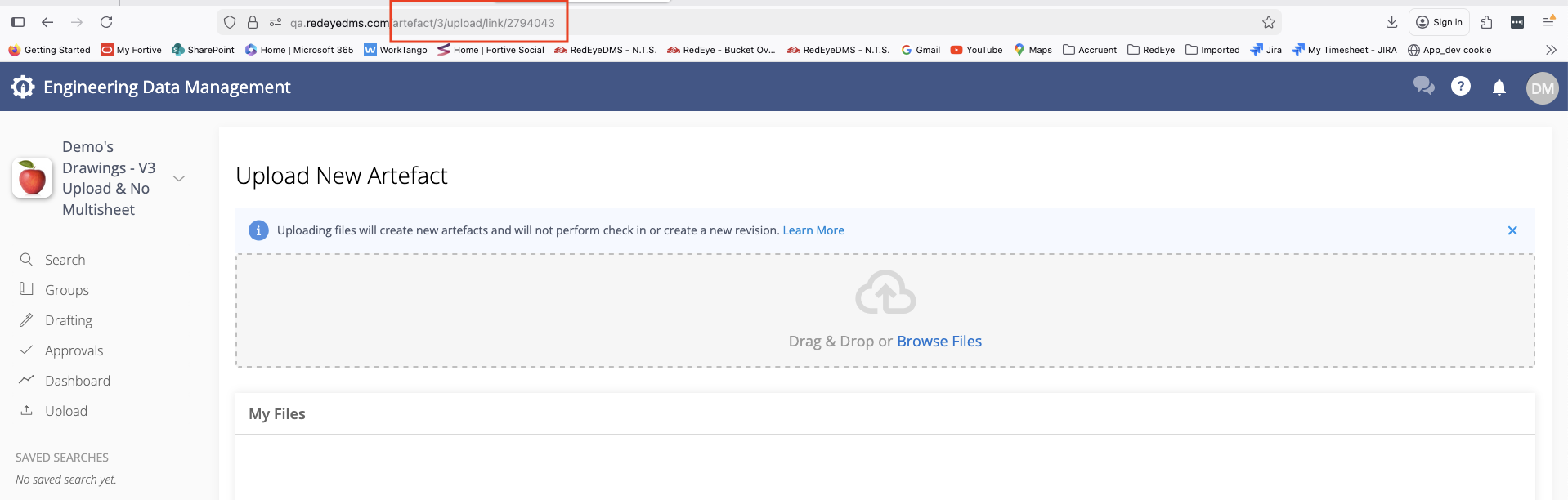
Select Upload and link on the artefact page.
-
The Upload page opens. You can identify the Upload and link variant by the URL, which includes Upload/Link/.
-
Use the Upload tool as usual.
Uploaded files follow standard upload validation and warnings and are automatically linked to the primary artefact when the upload completes.
Linked artefacts and Cleanup tool fold in consequences
If an artefact with linked artefacts is processed as a duplicate in the Cleanup Tool and subsequently folded in, the linked artefacts will then cease to be linked to the folded artefact.
This is because artefacts that are linked are done so using the artefact ID. When a duplicate artefact is folded in, the resulting new artefact has a completely different artefact ID. This means that the new artefact will need to be re-linked to its previously linked artefacts.