Bucket Administration: Bucket Reports
Reports can be used to analyse a bucket's contents. The available report types are:
-
Activity Over Time: Analyse artefact activity filterable by worfklow step types and artefact status types over time
-
Artefact By Group: Displays total artefacts for each group in a bucket.
-
Artefact List: Displays an exportable datagrid with a list of artefacts in the selected bucket.
-
Artefact Print Activity: Displays summary statistics on artefact prints in a bucket over a date range.
-
Artefact Status Report: Produce a CSV report that provides a list of all Artefacts in your bucket and their current status.
-
Artefact View Activity: Displays summary statistics on artefact views in a bucket over a date range.
-
Duplicate Artefacts Report: Non binary duplicate detection via direct SQL queries against the database, finding artefacts that have the exact same combination of Artefact Code (Artefact Number) + ‘Revision’ Key ID + ‘Sheet Number’ Key ID (Key ID = Metadata Field ID) metadata values.
-
File Type: Displays summary statistics on file types of constituent artefacts in a bucket.
-
Metadata Changes: Displays metadata changes for auditing purpose.
-
Outstanding Actions: Displays an exportable datagrid with a list of artefacts that have pending approvals/reviews.
-
Outstanding Workflow Queue Actions: Displays summary statistics on outstanding workflow actions.
-
Unordered Revisions Sequence Report: Produce a CSV report that provides a list of all artefacts that contains unordered revisions sequence.
-
Top Users: Identify the users with the most events, over a given time frame.
-
User List: Displays an exportable datagrid with a list of users in the selected bucket.
-
Artefact Workflow Actions: Analyse artefact activity filterable by specific workflows and workflow steps over time.
-
Outstanding group reviews: Lists all artefacts in the bucket that have an outstanding group review. Use this report to identify stalled group reviews, follow up with responsible users, and help keep artefacts moving through workflow processes.
How to generate a report
There are two ways to generate a new report
-
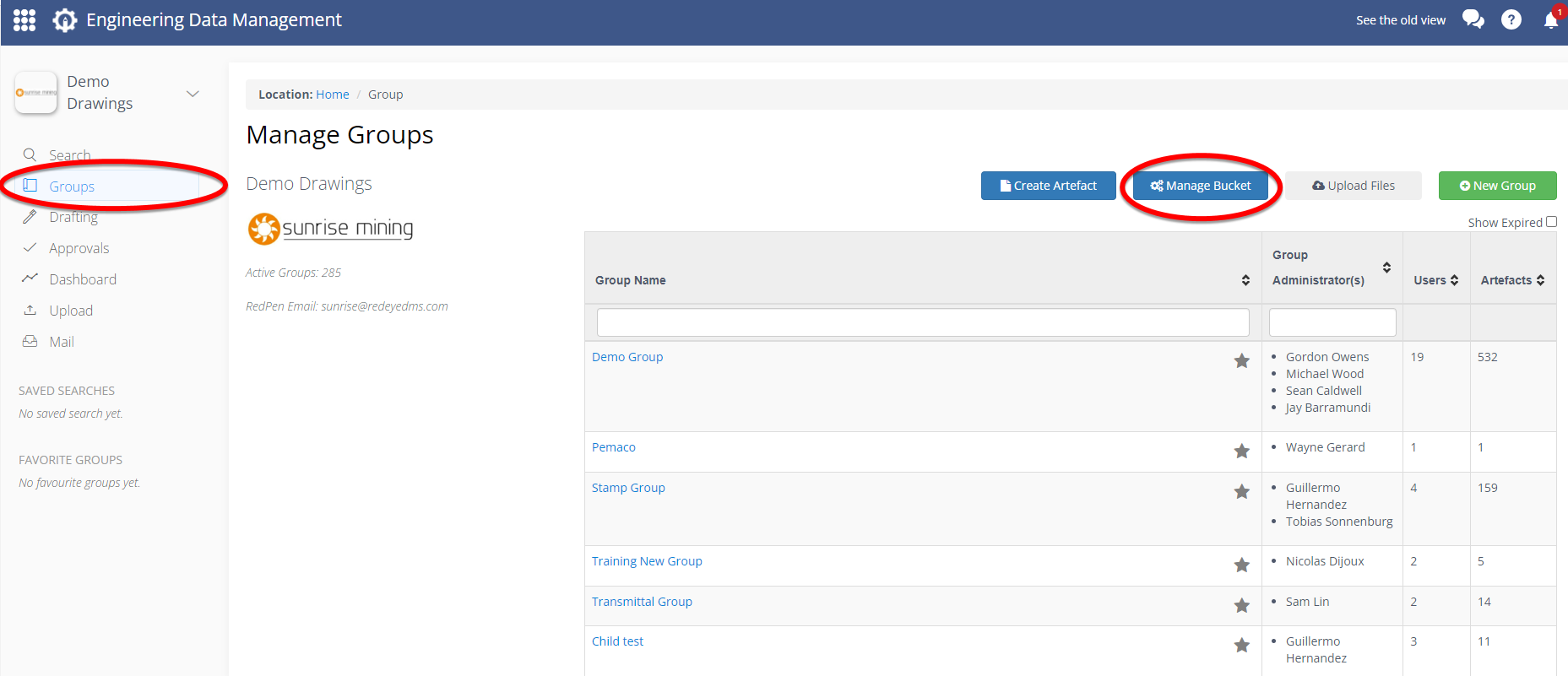
go to the Groups page and click the blue Manage Bucket button
-
click on your profile icon and select Manage Bucket from the list.
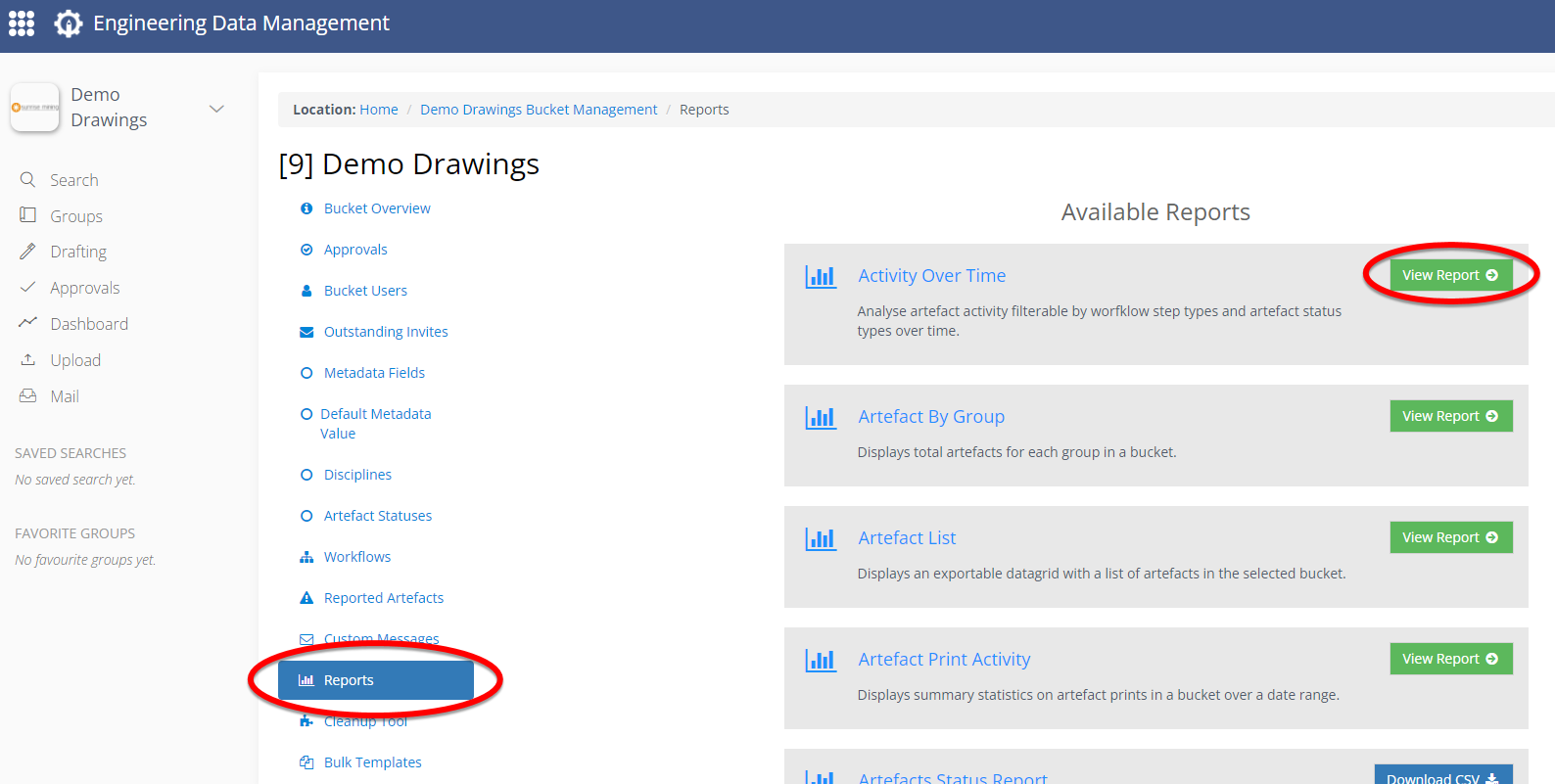
Select Reports to view the available reports. Once in the Reports tab, select the report you want to run, then click the green View Report or blue Download CSV buttons.
Some reports will have filters, such as a date range, that can be manipulated to generate specific results.
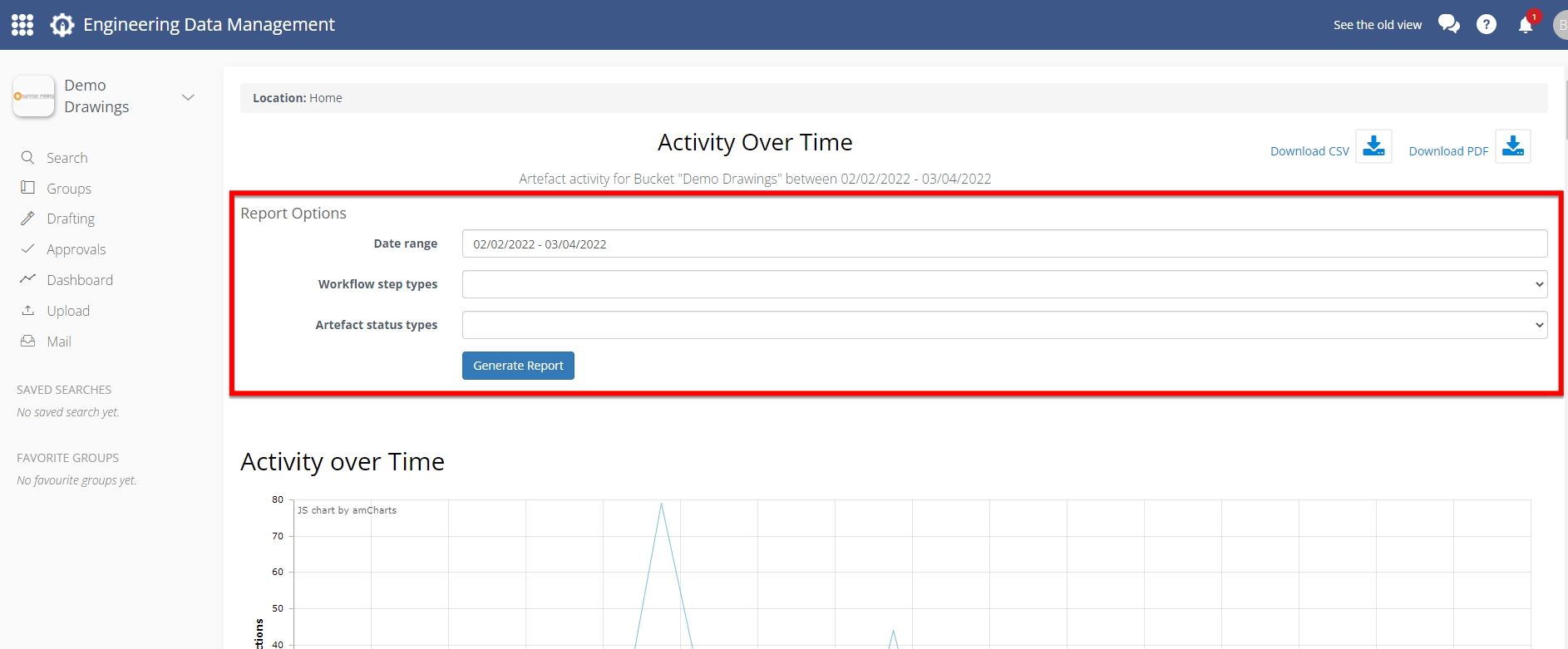
Once you have generated the report, you can download it as a CSV, Excel or PDF file.