ATLAS (Advanced Transformative Lease Abstraction System)
Extract structured lease data from PDFs and import it directly into Lucernex, reducing manual data entry. This performs optical character recognition (OCR) and intelligent data extraction from lease PDFs including handwritten text and low-quality scans. Save time by uploading your lease PDF directly. Review the AI-extracted data and save the results to Lucernex in minutes.
Lucernex ATLAS is available at additional cost. Contact your Accruent account manager to purchase. Available September 2026.
Note: By default, AI Abstracted shows as a Status option in Lucernex entities regardless of whether ATLAS is enabled for your firm. If ATLAS is not enabled for your firm, administrators can set this option to Inactive.
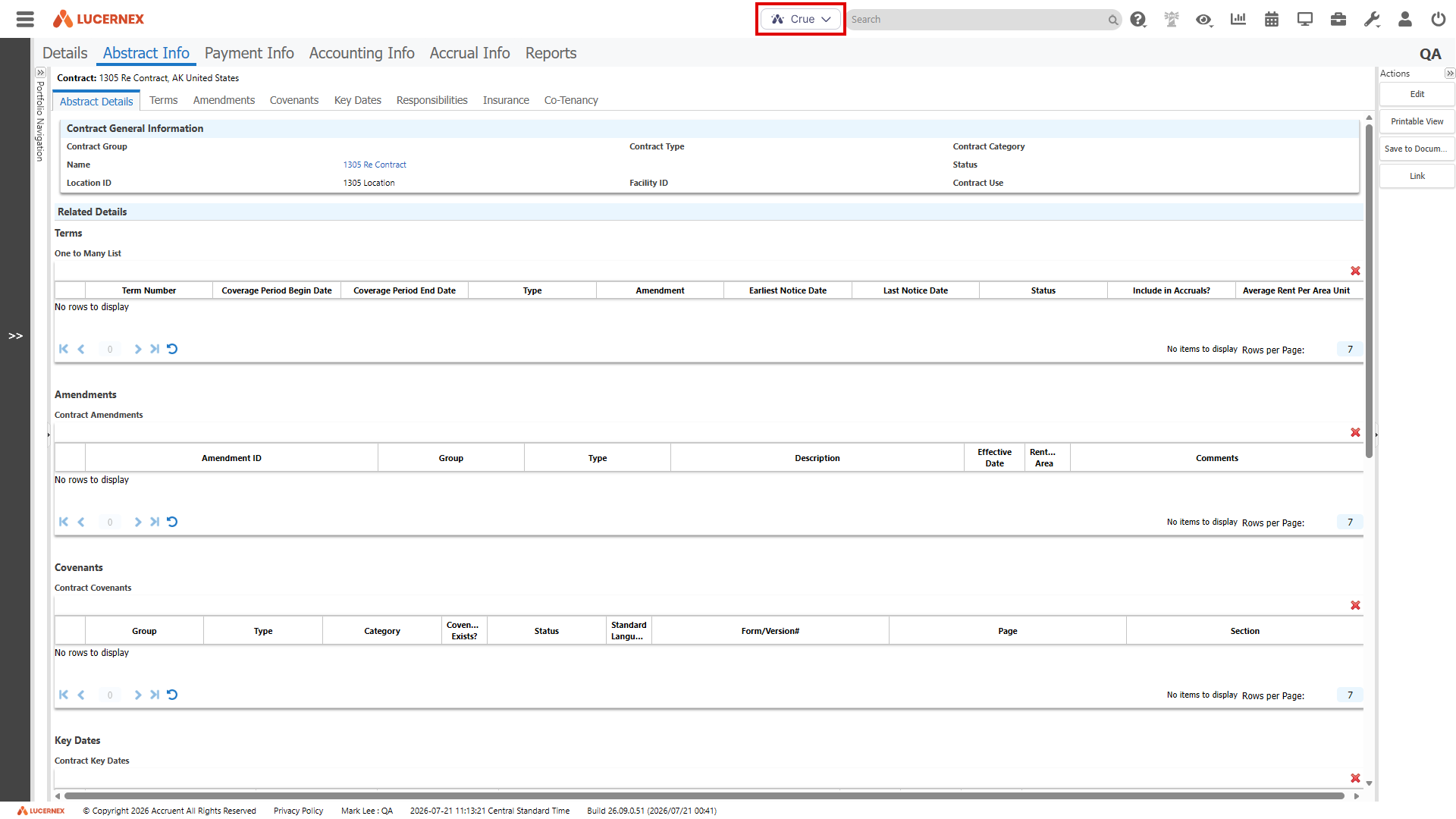
Lucernex ATLAS (Advanced Transformative Lease Abstraction System) is accessed via the Crue option. When Lucernex ATLAS is enabled for your user and firm, the Crue option appears next to the Search box at the top of the screen.
Upload a lease PDF to extract data with ATLAS and import verified values to Lucernex. The ATLAS template maps extracted lease data to Lucernex entity types and fields. You must review and verify each extracted value before it is sent to Lucernex. The system then uses the verified values to create or update records for the supported entity types.
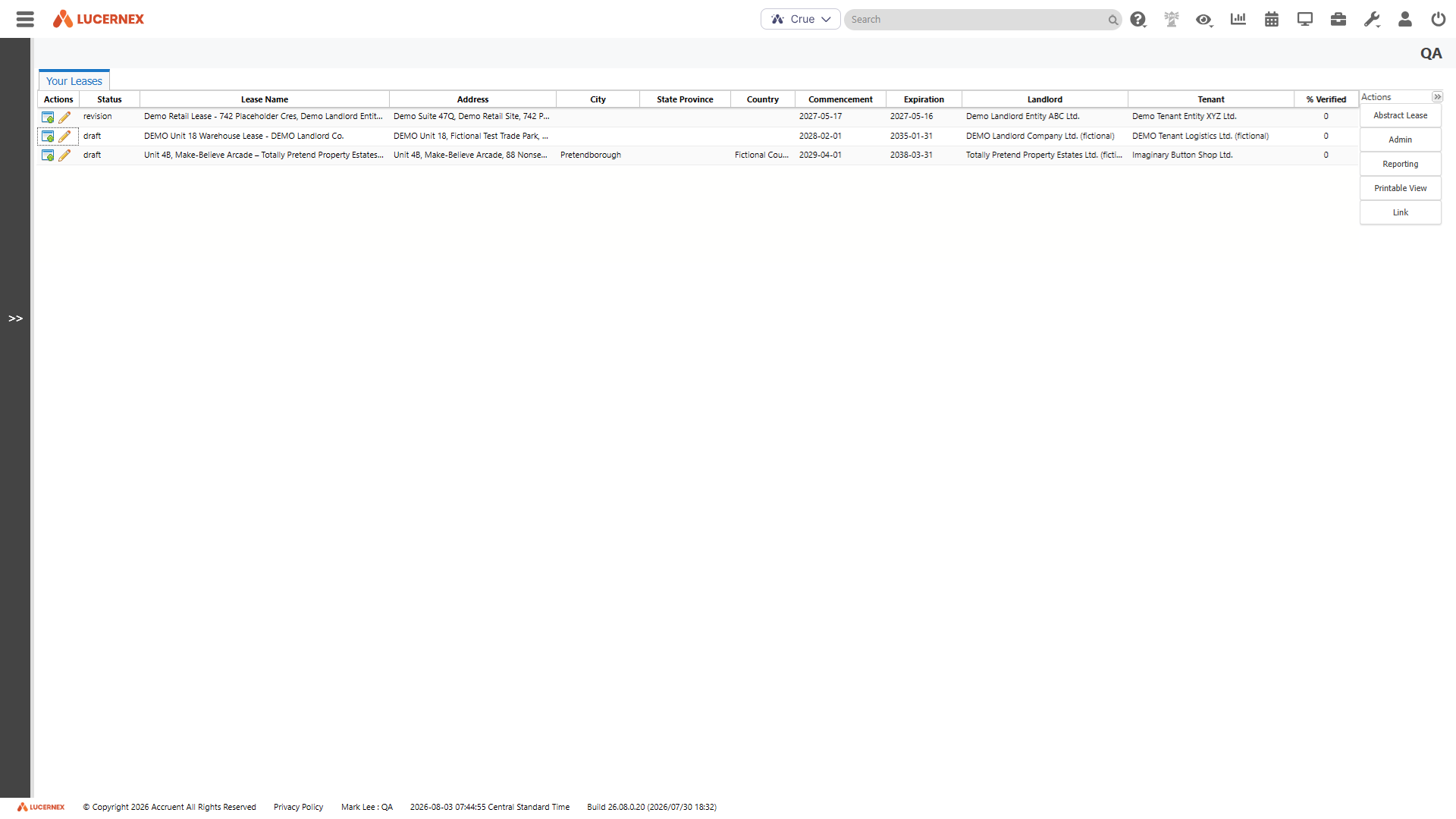
When you abstract lease information from the PDF, the lease appears on the Your Leases page. From there, verify the lease information, then import the lease to create a new contract or update an existing contract.
 Supported entity types
Field mappings
Import behavior
Abstract a lease PDF and verify values
Upload a lease PDF to extract data with ATLAS and import verified values to Lucernex. The ATLAS template maps extracted lease data to Lucernex entity types and fields. You must review and verify each extracted value before it is sent to Lucernex. The system then uses the verified values to create or update records for the supported entity types.
-
Select Crue > Abstract lease in the top menu bar.
ATLAS opens in a new browser tab and automatically signs you in.
-
Drag and drop the lease PDF into the upload pane or select the upload pane to browse for the file.
-
Select the Template.
ATLAS uses this template to perform Optical Character Recognition (OCR) and determines which data to extract.
-
Select Start Lease Abstraction.
Processing is not instant. The system sends you an email when processing is complete.
Select Batches to display all leases including those with the status draft, processing, or complete.
View leases that have finished processing on the Your Leases page.
When the status is draft, the lease is available for editing.
-
Select Crue > Your Leases to display the list of abstracted leases.
-
Select Edit in Atlas
 next to the lease.
 -
Review extracted fields alongside the source document.
-
Select Verification to edit or correct values:
-
Select the field.
-
If the correct value is not displayed for a field:
-
Select the value you want from the abstracted options available, then select ellipsis (
 ) > Refresh Answer.
Select a reference to view it in the document. References with a checkmark
 indicate information the system used to generate the value. References without a checkmark indicate where the system looked for a value, but did not find one.
A crown
 indicates that the information is from the first document uploaded, which is normally your lease.
An indicates the amendment document where n indicates the sequence of the amendment document.
Optionally, select references you want the system to include and clear ones to exclude.
To add a reference to information in a document, highlight the information, and then select Add.
-
Enter the correct value, or select the value you want for a dropdown.
-
-
Select Verify
 to confirm the value.
You must select this to update the corresponding field in Lucernex with this information. The system only imports verified values into Lucernex.
The system automatically saves your progress when you verify values.
-
Repeat these steps for each field.
Ensure values match Lucernex validation criteria. For example, if you enter an area, enter a measurement unit.
Select Back and Next to navigate between categories.
-
In the Core category, select the Lucernex portfolio to import the lease to, then select Verify
.If this is left blank, the contract is not created in Lucernex and an error displays.
-
In the Contract, Location and Facility categories, verify the Name and ID and then select Verify
.
-
-
When you have finished verifying fields, select Activate Lease.
This sets the status to active, which indicates that the information is verified and complete.
Create a new contract from an abstracted lease
Create a new contract in Lucernex from an abstracted lease in ATLAS on the Your Leases page. The lease must have successfully abstracted and its status must be active, revision, or draft.
-
Select Crue > Your Leases to display the list of abstracted leases.
-
Select Import into Lucernex
 next to the lease.
 -
In the dialog that appears, select Create new to create a new contract in Lucernex.
This creates a new contract even if one already exists for this lease.
-
In the Confirm Import dialog that appears, select Yes to confirm that you want to create a new contract, otherwise select No.
When you create a new contract, Lucernex creates the contract and related child records from the verified values in ATLAS. Depending on the imported data, this can include location, facility, contract term, covenant, expense setup, allowance, insurance, responsibility, security deposit, and percent rent records.
If the lease is for a new site, Lucernex creates the supporting records from the verified location and facility information. If the lease relates to an existing site, review the imported location, facility, and portfolio-related values carefully before saving the final records.
If a contract already exists, Lucernex adds a suffix to the new contract name with parentheses encasing the number of the duplicate. For example, Contract_A (2).
Lucernex validates data types, required fields, and values, then creates the contract and related entities.
-
Data types: Dates, currencies, percentages, and booleans must be in the correct format.
-
Required fields: Lucernex flags any missing mandatory fields.
-
Cross-entity dependencies: For example, Lucernex cannot create a contract before its parent Location exists. A related ATLAS field is used to determine the portfolio.
If validation fails, Lucernex rejects the update and an error message appears. If this occurs, correct the information in ATLAS and try again.
By default, the system sets the Status of records it creates to AI Abstracted unless you choose a different value when you validate fields.
The contract is operational and standard Lucernex features are available, including reporting, jobs, and payment scheduling.
-
Edit a lease and update an existing contract
To change an abstracted lease, upload an addendum PDF to the existing lease, and reabstract. The system keeps existing unchanged values you verified earlier.
Avoid editing fields in ATLAS and re-importing without an addendum PDF. If you do, the system imports all data since the last time you abstracted, which may create duplicate records.
For some values in ATLAS, the system updates existing Lucernex fields. For others, it creates new records instead of replacing them.
-
Contract summary fields are overwritten with the values you verified in ATLAS. For example, if Contract name or Contract ID is changed in ATLAS and verified, the existing contract field is updated with that value.
-
Location, Facility, and Portfolio values are ignored and not overwritten during contract updates because they are shared entity records in Lucernex.
-
Responsibility records are updated instead of duplicated when matching responsibility data already exists.
-
The system creates new related records rather than replacing them. This includes records such as covenants, contract terms, key dates, allowances, and similar child records. If you import the same lease again, Lucernex may create duplicate child records.
-
Notes and option descriptions are appended to the top of the existing text field rather than replacing the existing value.
We recommend that you review imported records after each update. If the system creates duplicate or superseded records, update or remove them manually according to your organization’s data governance process.
Abstract an addendum PDF
-
Select Crue > Your Leases to display the list of abstracted leases.
-
Select Edit in Atlas
next to the lease. -
If the lease is activated, select Revise Lease.
This sets the status to revision and makes the lease available for editing.
-
Select Amendments.
-
Drag and drop the PDF into the Drag and drop pane.
-
If you have more than one document, drag them into date order, so that the earliest document is at the top.
-
Select Re-abstract.
The status of the lease in the Your Leases page updates to processing. Processing is not instant. The system sends you an email when processing is complete.
Select Leases to display all leases including those with the status draft, revision, processing, or complete.
View leases that have finished processing on the Your Leases page.
When processing completes, verify the updated information and update an existing contract with that information. Only changed answers become unverified.
When processing an updated lease or addendum, Lucernex updates or appends records only for fields verified after the re-abstraction date.
Verify and edit the lease
Verify the lease after abstraction or edit fields directly and verify without running abstraction. When the status is revision, the lease is available for editing.
-
Select Crue > Your Leases to display the list of abstracted leases.
-
Select Edit in Atlas
next to the lease. -
Select Lease, then select the PDF with the updates.
-
In Verification, edit or correct values.
The system automatically saves your progress when you verify values.
-
When finished, select Activate Lease.
This sets the status to active, which indicates that the information is verified and complete.
-
Update an existing contract with the information.
Update an existing contract from an updated lease
Update a contract in Lucernex with updated information from ATLAS on the Your Leases page. The lease must have successfully abstracted and its status must be active, revision, or draft.
-
Select Crue > Your Leases to display the list of abstracted leases.
-
Select Import into Lucernex
next to the lease. -
In the dialog that appears, select Update existing.
-
Select the Lucernex contract to update, then select Update this contract.
-
In the Confirm update dialog that appears, select Yes to confirm that you want to update the existing contract, otherwise select No.
Lucernex validates data types, required fields, and values, then updates entities.
The contract is operational after the update and standard Lucernex features are available, including reporting, jobs, and payment scheduling.
By default, the system sets the Status of records it creates to AI Abstracted unless you choose a different value when you validate fields.
Limitations in this release
-
One standard template is available in this release. Multiple tenant, region, country, jurisdiction, or lease-type templates are planned for a future release.
-
US locale only.
-
No approval workflows or lease status management.
-
No bulk lease abstraction.
-
No contract user-defined fields (UDFs). Only Lucernex out-of-box fields are supported. User-defined fields require a Professional Services and ATLAS integration.
-
No bulk member provisioning with a spreadsheet import.
-
Expense setup records are created, but expense schedules are not created.
-
Percent rent summary records are created, but detailed breakpoints, sales exclusions, exclusion caps, and offsets are limited in this release. Supporting details may be included in notes for manual review and completion.
-
If more than one renewal option exists, Lucernex creates one renewal term and one renewal key date. Additional renewal details may be included in the notes for manual review and entry.
-
Imported records are active.