Configure Approvals
Space managers can review, approve, or cancel a reservation using Approvals in the EMS Web App. They don't need to use the EMS Desktop Client.
Prerequisites
-
Include the Approvals role in the Everyday User Security Template for your space managers. You can create or copy a template to add the Approvals role.
-
Assign room and status permissions to the everyday user accounts.
Configuration
-
Sign in to the EMS Web App with an everyday user account that includes the Web Administrator role in its Everyday User Security Template.
This can be the same account you use for other Web App admin functions.
-
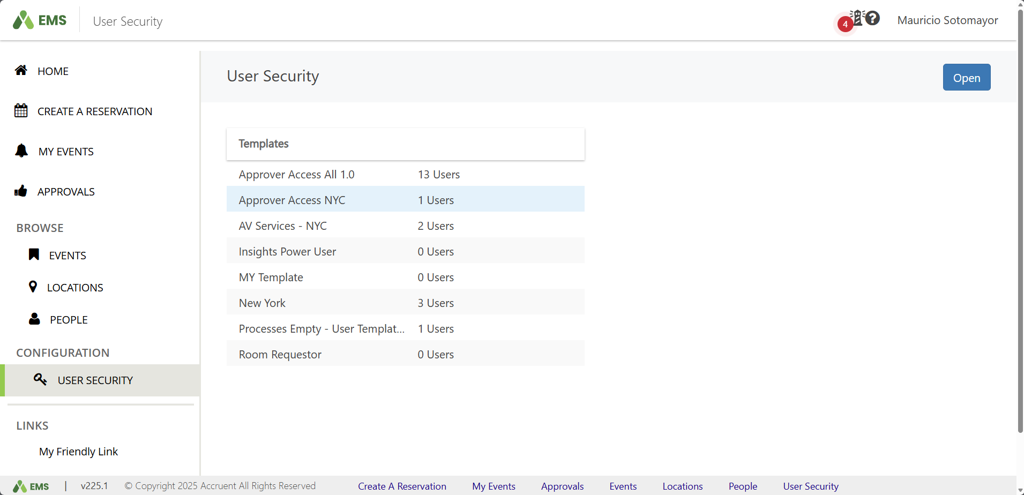
Navigate to Configuration > User Security.
The page displays the list of Expert User Templates used for your Desktop Client expert users. You can create or edit these templates in the Desktop Client.
-
Select the template you want to assign users to and click Open.
-
Select the users to assign and click Add Users.
The changes save automatically.
When an approver clicks Approve or Cancel for a reservation, EMS:
-
Updates the booking statuses they have access to, per the assigned expert user security template.
-
Sends a confirmation email to the requester, as defined in the Everyday User Process Template Confirmation configuration.