Create Templates for Desks and Workspaces
-
To configure facilities for your organization, configure the following elements of space as needed:
-
Setup Types
-
Rooms
-
Room Types
-
Areas
-
Public Views
-
Features
Consider using a naming convention or Public Area that groups workspaces and desks together in lists so they are easier to find during the configuration and booking processes.
-
-
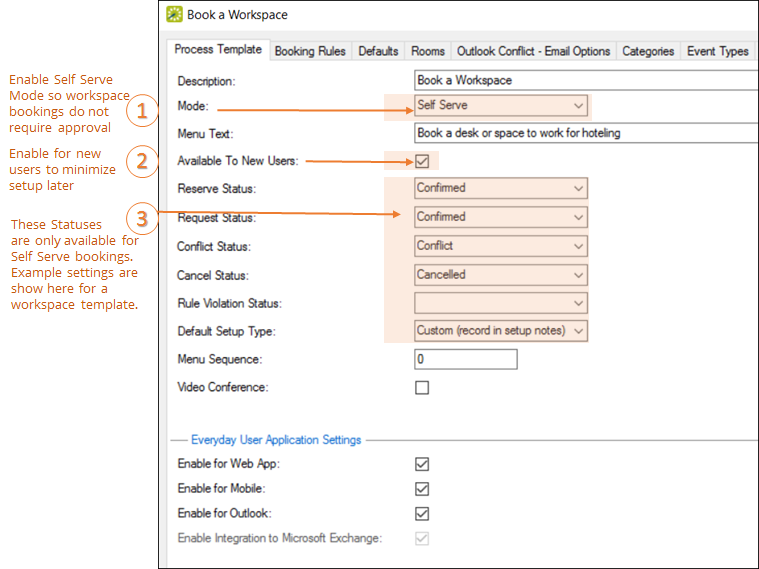
After you set up space, establish special booking templates for hoteling. Follow the workflow for building an Everyday User template. An example of this setup screen is shown below:
-
Enable the template for your users in the Everyday User Application Settings section:
-
Select Enable for Web App to enable the template on EMS Web App.
-
Select Enable for Mobile to enable the template for the mobile version of EMS Web App.
-
Select Enable for Outlook to enable the template for the optional EMS for Outlook add-in, which can override booking rules such that users can book a room that is in conflict. For this situation, you can also configure a system-generated email to be sent to the user if any rooms are not available for dates booked. An additional tab becomes available if you create a template with the option enabled, Outlook Conflict Email.
-
Select Enable Integration to Microsoft Exchange to enable the template for Microsoft® Exchange when your organization does not use EMS for Outlook.
-
-
Browse through additional tabs as needed on the template configuration page to add further customizations, such as Booking Rules, Defaults, Rooms, and Event Types.
-
To save your template, click OK. Authorized users see this option when they begin the booking process.