Creating a Scheduled Inspection
Once Inspections have been configured, you can combine an inspection with a procedure on a preventative maintenance schedule to schedule your inspection. This is done by associating the inspection to the procedure and then using that procedure on a schedule.
To associate an inspection with a procedure:
- Access the Knowledge module by clicking the Knowledge link at the top of the page.
- Select the Find Procedure tab to locate the procedure to be used with the schedule.
- Click the procedure name to open the Procedure Details page.
-
Click the Edit Procedure link.

-
Select an Inspection Class and an Inspection Type.
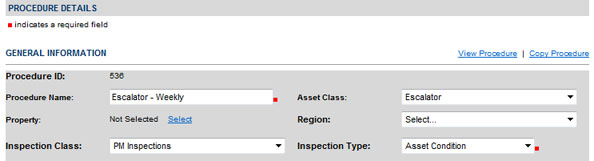
- Click UPDATE.
To create the schedule:
- Access the Schedule module by clicking the Schedule link at the top of the page.
- Select the Create Schedule tab to create a new schedule.
-
Select a Property, Space, Request Type, and SubType, and then fill in any other information.

- Click OK to save the schedule.
The inspection becomes part of the schedule on the Schedule Details page by associating the procedure the inspection is attached to with the schedule. To associate the procedure and inspection to the schedule:
- On the Schedule Details page, specify the Schedule Start/Finish date and time and configure the Recurrence Pattern.
-
Scroll down and open the Procedure pane.
-
Click the Select link and select the procedure that you associated the inspection with.

- Click UPDATE.
- Click FINISH to complete the schedule.
The Generate Schedule page creates work orders from the schedule that you have defined. Once you have generated the schedule, you can view one of the resulting work orders to verify that the inspection is attached. To generate and view the schedule:
-
On the Generate Schedule page, click the Generate Schedule button.
A dialog box opens asking you to confirm your choice.
-
Click OK.
A message is displayed indicating that the schedule has been created.

-
Click the View Schedule link.
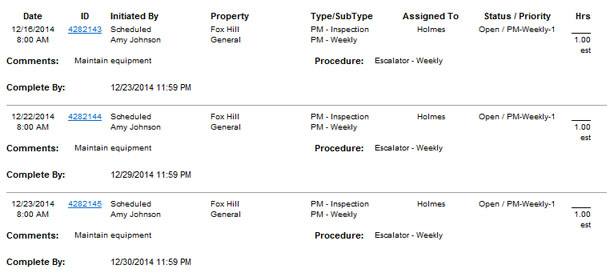
A list of generated work orders is displayed.
-
Click the work order ID link to view the first generated work order.
The Request Details page opens.
-
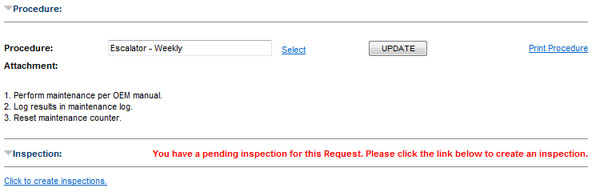
Scroll down to the bottom of the page and expand the Procedure and Inspection panes.
Both the procedure and the inspection are attached to the work order.
 Associate an Inspection with a Procedure