Internet Explorer 10 and Compatibility View
If you are running the system under Internet Explorer, your browser may have been automatically updated to Internet Explorer 10. If you are experiencing problems, setting IE 10 to Compatibility View may alleviate some user issues. Enabling compatibility mode in 360Facility is not a supported browser configuration and you may experience formatting issues when using it. However, if needed, the instructions below show you how to set up compatibility mode.
There are two options for putting Internet Explorer in Compatibility View. You can use either one.
To put Internet Explorer in Compatibility View using the URL bar:
-
Open Internet Explorer 10.
-
In the URL bar, on the right, click the torn-paper icon.

This enables Compatibility View. To verify, the icon should now be blue.

-
Close Internet Explorer 10.
You must close all IE 10 browser windows and reopen them for this change to take effect.
-
Reopen Internet Explorer 10 and continue working.
To put Internet Explorer in Compatibility View using the menus:
-
Open Internet Explorer 10.
-
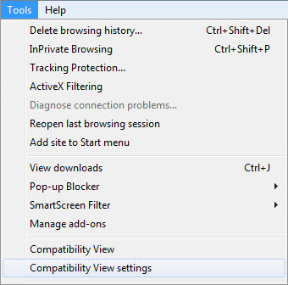
Select Tools from the menu bar.
-
Select Compatibility View settings.
The following dialog box opens.
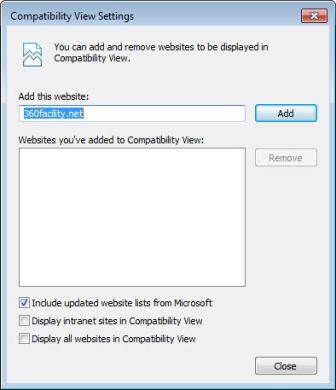
The system web site is displayed in the Add this website field.
-
Click Add.
The web site is added to the list of Compatibility View websites.
-
Click Close.
-
Close Internet Explorer 10.
You must close all IE 10 browser windows and reopen them for this change to take effect.
-
Reopen Internet Explorer 10 and continue working.
To disable Compatibility Mode using the URL bar:
-
Open Internet Explorer 10.
-
In the URL bar, on the right, right-click the torn-paper icon and select Command Bar.
-
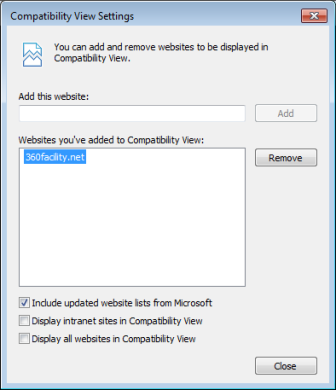
From the command bar, click the Tools drop-down menu, and then click the Compatibility View Settings option.
-
In the Websites you’ve added to Compatibility View list, select 360facility.net and then click Remove.
-
From the Compatibility View settings, there are several options that may get applied to all sites you access from Internet Explorer 10:
- Display all websites in Compatibility View – This displays all websites you access from your IE browser in compatibility view, which may not be optimal depending on the site you are accessing. This is NOT a valid configuration for using the 360Facility application, and it is recommended to leave this setting unchecked.
- Display intranet sites in Compatibility View - This displays all websites that are identified within your network to be displayed from your IE browser in compatibility view, which may not be optimal depending on the site you are accessing. This is NOT a valid configuration for using the 360Facility application, and it is recommended to leave this setting unchecked.
- Download updated compatibility lists from Microsoft - Click the link for more information about this option.
-
Close Internet Explorer 10 and reopen for changes to take effect.
 Set Up Compatibility View Using the URL Bar