How To: Update Estimated Labor Hours on a Schedule
Estimated labor hours are useful for holding maintenance staff accountable and ensuring proper use of time. There are two methods for updating estimated labor hours in a schedule:
Schedules can be updated individually through the Schedule Details page.
-
In the Schedule module, select the Find Schedule tab.
The Find Schedule page opens.
- Specify criteria to find the schedule you want to update.
- Click FIND.
- From the search results, click the schedule name to open the schedule you want to update.
-
Modify the Estimated Labor Hours.

- Click Finish.
- Click Update Schedule.
Schedules can be updated en masse on the Schedule Management page for any schedule where the estimated labor hours are specified on the attached procedure.
-
Access the Schedule module.
The Find Schedule tab appears by default.
-
Scroll down to the OTHER OPTIONS pane and click the Schedule Management link.
-
Specify criteria to define the group of schedules that your changes will be applied to.
Examine this list carefully to ensure that you want to modify the estimated labor hours of every schedule that is on this list. If you see one or more schedules in the list that you do not want to modify, adjust your search criteria and click FIND to remove those schedules from the list.
-
Scroll down to the Estimated Hours Update pane.
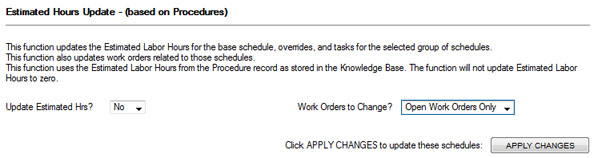
- In the Update Estimated Hrs field, select Yes.
- In the Work Orders to Change field, select which work orders to update, either all work orders or open work orders.
- Click Apply Changes.
 Schedule Details