How To: Create an Invoice from a Billable Work Order
You can use the system to create a billable work order with Labor, Material, or Other Costs. You can then invoice the billable work order by using Logbook Work Order Reports.
 Create a Billable Work Order
If you want to generate an invoice from a work order, you must mark the work order as Billable.
-
Access the Logbook module by clicking the Logbook link.
-
Select the Create Request tab.
The Create Request page opens.
-
Scroll down to the bottom of the page and open the Other Options pane.
-
In the Billable field, select Yes.
_600x123.png)
-
Click OK to create the work order.
-
Click the request ID link to open the work order.
The Request Details page opens. To create an invoice, you must add (labor, material, and/or other) costs to the work order.
-
Click the Work Order - Financial link.

-
Add labor, material and other costs to the work order.

- Scroll down to the Close Work Order pane and close the work order.
Run the Work Order Invoicing Report
Once you have closed your work order, you can then run the Work Order Invoicing report to create an invoice.
- In the Logbook module, select the Run Report tab.
- Click the Work Order Reports button.
-
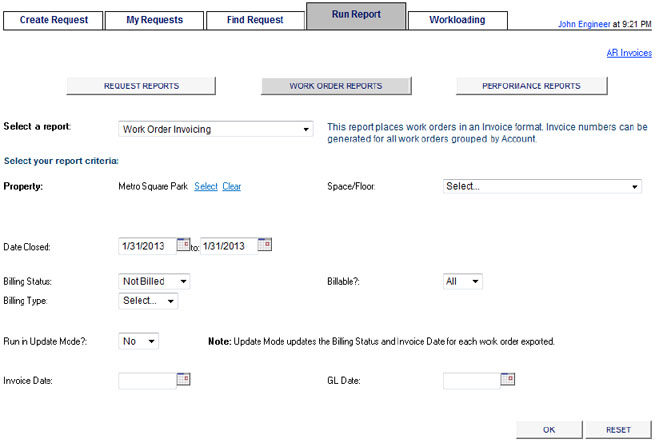
In the Select a report field, select the Work Order Invoicing report.
-
Verify that Run In Update Mode is set to No.
This will allow you to preview the invoice you are about to generate.
-
Click OK to run the report.
The invoice preview appears. The preview will not have an invoice number; instead, NA will be displayed.
-
Verify that the invoice preview is correct.
You can make changes to the work order or the costs if there are any errors.
- Once you are satisfied with the preview, return to the Run Report page and set Run In Update Mode to Yes.
-
Click OK to run the report.
A dialog box opens asking you to confirm your choice.
-
Click OK.
Your invoice is displayed. Unlike the preview, your invoice now has an invoice number.
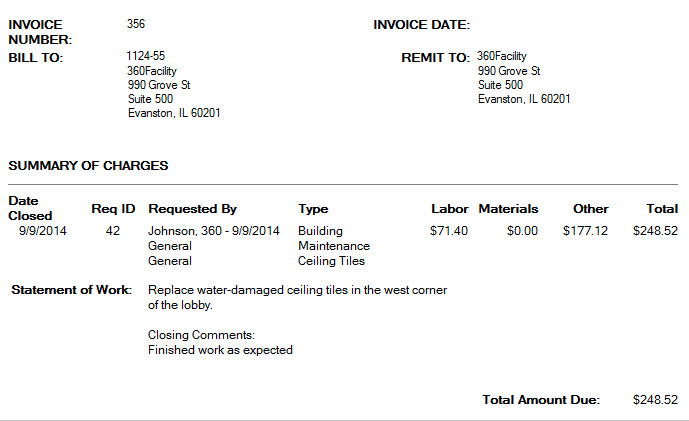
If invoicing multiple work orders, each work order is printed to an individual page.