How To: Add System URLs to Documents
When creating a document, HTML page, or presentation, you may want to insert a hyperlink that will link directly to a page in the system. You can link to a general application page, such as the Create Request page, or you can link directly to a page containing specific content, such as viewing work request #2245 on the Request Details page.
Once the link is in the document, users can click it and open the exact page you specified. If they are not logged on to the system, they must first sign in to ensure system security. However, once they have logged in, the can navigate directly to the specified page and any subsequent pages by clicking the embedded hyperlink.
This topic shows you how to capture the URL to the desired application page and paste it into a Microsoft Word document. However, this same technique can be used to link to a system URL from other sources, such as a web page, PDF file, or tutorial.
Capturing the appropriate URL is a matter of navigating to the desired page and copying the URL from your browser's address bar.
-
Log on to the system using your user name and password.
-
Navigate to the page you want to link to.
You can navigate to a general page, such as the Create Request page or to a specific item page such as the Asset Details page for specific asset.
-
Click into the address bar on your browser and select the entire URL.

In this example, a specific asset is included (AssetID=1550).
-
Copy the URL by either right-clicking and selecting Copy or by pressing CRTL-C.
This procedure uses Word 2010, but the process is similar in all Word versions or in other types of files.
-
Open the Word document you want to add the URL to.
-
Place your cursor in the document at the location you want to paste the URL.
-
Past the URL (using either Edit > Paste or CRTL+V).
The URL may not appear as a hyperlink until you press the Return key.
-
Repeat this procedure for every URL you want to insert.
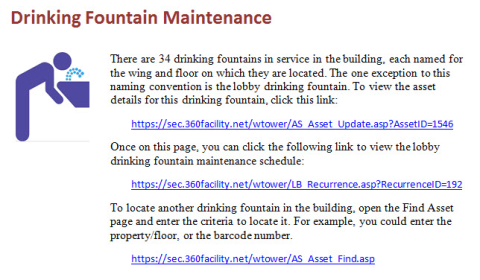
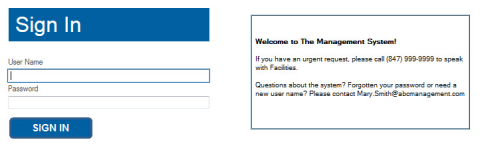
The first time a user clicks a link embedded in a document, he will be prompted to sign in if he is not already logged in to the system. This is done to ensure that only people with valid security credentials can access the system.
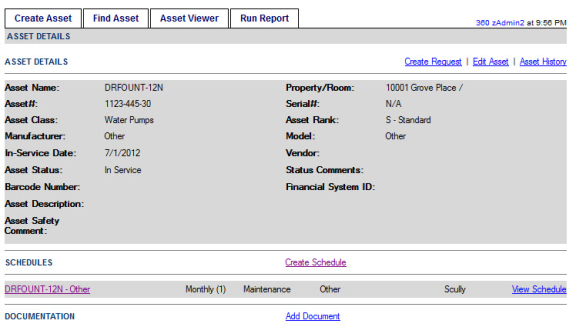
Once the user logs in, he will be taken directly to the page the link points to.
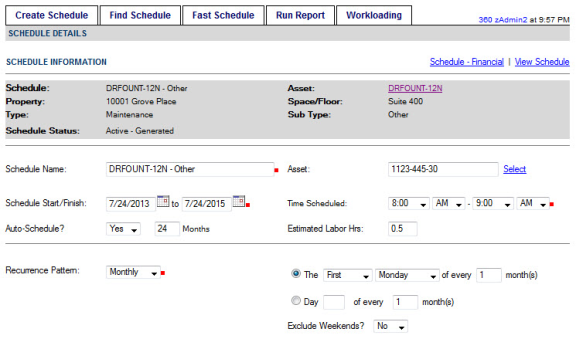
If he clicks another link, he will be taken directly to that page, without needing to sign in again (as long as he remains logged in).
 Capture the Appropriate URL